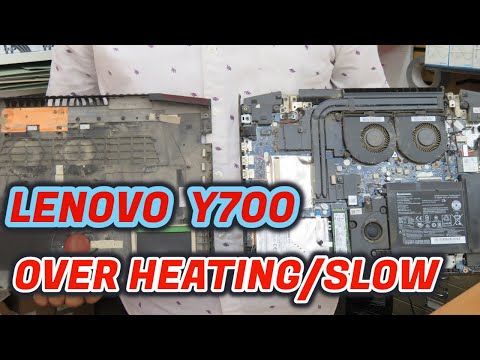
You know when you’re just trying to watch a movie or get some work done, and it feels like your laptop is about to take off? Yeah, that’s frustrating. It’s like you’ve got a mini heater on your lap instead of a laptop.
So, anyway, I once had this issue with my old laptop. Every time I’d try to relax, the fan would sound like it was auditioning for the next big storm. Turns out, my Nvidia GeForce 720M was the sneaky culprit.
But why does this happen? Well, it’s kinda common with older setups. These graphics cards can heat things up faster than you’d expect—especially if you’ve had yours for quite some time.
So let’s figure out what’s going on there and maybe save you from turning your room into a sauna!
GPU Laptop Temperature Safety
You know how it feels when your laptop turns into a mini heater? It’s like, you could almost warm up your hands when it’s cold out! Yeah, that’s usually not a good sign. One of the possible culprits can be your GPU getting too hot. So let’s chat about this.
Understanding GPU Temperature
Your laptop’s GPU, or graphics processing unit, is its little brain handling all things graphics. Now, think of the Nvidia GeForce 720M – it’s an oldie but still found in many laptops. It’s job? Handling video playback and gaming smoothly. But here’s the catch: it generates heat, and if it overheats, we might have some trouble.
Why Overheating Happens
Several factors can cause overheating on your Nvidia GeForce 720M:
- Poor Ventilation: Your laptop needs to breathe! If vents are blocked by dust or surfaces like pillows (yep, I’m guilty too), airflow is restricted.
- Old Thermal Paste: This tiny layer helps transfer heat away from your GPU to its cooler parts. Over time though, it dries up and loses effectiveness.
- High Workload: Running resource-heavy games or software can push the GPU hard causing more heat than usual.
The Safe Temperature Zone
Now you’re probably wondering what’s safe here? Generally speaking; GPUs should stay under **85°C** during heavy use (that’s Celsius by the way). Of course while idling they should be significantly lower—around 40-50°C range.
Tackling The Heat Problem
Time for solutions my friend! Here’s what you could do:
- Cleansing Your Laptop: Dust bunnies love nesting inside laptops; get rid of them using compressed air cans—it makes such a difference!
- Laptop Cooling Pads: A quick fix – these nifty gadgets come with built-in fans designed specifically to keep things chill underneath.
Personal tidbit alert! Once upon an evening spent binge-watching shows on my couch without realizing air vents were blocked—lesson learned right after feeling those molten-hot keys!
If you’ve Tried Everything…
Well sometimes despite best efforts nothing seems does trick completely… That may mean seeking advice from pros who know exactly what they’re dealing with regarding hardware issues specific models etcetera!
Hope things cool down beautifully at home!
Causes of Sudden Overheating in Gaming Laptops
Ah, gaming laptops. They’re like a trusty sidekick in the thrilling world of virtual adventures. But sometimes, they can get all fired up, and not in the good way. Ever noticed your laptop getting *really* hot during an intense gaming session? Let’s chat about why this might happen—especially with that Nvidia GeForce 720M you’re using.
1. Exhaust Vents Blockage
- Why it matters: Gaming laptops need to breathe! If dust or dirt clogs up the vents, your laptop’s just going to keep heating up.
- What to do: Time for a little cleaning session! Get a can of compressed air and gently blow out those vents.
2. Outdated Drivers
- The deal: That Nvidia GeForce 720M needs its drivers fresh and updated to run efficiently.
- Your move: Hop onto Nvidia’s website or use their software tool to check for any updates you might have missed.
3. Lack of Thermal Paste
- Explanation: Inside your laptop, thermal paste sits between the CPU/GPU and its cooler—helping transfer heat away effectively.
- Solve it by: Reapplying thermal paste every couple years can make a surprising difference in keeping things cool.
4. High Ambient Temperature
- The scenario: If you live somewhere hot or are using the laptop in a stuffy room…it’s more likely to overheat.
- A quick fix: A cooling pad could really help here by providing extra airflow below your device while lifting it slightly off surfaces so warm air doesn’t get trapped against those underlying cases as easily either .
5 . Heavy processing tasks:
-
Sometimes overheating creeps up while doing intensive activities like gaming , video editing , etc . This increases pressure on CPU / GPU which tend heat rapidly . B > Example games that demand higher graphic oomph include titles ”Witcher III ‘,’ Assassin Creed Odyssey’ among other high specs ones causing laggy frame rates along sluggish speeds much annoynace during crucial levels !} So use wisely balancing settings options carefully balancing needs framerate adjustments resolution tweaking where possible along potential upgrade considerations if within budgetary means reducing strain your current setup end result improving performance lifespan same breath win /win situation now isn’t ?
- Unexpected Shutdowns: If your laptop decides to take random naps, heat might be causing it.
- Loud Fan Noise: Like when your laptop suddenly sounds like it’s trying to take off.
- Performance Drops: If games or apps seem slower than molasses, overheating might be at play.
Nvidia GeForce 720M Overheating Issues
Sure thing! Let’s chat about the Nvidia GeForce 720M and those pesky overheating issues. You know, it can be quite a hassle to deal with, but don’t worry, there are a few things you can do to manage this situation.
Why Does Overheating Happen?
Overheating in laptops with an Nvidia GeForce 720M can be a bit of a drama. It’s like your laptop’s version of getting all hot and bothered on a summer day! But why does it happen? Well, it’s usually because there’s too much heat building up inside the laptop without anywhere to go. This can be due to dust blocking the fans or maybe just high-intensity tasks pushing your little GPU harder than usual.
Signs Your Laptop is Overheating:
Tackling The Heat Head-On
First off, let’s give that laptop some fresh air:
– **Clean Those Fans:** Dust is like kryptonite for laptops. Grab some compressed air and gently clean out those vents.
– **Use A Cooling Pad:** Think of it as giving your laptop its own personal fan club. This helps keep things cooler by improving airflow.
– **Check Background Applications:** Sometimes apps sneakily run in the background using up resources. Double check you don’t have any unnecessary ones open.
**Software Alternatives:**
Adjusting software settings might sound fancy but it’s simple—it’ll help keep that GeForce 720M running smoother:
– **Update Drivers:** Outdated drivers are like stale cookies; no one wants them! Visit Nvidia’s site for fresh updates.
– **Power Settings Adjustment:** Tweak these so that less energy means less heat during normal use.
Remember when I had my old buddy’s laptop acting weird at an event? Cleaning out his fans and updating his drivers practically brought it back from tech trouble land!
Keeping track of these tips should make dealing with overheating easier than running around finding charging spots everywhere…you follow?
Hope this helped shed some light on how these overheating issues work—and how easily they can often get sorted out!
Alright, let’s get into this. Have you ever sat there on a hot summer day, feeling the warmth creeping up from your legs to your palms as you use your laptop? It’s like the laptop itself is trying to compete with the sun! That’s what happened to my friend recently when he discovered his old laptop was getting hotter than usual. After a bit of investigation, he found out that it was his Nvidia GeForce 720M that was behind it all.
Now, these older graphics cards like the GeForce 720M were once the stars of their time, giving users that extra graphical power needed for games or graphic-intensive tasks. But over time—and especially with demanding software—they can start running hot. I mean really hot. Like trying to fry an egg on its surface kind of hot.
So what’s going on really? Well, think about this: as tech gets older, it kind of loses its mojo and can struggle under pressure if it it’s pushed too hard. The GeForce 720M might be doing just fine in general use but throw in a graphics heavy task and bam! It’s working overtime and heating up fast.
If you’re facing this overheating issue (and it’s more common than you might think), there are some simple things you can check first before diving into panic mode. Make sure there’s no dust clogging those vents; laptops love fresh air just like we do! And who knows? Maybe propping your device on a cooling mat or even elevating it slightly might give it enough breathing room to chill out.
To be honest though some folks find themselves having to tweak settings—like lowering game resolutions or graphic settings—just so their laptops don’t feel like mini space heaters. A proper balance between performance and temperature is key here!
In any case remember that these older pieces of tech have served us well over time and sometimes they just need a little TLC from users like us so we can keep them running smoothly without turning into furnaces at our fingertips! Keep an eye on those temps and spread around some techie love care once in awhile—you’ll thank yourself later!