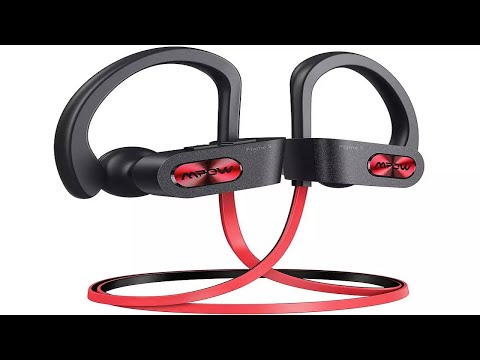
Oh man, I totally get it—tech can be such a pain sometimes! You’ve got your Mpow headphones ready to go, and… bam! They just won’t connect to your Windows 10 PC. Frustrating, right? It’s like setting up a date and having them not show up. We’ve all been there.
You’re sitting there thinking, “What gives?” Maybe you’re ready for some music or a virtual meeting, but the sound isn’t cooperating. Don’t sweat it—you’re definitely not alone in this struggle.
Let’s face it: tech issues can feel like they’re speaking another language sometimes. But hey, there’s light at the end of the tunnel! With just a few tweaks here and there, we can get you back on track with some sweet audio goodness.
Headphones Not Recognized by Windows 10
Oh no! It’s annoying when your headphones aren’t connecting to your Windows 10 PC. If you’re having trouble with Mpow headphones not being recognized, relax and let’s walk through some things you can try to fix it.
First off, make sure Bluetooth is turned on on your computer. Sounds obvious, right? But sometimes we overlook simple things. Just head over to your settings and check if Bluetooth is enabled.
- Click on the Start menu.
- Select Settings.
- Go to Devices, and then click on Bluetooth & other devices.
- If it’s off, switch the toggle for Bluetooth to turn it on.
Another thing that might do the trick: have you checked if your headphones are in pairing mode? For Mpow headphones, you usually hold down the power button until you see a blinking light. Trust me, I once spent half an hour wondering why my own wouldn’t connect before realizing they weren’t even in pairing mode!
Now let’s talk drivers because they’re vital. Outdated or missing sound drivers can create hiccups too. Here’s what you could do:
- Right-click on the Start button and select Device Manager.
- Select Sound, video and game controllers.
- Right-click your audio driver (for wireless devices like yours it might appear as ‘Bluetooth Audio Device’), then choose Update driver.
Sometimes what it takes is a quick reinstallation: uninstalling and reinstalling them can help sort out stubborn issues. Look for any device that mentions audio under Network adapters or Human Interface Devices—Mpow’s might be lurking there.
Oh! And let’s not forget about those settings buried deep down in the sounds section of control panel:
- Open Control Panel.
- If your Mpow headphones are listed but not set as default device—give them a tap and hit Set Default at bottom corner its window!
, then open Playback tab.
Lastly—and although slightly technical—checking Audio Enhancements option being turned off helps circumvent muffled or distorted audio reception issues >>
1.ClicK Right -speaker icon located system taskbar select playback>> properties > Enhancements tab>; deselect Disable all enhancements given chance!”
Keep fingers crossed after trying these steps since hopefully successfully getting tunes flowing back beats usual routine once more life’s little victories worth celebrating!
Connecting Mpow Headset to PC
Oh, connecting your Mpow headset to a Windows 10 PC? It can be a bit tricky sometimes! But hey, don’t worry. Let’s get this sorted out.
First things first. You’ll need to make sure your computer’s Bluetooth is enabled. Without that, well, nothing’s gonna happen! Here’s the scoop on how to do it:
- Click on the Start menu and select Settings.
- Head over to the section called Devices.
- You’ll see an option for Bluetooth & Other Devices. Make sure Bluetooth is turned on.
Now, time to get that Mpow headset into pairing mode. Grab your headset and press down the power button till you see a flashing light—usually blue or red. This means it’s ready to pair.
Back at your computer:
Once you have Bluetooth activated and your Mpow is in pairing mode, you’ll want to pair them up:
- In the same Bluetooth & Other Devices section, click on where it says: Add Bluetooth or other device.
- Select Bluetooth, and a list of discoverable devices should pop up.
- Your Mpow headset should appear here—if not, try refreshing the list! Click on it when you see it.
Your PC might request a code from you during this process; type “0000” if required—it’s commonly used for headsets.
An important thing that happens sometimes: If you’ve already connected before but now having trouble reconnecting—or if no sound comes out—the headset may still be remembered by Windows. In this case:
- Go back into the list of paired devices under Bluetooth settings.
- If you see Mpow listed there (but isn’t connecting), remove/unpair it first by clicking “Remove device”.
These steps usually result in a smooth reconnection experience 😊 Remember though computers can sometimes forget their manners… If after doing all these steps you’re still stuck? A basic restart might just do wonders!
It reminds me once trying my darnedest making tech behave during those tense moments when deadlines loom…not ideal! But once everything clicked again—you know like magic—it became such sweet relief 😅 So keep calm as solutions are usually within reach!
Bluetooth Audio Output Not Working in Windows 10
Oh no, your Bluetooth audio’s acting up on Windows 10? No worries, we’ve all been there. Sometimes technology decides to stir a little drama for no good reason, right? Let’s untangle this knotted mess together.
First off, make sure your Mpow headphones are in pairing mode. You know how it goes—hold that power button until it flashes like a disco light. If they’re not already paired with something else, like your phone or tablet, you should be good to move forward.
- Check Bluetooth Settings: Jump into your computer’s settings (just hit the Windows key and type “Bluetooth” to find it quickly). Make sure the Bluetooth toggle is switched on. It might sound obvious but hey, we overlook things when we’re in a hurry.
- Remove Old Connections: If your Mpow seems shy about connecting, maybe it’s got too many friends already! Try removing old connections you don’t use anymore by clicking on them and selecting “Remove Device.”
- Update Drivers: Outdated drivers can be sneaky little troublemakers. Head over to Device Manager (you can search for it in the Start menu) and look under “Bluetooth.” Right-click your headphones if they show up and choose “Update Driver.” Follow those steps to see if that does the trick.
- Tweak Audio Settings: Even when connected properly sometimes the audio’s just silent—crazy right? So click on that small speaker icon at lower right of your screen then select “Playback devices.” Ensure Mpow is set as default; just right-click and pick “Set as Default Device.”
- Troubleshoot Automatically: Windows isn’t all bad at finding its own issues sometimes.If nothing works still go back into Bluetooth settings where there’s an option called ‘Troubleshoot’. Give it tap maybe the magic fix lies there!
Every now ‘n then computers act stubbornly without any logical reason behind issues arising from nowhere causing headaches galore! Like one time my speakers muted ‘cuz cat sitting keyboard — genuine mystery unfolded hours later whoda thunk?!
If all of these steps still don’t get music streaming sweetly through those Mpows try rebooting both devices because honestly – isn’t “turning off/on again” universal tech mantra solving everything? And worst comes to worst contacting Mpow support isn’t completely outta realm possibility either considering they’re experts these matters.
Feeling better equipped handle wireless woes huh buddy? It happens best us trust me patience perseverance pay off much satisfaction glorious uninterrupted audio waits end road ahead!
You know, tech issues can really be a bit of a headache sometimes. I remember this one time when I was super excited to use my Mpow headphones with my Windows 10 PC. I mean, there’s nothing quite like the feeling of diving into your favorite tunes or gaming with quality audio. But guess what? They just wouldn’t connect! Oh boy, talk about frustrating.
So here’s the deal: there could be a bunch of reasons why these things happen. One possibility is that Bluetooth on your PC might be acting up—like maybe it needs updating or it’s turned off. Sounds simple, right? But you’d be surprised how often we forget to double-check those little settings.
Another thing to consider is whether the headphones are in pairing mode correctly. It sounds silly ’cause most of us think we’ve done it right but hey, sometimes the simplest steps trip us up! You usually have to press and hold a button until you see some flashing lights indicating they’re ready to pair.
And don’t even get me started on drivers—you know those invisible bits and bobs that make devices play nice together? If they’re outdated or corrupted, well…no luck connecting anything smoothly.
Oh! And let’s not forget interference from other devices using Bluetooth at the same time. Like if you’ve got speakers or even your phone working nearby, that could mess things up too.
If all else fails, a good old restart—both for your PC and headphones—might do wonders!
Honestly though, once you figure out what’s going wrong and get everything synced up just right, it’s such an amazing relief—the moment when sound comes through crystal clear after all that effort is like winning a small battle! It reminds me how much we sometimes take technology for granted until it throws us a curveball.
Anyway, patience and some trial-and-error usually do the trick in these situations. And hey—next time you’re rocking those tunes uninterrupted through your Mpow headphones on Windows 10—you’ll appreciate them even more after what you went through getting them connected!