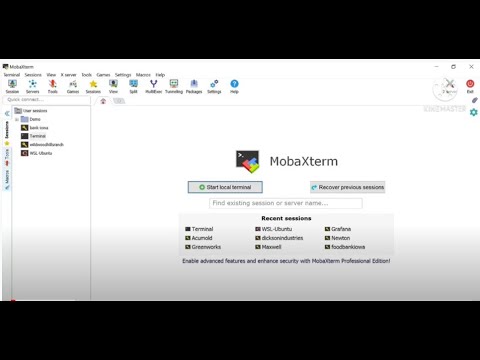
Oh man, nothing’s more annoying than sitting down, ready to SSH into your server with Mobaxterm, and then—bam—connection timeout. Seriously, the most frustrating thing ever! I get it, you’re not alone. This happens on Windows systems sometimes.
You know that feeling when everything’s going smooth and then tech decides to throw a wrench in your plan? It’s like your computer suddenly goes “nope, not today.” But don’t worry, we’re gonna sort this out together.
Let me share a couple of things you can check to get past this hiccup. I promise it’s simpler than you think! Ready to fix this once and for all? Let’s jump in and tackle that pesky timeout issue.
Preventing SSH Connection Timeout
Hey there, let’s talk about preventing SSH connection timeout in MobaXterm when you’re using it on Windows systems. It’s really common, you know? You’re working away, and then—bam! The connection drops. Super annoying, right? Let’s see how you can tackle this.
Why does SSH Timeout?
First off, understand that SSH connections might timeout due to inactivity. Imagine your computer sipping a latte; it’s all chilled until it gets bored and just stops talking. That’s kind of what happens. The server decides the connection is idle and ends it to free up resources.
Steps to Prevent Timeout
You can tweak some settings in MobaXterm to keep that connection alive:
- ClientAliveInterval: Before jumping into MobaXterm specifics, get familiar with this concept. It tells the server to keep testing if the client (you) is still around by sending periodic requests.
- Edit SSH Configurations: Open MobaXterm and go into your session settings. Find where you can configure your individual SSH session’s parameters.
- Add Keep-Alive Packets: Under the “SSH Settings” tab for each session you use most often, locate an option or field for sending alive packets or something similar like keep-alive messages.
- Set intervals like every 60 seconds—enough time for a quick nap but not long enough for a disco nap!
- If something says “ServerAliveInterval,” try setting that too—it aims at checking from the client side instead of server.
MobaXterm Preferences
Head into global settings if adjusting per session feels cumbersome:
- Select “MobaXterm Preferences” from the main menu.
- Explore sections under network settings looking anything related towards network stability options while using SSH connections!
Troubleshooting Tips
Sometimes even after all these tweaks things aren’t perfect—that’s tech life sometimes!
- If problems persist maybe review firewall configurations both locally plus remotely as they could interfere unexpectedly causing those painful disconnections uninvitedly.
Configuring SSH Keep-Alive Settings on Windows
Alright, so you’re dealing with SSH connection timeouts on your Windows system using MobaXterm? That’s a bit of a hassle, isn’t it? But don’t worry, you can tweak the keep-alive settings to keep that connection alive and kicking. Let me walk you through this.
Understanding SSH Keep-Alive
Here’s what’s going on: SSH connections can drop if there’s no activity. This is where “keep-alive” settings come in handy—they send signals to maintain the connection. Think of it like nudging your friend every few minutes just to say, “Hey, I’m still here!”Configuring Keep-Alive Settings in MobaXterm
OK, let’s dive into how you can set up these keep-alive messages in MobaXterm:- Open MobaXterm: Fire up your MobaXterm application—as simple as double-clicking the icon. You got this!
- Edit Session: Navigate to the Sessions tab at the top. Once there click on the session you want to configure.
- Tweak Advanced Settings: Head over to Advanced SSH Settings.
- Enable Keep-Alive: Find and check the box labeled “Enable SSH keepalive”. This helps maintain that handshake between your computer and server.
- Set Keep-Alive Interval: You’ll see an option for specifying intervals—try starting with something like 60 seconds. Adjust if needed!
An emotional anecdote? Sure thing! Remember that one time my own SSH session dropped right when I was about to hit save on an important file? Yeah, had a mini-heart attack. Ever since then I’ve been religious about configuring those keep-alive signals!
Troubleshooting Tips
If you’re still encountering issues after doing all that:- Check System Configurations: Verify if there are firewall rules or system policies interfering with connections.
- MobaXterm Version:: Ensure you’re using an updated version of MobaXterm—it may include fixes or improvements related trouble-making connnections.
Give these steps a shot! You’ll likely see fewer disconnects—as stable as sitting by a cozy fire without any interruptions . Take charge over those bothersome dropouts forevermore!
Preventing PuTTY SSH Connection Timeout
When you’re using SSH clients like PuTTY or MobaXterm on Windows systems, sometimes you run into these annoying connection timeouts. Yeah, it can be super frustrating! You know, you’re in the middle of something important and bam—your connection drops. Let’s chat about how to prevent that from happening.
Understanding SSH Connection Timeout
First things first, let’s get a grip on what an SSH connection timeout is. Basically, it’s when your SSH session disconnects because it hasn’t sent or received any data for a set amount of time. Think of it as your computer taking a nap because there wasn’t anything exciting happening!
Why Does This Happen?
There are a bunch of reasons this could happen: network hiccups can cause connections to idle, or the server might have rules for dropping inactive sessions.
- Network Inactivity: The network simply decides nothing much is happening and decides to cut ties.
- Server Timeouts: Some servers have policies that automatically disconnect sessions after being idle.
Tweaking PuTTY Settings
Now don’t sweat! Here are some practical steps to keep that pesky timeout at bay when using PuTTY:
1. Enable Keepalives:
This is like poking the server every now and then just to say “Hey, I’m still here!” In PuTTY’s configuration window:- Select ‘Connection’ from the Category list.
- You’ll see a field labeled “Seconds between keepalives.” Set this value to something like 20–30 seconds.
2. Adjusting Session Disconnection Settings:
Make sure you uncheck the “Disconnect if idle” option if available.3. Saving Your Settings:
After making these changes, head back up to “Session,” type in a name under Saved Sessions, and click “Save.” That way next time you’ll hop right onto your new settings without fuss!MobaXterm Tweaks
For those who prefer MobaXterm over PuTTY:
- Edit your session by going into ‘Session’ settings.
- bFind ‘SSH-browser’ options,/ib
The Joy of Consistent Connections!
Oh boy, Mobaxterm SSH connection timeouts can be a real pain, can’t they? I remember the last time I dealt with one—I was all set for an important remote session with a server that seemed like it had its own mind. Just when everything seemed right, boom! Connection timeout.
So what’s going on when that little message pops up? Well, think of it this way: SSH (Secure Shell) is like this private conversation between your computer and the remote server. It’s supposed to be swift and secretive, so nobody eavesdrops. But sometimes the line gets tangled up along the way.
Now, if you’re on a Windows system using Mobaxterm and hit this snag, there’s a couple of things you might wanna check out. First off, take a peek at your network settings. Is there any firewall or antivirus software blocking the path? Windows Defender or certain third-party firewalls love to play bouncer—they might not recognize Mobaxterm as a VIP guest in your network club.
And then there’s your router settings too. Routers tend to have these nifty little tricks like NAT (Network Address Translation) which sometimes need adjusting because they decide how traffic flows through your local network.
Another friendly tip: just check those SSH config settings! Little changes there can work wonders if you’ve got parameters that are too strict or values set wrong for timeouts.
In my case—once I figured out what was messing up with my session—it turned out to be something silly and simple: an update reset my firewall rules without asking me first! Can you believe it?
You know how computers sometimes feel less like obedient machines than mischievous gremlins? Always keep calm while dealing with them; you’ll eventually solve it… It’s part problem solving mixed with some patience—and maybe just enough coffee to keep sane through random reboots!
So next time connection issues pop-up outta nowhere—you got this—take it as part of life’s tech adventures figuring things piece by piece until everything clicks into place again.