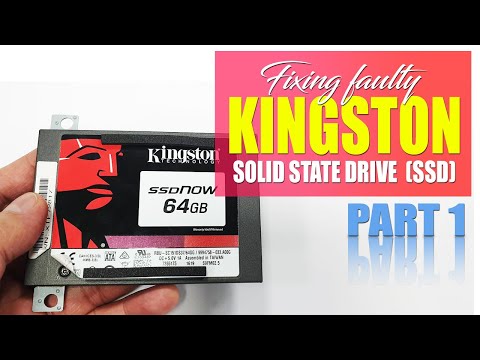
Oh man, picture this. You’re all set to upgrade your PC, and you finally get your hands on that shiny Kingston SA400S37 SSD. But here’s the kicker: when you fire up your system, it’s nowhere to be found in the BIOS. Poof! Like magic, only not the fun kind.
As frustrating as it sounds, you’re definitely not alone in this. I’ve seen seasoned techies pull their hair over this exact issue—honestly, it’s maddening! But don’t fret too much; there are some steps that might just help you figure things out.
So here we are. Let’s try and unravel this mystery together by going over some diagnostics steps to get that sneaky SSD detected once and for all! Ready? Let’s jump in!
BIOS Settings for Kingston SSD Recognition
Hey there! So, you’ve got a Kingston SA400S37 SSD that’s not being detected in your BIOS. Yeah, that can be a bit frustrating, but the good news is there’s a set of diagnostic steps you can follow to get things up and running.
Start with checking connections:
- First off, let’s make sure your SSD is snugly connected. It’s like when your phone charger isn’t fully plugged in—simple, but sometimes overlooked. Ensure both the power cable and SATA cable are securely attached to the SSD and motherboard.
- If you have an extra SATA port or cable available, try swapping them out. Cables can go bad without any visible damage.
Dive into your BIOS settings:
- Once your connections are double-checked, reboot and enter BIOS. You know that moment during startup where you hit F2 or Delete repeatedly? That’s what we’re going for!
- In the BIOS menu, navigate to the **Boot** section where all recognized drives are listed. If it’s not showing up here, don’t worry; there are more things we can try.
Enable AHCI mode:
- AHCI stands for Advanced Host Controller Interface—it optimizes drive performance and speed. Head over to **Integrated Peripherals** or **Advanced Settings**, depending on what your BIOS calls it.
- You should see options related to drive configurations like IDE, RAID, or AHCI modes—make sure it’s set to AHCI.
SATA Controller:
- The SATA Controller option should be enabled for the port where you’ve connected your Kingston SSD. It might just need a little nudge from disabled status!
Save changes and exit:
After making these adjustments, save changes (there’s usually an option at the bottom of most screens), then restart.
If it still doesn’t pop up after all this tinkering—I’d suggest trying out this old trick: reconnecting the drive on another computer if possible; determines whether there’s something specific about its current setup causing issues.
And hey—you now have some tools under belt when hardware acts snooty next time around!
Kingston SSD Detection Issues
Here’s something for you about dealing with Kingston SSD detection issues. It’s something many folks have bumped into, especially with models like the Kingston SA400S37. Let me guide you through some practical steps to troubleshoot this.
First, let us start by emphasizing the basics because they often hold the solution. Check your connections. I remember once, a friend couldn’t get his SSD to show up at all, only to find later it wasn’t plugged in properly! Oh boy, did we laugh about that one.
- Check Physical Connections: Make sure both power and data cables are securely connected. A loose connection is more common than you’d think.
- Swap Cables: Sometimes it’s just the cables giving you grief. Try using different SATA cables and see if that resolves the issue.
- SATA Ports: Switching to a different port and checking BIOS again can sometimes do wonders.
The thing is, if your SSD still doesn’t show up after you’ve examined these connections, it might be time to dive into a few settings.
Now let’s check your BIOS settings because that’s another sneaky spot where things mess up. You know how technology can sometimes act like it’s got a mind of its own? It’s there in BIOS too!
- Enable SATA Controller: Ensure that SATA ports are enabled in BIOS settings. If they’re disabled, your drive won’t be detected no matter what.
- SATA Mode Settings: Adjusting modes between AHCI or IDE has worked for some people experiencing detection issues.
- Update BIOS: Outdated firmware might not recognize newer hardware components like an SSD.
If none of this does the trick and you’re left scratching your head wondering what’s left—consider software-level inconsistencies or even hardware failures.
Troubleshoot Further with Software Tools:
Try booting from a USB drive and using disk management tools to see if the drive is recognized outside of Windows’ native environment. It’s helped quite a few techies out there who found their drives recognized this way even when BIOS wasn’t picking them up initially.
Finally—and I hope it doesn’t come to this—it could very well be an indication of faulty hardware on some level if these steps haven’t helped identify where things go wrong—or signal towards possible returns or exchanges under warranty policies available from vendors themselves (gladly!).
I hope at least one step clears everything without having reached end-limits so fast unnecessarily!
Kingston SSD Manager Detection Issues
Having trouble with your Kingston SSD Manager not detecting your SA400S37 in the BIOS? Don’t worry, you’re not alone. It’s a common hiccup that can happen, and there are a few basic steps you can follow to get back on track.
First things first, let’s make sure the basics are covered:
- Connections: Double-check that everything is snug. Ensuring both the SATA cable and power cable are properly connected can sometimes solve detection issues instantly.
- BIOS Settings: Dive into the BIOS menu when booting up your PC. You want to ensure that AHCI (Advanced Host Controller Interface) mode is enabled. It’s this little setting that’s often responsible for communication issues with SSDs.
If those don’t do the trick, it might be time to consider some other possibilities:
- Cable Swap: Try using a different SATA cable or test a different port on your motherboard. Cables can occasionally fail without any apparent reason.
- Power Check: Different systems handle power distribution uniquely—if you have another device handy, see if it powers up using these cables.
A friend of mine had faced something similar last month—it turned out he just needed a firmware update! Speaking of which…
Firmware Updates:
Sometimes an outdated firmware is all that’s standing between you and smooth operation. Head over to Kingston’s official website where they provide updates specific to their drives.
Finally, it might sound odd, but sometimes simply resetting things in BIOS does wonders:
- BIOS Defaults: Sometimes tinkering inadvertently unsettings things in mysterious ways—restoring defaults could help re-align everything without causing major changes.
If nothing helps after trying all these suggestions… well then maybe checking compatibility regarding drivers or software clashes also worth exploring further down along tech avenues proactively responding through forums dedicated towards enthusiasts sharing experiences navigating issues yours appears similar towards resolving across community supported collaborations likewise addressing frustrations others may encounter akin situations alike!
Oh, the pain of technology not behaving as expected, right? It’s like that one time my friend was making their favorite cake. Everything seemed perfect—until they realized they’d missed a key ingredient. Similarly, you’re all set to enjoy the benefits of your Kingston SA400S37 SSD, and then—bam!—BIOS doesn’t even acknowledge its existence. Frustrating stuff!
First things first, you want to double-check if the drive is properly connected. It’s surprisingly common for connectors to get a bit loose—like when you have those wobbly table legs at your favorite diner. If it’s not snugly in place, nothing’s going to happen. So unplug and replug; just ensure everything clicks in nicely.
Next up, dive into the BIOS settings themselves—not unlike spelunking into a mysterious digital cave. Look for sections related to storage or SATA configuration; sometimes drives are disabled by default or set on an incompatible mode. Every BIOS looks different though because manufacturers love doing their own thing.
Sometimes updating the motherboard firmware can help out big time. Manufacturers release fixes for various bugs on occasion—as frequently as coffee shops change baristas! Just be sure you’re downloading updates from official sources so no bad surprises sneak in with them.
And here’s where it gets interesting: different SATA ports behave differently sometimes due to configurations we might’ve forgotten about or overlooked during setup trials over time (I know I always forget). Swapping your SSD connector from one port on motherboard-to-another is worth trying before pulling hair out in frustration!
Hope these pointers shed some light on this tech hiccup—it’s part detective work and part puzzle-solving but rewarding once you crack it!