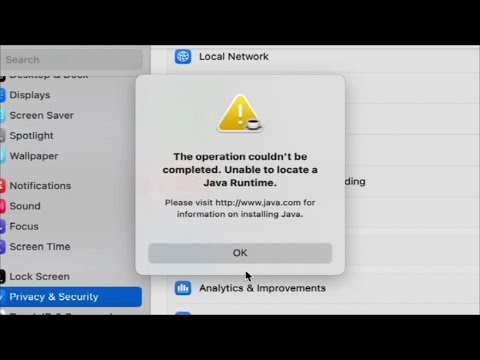
Okay, imagine this. You’re all set to dive into something cool on your Mac. Maybe it’s an app or a game that needs Java to run. And then, bam! It hits you with this annoying error message saying the JRE—Java Runtime Environment—won’t cooperate. Ugh, right?
Trust me; I’ve been there too. It’s like your Mac has decided today’s the day it won’t play nice just because a tiny thing is acting up. And if you’re not someone who fiddles with tech stuff every day, it can feel like you’re up against a brick wall.
But hey, don’t sweat it just yet! You might be surprised how many folks bump into this same hiccup on their Macs. In fact, it’s more common than you’d think and there are a few simple steps you can try to get things back on track.
Stick with me here; we’ll talk about what might be causing Java to misbehave and look at some ways to tackle it head-on. You got this!
JRE Not Running on Mac Causes
Hey there, you ever run into trouble with JRE not running on your Mac? It’s a bit frustrating, right? But don’t worry, I’ve got some info that might help you out.
Compatibility Issues
- Your JRE version might not match the version of your macOS. That’s a common hiccup! If you’ve upgraded your macOS recently, double-check that you’ve got the correct and compatible JRE version installed.
- The thing is, older versions of macOS may work better with earlier editions of JRE, while newer ones need the latest iterations.
Installation Problems
- An incorrect installation can trip you up too. Sometimes missing files or a botched setup is all it takes to stop things from working smoothly.
- If you’re encountering this, try uninstalling and then carefully installing the Java Runtime Environment again. Make sure every step goes as it should!
Environment Variables
- You know how settings get tangled sometimes? Misconfigured environment variables could be getting in your way. These help tell the system where to look for Java commands.
- A simple check or tweak in these settings can often solve the problem. Look for paths in system preferences and edit them if needed.
Security Settings
- Your Mac’s security settings might be blocking Java from running properly. Apple can be pretty tight-fisted when it comes to security—sometimes too much!
- Dive into your system preferences and see if any permissions are stopping Java from doing its thing. You may need to adjust what’s allowed on your machine.
A quick story: once I was helping a friend whose Java apps suddenly stopped working one day after an update. Turned out a tiny glitch during installation was causing chaos—it happens more than you’d think! We reinstalled it patiently, taking each step slow & steady—and bingo! Everything was back on track afterward without further fussing around.
If you’re ever stumped why this isn’t working even after going through all possible fixes above—sometimes reaching out online communities’ forums brings unexpected insights shared by fellow folks facing similar setbacks themselves—not getting discouraged helps tons along finding solutions eventually occurring unexpectedly swiftly afterwards too (trust me!).
Installing Java Runtime on Mac
Trying to get the Java Runtime Environment running on your Mac can feel like one of those puzzles that you never asked for, you know? Let’s break it down and make it as simple as possible.
First off, the Java Runtime Environment (JRE) is what lets your Mac run applications written in Java. If you’ve ever tried downloading software only to find a nasty popup saying, “Hey, JRE not found!” then you’re no stranger to this challenge.
Step 1: Check Existing Java
Before diving headfirst into installations, see if you’ve already got some version of Java on your system:
- Open up Terminal. You’ll find it in Applications > Utilities.
- Type in: `java -version`.
If a version number pops up, congrats—you’ve got Java! If not, you’ll need to download it.
Step 2: Ready for Installation?
If there’s no existing JRE or if you’re experiencing errors:
- Jump over to the official Java website.
- Select “Mac OS” from the options.
- The download should begin automatically. You might even smell that fresh coffee aroma typically linked with Java!
Step 3: Installing Java on Your Mac
Once downloaded:
- Nudge open that package file—usually shows itself as .dmg or .pkg.
- A friendly installer window will greet you. Just follow the prompts: click ‘Next,’ agree with their terms (we’ve all done this hundreds of times), and let it do its magic!
Troubleshooting Common Issues
Let’s say things aren’t going smoothly—maybe something’s glitchy.
- Error Messages: Pay attention! They might actually be trying to tell you what’s wrong—like an older version hanging around being grumpy.
- Sip Some System Updates: Make sure everything is updated by heading into “System Preferences > Software Update.”
- Poor Network Connection: Double-check if Wi-Fi is stable while downloading or installing.
Well there you have it! With these steps at hand dealing with JRE should feel like a breeze instead of chaos—making apps talk properly again without unwanted interruptions popping outta nowhere…kinda satisfying thing when stuff works flawlessly isn’t it?
Java Runtime Environment Loading Error
Ah, the Java Runtime Environment—you wouldn’t believe how often this topic comes up. You’re minding your business, maybe sipping on a coffee, when suddenly your Mac decides that today is not the day for your app to run smoothly because of a loading error. It’s like trying to open a door without a key.
First off, let’s figure out WHY you might be facing this headache. A “” is basically your Mac throwing its hands up in exasperation, saying it can’t find or use JRE (Java Runtime Environment) properly.
Possible Causes:
- Missing JRE: Sometimes it’s just not there! Maybe it wasn’t installed correctly.
- Incorrect Path Setting: Your system might not be looking in the right folders.
- Outdated Version: An old version of JRE sometimes can’t handle new apps.
- Conflicting Versions: More than one version can cause hiccups—they argue with each other!
Troubleshooting Steps:
Let’s get you back to sipping that coffee while your app runs perfectly.
- Check Installation:
Make sure JRE is actually installed. Open Terminal and type:
“`
java -version
“`
If it’s installed, you’ll see version info pop up. - Add/Update JRE Path:
If Terminal gives a shoulder shrug with “command not found,” check your PATH settings.
You can open `.bash_profile` or `.zshrc` files and add something like:
“`shell
export JAVA_HOME=$(/usr/libexec/java_home)
“`
This tells your system: “Hey, look here for Java!” - Ditch Old Versions:
If you’ve got multiple versions messing around like kids fighting over toys—goodness!—uninstall the extras.
Head over to `/Library/Java/JavaVirtualMachines/` and remove folders for outdated versions. - Grab Latest Update:
New shiny things are nice; download the latest Java from [Oracle’s website](https://www.oracle.com/java/technologies/javase-jdk14-downloads.html).
Follow instructions there—Oracle guides you like a nice map on an adventure! - Your app’s specific needs: Some apps need specific versions of Java. Check if there’s a recommended version from whoever made the app you’re using!
Trying these fixes should address most common issues people tend to bump into with their Macs and Java. Remember: patience is key here—it’s all a part of the never-ending tech tango!
And hey, once you’ve tackled this little dance-off with technology, it’s such a relief when everything starts running fine again… Y’know?
Oh, dealing with Java Runtime Environment (JRE) not running on a Mac can be a bit of a pickle, can’t it? I remember helping my friend Sarah with this exact issue. She was trying to run an older application for work and kept encountering that dreaded error message saying JRE wasn’t working. It was quite the hair-pulling moment!
So, what gives when JRE decides to have an off day on your Mac? First off, let’s talk updates. It’s funny how often we overlook the simplest things! If you miss out on installing the latest version of Java or your macOS, sometimes they just don’t play nice together.
Another common hiccup is those pesky system preferences. Sometimes Java doesn’t get enabled there properly, and then it’s like trying to drive a car without turning the ignition. You might have everything in place but nothing happens.
Also, occasionally folks run into path problems. It’s like telling your computer where to find its toolbox, right? If the path isn’t set correctly in your terminal or system configurations—especially if you’re using commands—it can throw everything off course.
Permissions can also sneak up as troublemakers. Macs are quite security-conscious (which we love most of the time). But every now and then it means tightening things up too much and saying “no way” to Java running smoothly.
Now for fixes—you’ll want to check compatibility first: making sure both your Java version and macOS are playing well together is key! Updating both usually does wonders.
Next up is tweaking those system preferences I mentioned earlier; enabling Java from there might just do the trick faster than you’d think.
If you’re familiar with Terminal commands—and honestly even if you’re not—verifying or correcting paths becomes crucial sometimes; especially if previous installations left crumbs along their trails!
And don’t forget permissions! Revisiting them under system settings helps make sure everyone involved has a pass—even Mr.JRE needs one occasionally!
Sarah eventually got hers sorted by updating her software (who knew?), adjusting some settings here & there—and voila—it finally worked like magic!
Navigating tech can feel daunting at times but once certain boxes tick & align perfectly—it all falls into place beautifully.. kind of like solving puzzles really..only these pieces move way too often ha!