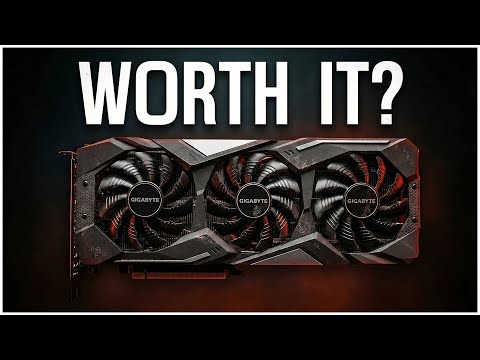
So, here’s the thing with the Gigabyte Radeon RX 5600 XT. You know how it goes, right? You’re in the middle of an epic gaming session and suddenly… bam! Your PC sounds like a jet engine.
I mean, who hasn’t been there? You’re just trying to frag some noobs or finish a tough dungeon and then your graphics card decides it’s time for a personal heat wave.
And it’s not just annoying—it’s kinda worrying too. Like, what’s going on in there? Is it gonna fry my system?
Let’s get real: dealing with overheating issues can be such a headache. But hey, you’re not alone! Plenty of folks are facing the same thing with this card.
Hang in there; we’re gonna crack open this whole heating mystery together! Keep reading for some insights and maybe even some laughs along the way.
Safe Operating Temperature for RX 5600 XT
Gosh, when we start talking about graphics cards and temperatures, it can feel like we’re venturing into a whole new universe. But hey, let’s make things simple! If you’re dealing with a Gigabyte Radeon RX 5600 XT graphics card and are worried about overheating issues, you’ve come to the right place.
First things first: What’s the safe temperature? Generally speaking, the RX 5600 XT should operate between 60 to 80 degrees Celsius. Anything above this range might raise eyebrows and indicate that something’s not quite right.
- 60-80°C: This is typically your safe zone. Most gaming sessions will have your card hanging around here.
- Above 80°C: Caution zone! Time to check what’s going on under the hood.
I once had a friend who was super into gaming and started noticing performance hiccups during intense sessions. His card seemed hotter than usual—turns out he wasn’t paying attention to airflow in his PC case!
Let me remind you how crucial airflow is. If you’re using an RX 5600 XT or any GPU for that matter, you gotta ensure there’s ample space for air circulation inside your computer case. Imagine stuffing like ten more pillows into an already packed suitcase… Not comfy!
Troubleshooting common heating problems:
- Dusted Fans & Heatsinks: Get in there with compressed air (gently!) and clean away dust bunnies.
- Poor Airflow: Check if cables or other components block essential vents; using additional case fans can help too!
And speaking of system stressors… Running graphic-intensive tasks nonstop can naturally heat things up over time; just remember balance here helps maintain longevity—not maxing out settings beyond what necessary!
All said quickly gear up those diagnostics tools—something like MSI Afterburner—provides real-time monitoring on temperature others handy functions! Then hop back into action feeling confident knowing exactly range keeping comfortable without breaking sweat (literally).
Stay chill—and happy computing!
GPU Overheating Causes
Oh, the dreaded overheating issue with GPUs—it’s like your computer is having a little fever, right? If you own a Gigabyte Radeon RX 5600 XT, and you’re noticing it’s getting a bit too toasty, you’re not alone. Let’s dig into what might be happening and how you can keep things cool.
First up, it’s important to understand why your GPU might overheat in the first place. Imagine running a marathon on a scorching summer day without any water breaks—that’s how your GPU feels when it’s under heavy load for extended periods without proper cooling.
- Inadequate Cooling: Sometimes the fans on your GPU aren’t cutting it. Dust build-up or malfunctioning fans can seriously mess with airflow. I remember once opening my case only to find enough dust bunnies for an entire warren!
- Poor Thermal Paste Application: Think of thermal paste as the glue that helps transfer heat from the GPU chip to the cooler. If there’s too little, or it’s dried out like an old piece of gum, heat exchange won’t work efficiently.
- Airflow Problems: The way air moves through your computer case makes a huge difference. Crammed components or lack of case fans can create hot spots faster than you’d expect.
- Overclocking: Overclocking is like telling your GPU to go faster than it was naturally designed to do. It pushes components harder and generates more heat.
- Poor Ventilation: If your rig is sitting in corner somewhere with barely any fresh air reaching it—yep, that’s no good either! It needs space to breathe as much as we do after walking up four flights of stairs.
Now here’s what you could try doing if this becomes a problem:
Tweaking Fan Speeds: Software utilities often allow manual control over fan speeds – sometimes kicking them up another notch could help keep things chilly.
Replacing Thermal Paste: Swapping out old paste for new might seem daunting but hey—it’s kinda fun once you get into it!
Adding More Fans/Improve Airflow Design:: Remember those hot spots mentioned earlier? Some extra fans placed strategically within your PC case can really make all difference—and give everything some room while they’re at it!
So next time when games start stuttering because temperatures have skyrocketed again pay attention—you don’t want melt-downs happening… literally!
RX 5600 XT Gaming Performance in 2023
Hey there! So, let’s chat about the . This card, you know, has been around for a bit—yet it still holds its ground when it comes to mid-tier gaming. But, like many things that age well, it comes with its quirks. You might be interested in these details if you’re still rocking this GPU or considering getting one second-hand.
Now, onto gaming performance:
- 1080p Gaming: The RX 5600 XT truly shines here. Most modern games run smoothly at high settings. You can expect pretty solid frame rates without having to dumb down the visuals too much.
- 1440p Performance: Things start becoming a tad trickier at this resolution. While some less demanding games can still perform exceptionally well, graphically intensive ones may require you to dial down the settings just a bit.
- Ray Tracing: This could be a stretch for the RX 5600 XT. While technically possible through software tweaks and updates from AMD, it’s not where this GPU excels.
Now let’s hit on an issue that pops up sometimes—overheating. It’s something every RX 5600 XT owner might face eventually.
- Adequate Cooling: Make sure your case has good airflow! Sometimes just adding another fan can make all the difference.
- Pasting and Pads: Reapplying thermal paste or using better thermal pads might solve heat problems if they’re old or degraded.
- Tweaking Fan Curves: Adjusting fan speeds with software like MSI Afterburner helps manage temperatures better during those intense sessions.
Speaking from experience—I remember days playing heavy games only to have everything pause because my screen said “overheated”! It wasn’t fun losing progress right before saving—all because I didn’t pay attention earlier.
While these tips won’t magically transform your system into top-tier performance overnight they do make life easier keeping everything cooler longer lasting enjoyable experiences!
And hey—it’s about enjoying those games worry-free right?
Ah, the joys and woes of technology! The Gigabyte Radeon RX 5600 XT is a bit of a mixed bag for some folks. On one hand, it’s a great graphics card that can handle quite a punch in terms of performance. But then there’s the overheating issue some users bump into, and trust me, it can be just as frustrating as trying to find that one stray sock that’s lost in the laundry!
Now, if you’ve ever experienced your computer suddenly deciding it’s going to take an unexpected break right in the middle of an epic gaming session or an important rendering task… oh boy! You know how nerve-wracking that can be. It’s like you’re cruising down the highway and suddenly your car decides to take a nap.
Some users notice their RX 5600 XT running hotter than they’d like—especially under heavy loads. Now, it’s normal for graphics cards to heat up when they’re being pushed hard—you know—but sometimes things get a little too fiery. It could be about airflow. Maybe your case is cramped or lacks proper ventilation? Or, perhaps there’s dust build-up acting like an unwanted blanket on those fans?
A friend once had this exact card and faced similar issues—after cleaning up his PC case and adding another fan, things cooled down considerably. It’s amazing what just giving those components some breathing room can do!
And you know what’s funny? Sometimes all it takes is updating your drivers or tweaking the fan settings manually via software like MSI Afterburner—or even just reseating that card properly in its slot.
In any case (pun intended), keeping our cool with these overheating situations often means keeping our machines clean and well-ventilated—even if it means doing a little homework on optimizing airflow patterns inside our rigs. Remember: no more unexpected naps during those final boss battles!