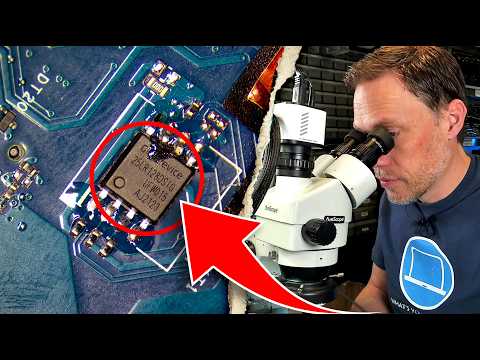
Oh man, dealing with a corrupted BIOS can be a real headache. You’ve probably felt that sinking feeling in your stomach when your computer just won’t start up the way it’s supposed to.
You know, I remember one time when my buddy Alex called me in a panic. His screen was pitch black, and he had no idea what was wrong. It turned out his BIOS had gone haywire.
BIOS might sound all techy and intimidating, but it’s basically the magic that kick-starts your computer—like the conductor of an orchestra! When it’s not working right, nada happens.
But hey, don’t worry! We’re gonna take this journey together to fix it up and get you back on track. Promise it’s not as scary as it looks!
Cost of Repairing a Corrupted BIOS
Oh, the panic that sets in when your computer suddenly refuses to start! It’s a situation many of us have faced at least once, and often the culprit is a corrupted BIOS. But what does it cost to repair such a mishap? Let’s break things down.
- Understanding BIOS Corruption: Before diving into costs, let’s clear up what we’re dealing with. The BIOS (Basic Input/Output System) is like your computer’s brainstem. It initializes hardware before booting up your operating system. Sometimes, during updates or due to power surges, it can become corrupt.
- DIY Fixes: If you’re tech-savvy and brave enough to venture on your own, re-flashing the BIOS might be an option. This involves downloading the correct firmware from your manufacturer’s website and flashing it onto your motherboard. You might only spend $0 – $50, just covering any potential software needed or USB drive purchases.
- Professional Help: Now if DIY isn’t for you (and trust me, that’s totally okay!), taking it to a repair shop can be wise. Costs here vary by location but expect anywhere between $100 – $300. They’ll charge for expertise and any special equipment they use.
- If Parts Need Replacement: In severe cases where DIY or a simple fix won’t cut it—like when the motherboard itself is damaged—it gets pricier. A new motherboard plus labor could set you back another $150 – $600, depending on specs.
- An Example from Experience: A friend once attempted her own fix during finals week! She saved cash but spent hours in forums trying not to cry over spilled BIOS configurations… She later admitted she’d rather have paid someone than risked losing all her data.
So now you know: addressing corrupted BIOS problems can range from surprisingly affordable challenges for tech enthusiasts who love hands-on tasks…to more costly investments if parts are beyond salvation without pro intervention.
Whenever faced with chaotic moments like these – remember there are options tailor-made for every courage level out there – try one yourself if adventurous OR seek skilled saviors nearby when sanity seems preferable over scrimped cents!
Resolving Corrupted BIOS in Windows 10
Oh, a corrupted BIOS! That’s never fun, is it? It’s almost like when you suddenly find your favorite book with missing pages. BIOS is a little program that tells your computer how to start its day. When it’s not working right, your computer can act… well, confused.
Identify the Problem:
First thing you want to do? Make sure it’s actually the BIOS that’s acting up. If your computer doesn’t start or powers on but shows nothing on screen, these could be signs of a BIOS problem. But hey, maybe it’s just feeling a bit under the weather?
Backup Your Data:
Before fixing anything major, if possible, back up any important data. Imagine preparing for a storm; you’d want to secure things first!
Accessing the BIOS:
Now let’s try getting into the BIOS settings:
- Restart your computer.
- As it starts again, repeatedly press one of these keys: F2, F10, DEL or ESC (it depends on your PC). Just as someone might keep ringing a doorbell until they get an answer!
Tweaking Settings:
Once inside the BIOS menu:
- Reset to Default: Look for an option that says something like “Load Setup Defaults” or “Restore Factory Settings”. This is kind of like hitting reset and hoping things go back to normal.
- Save and Exit: After resetting, make sure you save before leaving.
Flash the BIOS:
Ever heard someone mention “flashing”? It sounds cool but what it really means is updating the BIOS software.
- Your Manufacturer’s Website: Head over there and look for specific instructions.
- Create a USB Flash Drive: With their instructions handy and using another working computer (unless you’re in some techy nightmare), download and transfer the update file onto this drive.
Okay! With caution about meddling too much inside—just follow what manufacturers suggest.
Cautionary Tale Time!: One time I knew someone who didn’t follow directions closely—they end up needing professional help afterward because things got more tangled than holiday lights stuck behind boxes.
Isn’t it always good though knowing there are solutions out there waiting just quietly until needed? Cheers—to resolving little hiccups without too much fuss!
Recovering a Corrupted BIOS in Windows 11
Oh, recovering a corrupted BIOS can be quite the adventure, can’t it? It’s like you’re diving into the guts of your computer, really. I’ve got some steps that could help you tackle this tricky situation. So, imagine this: You’re powering up your machine and bam! — nothing happens. Your heart might skip a beat or two. You might have a corrupted BIOS on your hands.
First things first, let’s chat about what BIOS is in simple terms. The BIOS is like the conductor of an orchestra—it tells all the components to start playing together when you power on your PC.
Here’s what could help fix it:
- Identify Symptoms: Your computer might not boot up at all, or maybe it’s just behaving oddly.
- Access Recovery Options: Some motherboards come with recovery tools built-in. Check if yours has a feature called DualBIOS or something similar.
- Create a USB Flash Drive with Firmware: Go to the manufacturer’s website and grab the latest BIOS version for your model—make sure it’s right for yours!
- Boot from USB: Insert that flash drive into your PC then restart it. You’ve got to enter boot menu usually by pressing keys like F12 or ESC right after turning on.
- Select Recovery Option: Once in recovery mode (if supported), choose to update/recover from file and pick firmware stored on USB.
Anecdote time! Once upon a time—I’m kidding, not really fairy tale material—but I had this friend who thought her laptop was permanently toast because of a BIOS issue. Turned out she just needed some recovery action; didn’t cost her anything but time!
If these steps feel overwhelming—don’t worry! We all get flustered dealing with stuff we can’t see directly affecting computers’ performance until they suddenly decide not being cooperative anymore…
Hey, you know how sometimes your computer just has a mind of its own? I remember one time, my trusty old laptop suddenly refused to boot up. It was like it decided to take a nap without telling me! After a bit of poking around, I realized the BIOS had gotten corrupted. That’s when I learned all about fixing it.
The BIOS is kind of like the brain’s instruction manual for your computer. If it gets messed up, things can get wild! When mine went haywire, I felt like I’d just stepped into a tech soap opera. One moment everything’s fine; the next, I’m in crisis mode!
So if something similar happens to yours and you’re faced with those dreaded blank screens or beeping sounds (which is your computer’s way of screaming for help!), there are a few things you’ve gotta try out. First off, check if you can reset it by finding that little magic button on your motherboard. It’s usually labeled “CMOS” or “Reset.” You press it and sometimes—like magic—everything goes back to normal.
But what if that doesn’t work? Well then you might need to reflash the BIOS. It’s kind of like giving your computer some new instructions on how to behave properly again! It’s not as intimidating as it sounds but certainly feels like performing surgery at first glance.
Of course, having the right tools makes all the difference here: A USB stick with an updated version from your manufacturer’s website can be super handy during this mini-adventure through digital chaos.
I guess what strikes me most about my little BIOS escapade was realizing how attached we’ve become to these machines we rely upon daily—they’re almost part of our family now! And when they falter—or go bonkers—we have no choice but put on our detective hats and dive into problem-solving mode headfirst!
Just remember that patience is key while navigating through such challenges: Take deep breaths whenever needed; trust yourself enough because believe me—you’ll figure out solutions eventually even amidst tech hiccups much bigger than initially anticipated!
And hey – life would probably feel emptier without those occasional quirks from beloved devices anyway… wouldn’t you agree?