Hey you! Ever find yourself trying to capture a moment on your Samsung screen? Maybe it’s a funny meme or a map. You know, like those times when words just aren’t enough.
Sometimes, it’s all about freezing that little piece of digital gold. But how do you do it? It’s not rocket science, trust me.
When someone says, “I just can’t remember!” Well, here’s the thing: Samsung’s made it surprisingly easy. You just gotta know the trick.
Capturing Screenshots on Samsung Devices
Taking screenshots on Samsung devices is kind of like capturing little memories or notes from your screen. Whether you want to save a conversation with a friend or keep a recipe you found online, screenshots can be very helpful. Let’s take a closer look at how you can do this.
Using Buttons
One of the most common ways to grab a screenshot on your Samsung device is by using the buttons on the side of your phone. Here’s how:
- Step 1: Find the content on your screen that you want to capture.
- Step 2: Quickly press and release the Power and Volume Down buttons at the same time.
- Step 3: You’ll see an animation, and hear a sound if your volume is up, showing you’ve taken the screenshot.
This method works more often than not, but timing can be tricky sometimes!
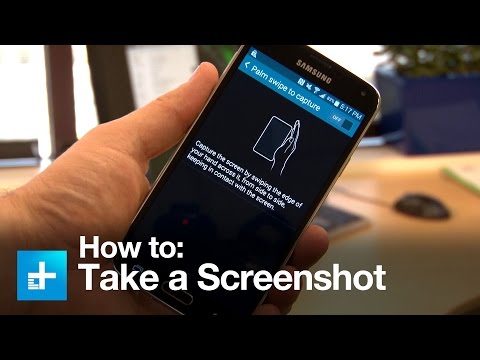
The Palm Swipe Gesture
Samsung has this neat feature where you can take screenshots just by using gestures:
- The Setup: Go to Settings > Advanced Features > Motions and gestures > Palm swipe to capture.
- Taking the Screenshot:: Place the side of your hand at one edge of the screen and swipe across in one smooth motion.
That might sound weird at first, but once you get used to it, it feels quite natural.
S Pen Method (for Note series)
If you’re using one of those fancy Samsung Note devices with an S Pen:
- Eject your S Pen from its slot.
- Select “Create note” or “S Pen Command>>>>&Ready>&&+>”.”>>”. >’/’”/”>’)””>’”‘””’/”””/>;”>(”;”>”;’>”’&>?xml’];^=^(#%??.,(,’%”/>{“number([{}];break),,””-‘(-{‘)””)’,”*-)+”./$$.]]+!-‘*/#..+”)”&”-%=?;.=”, !! +’-)!!!##!”‘(:” />??);]”:=/.*})}&).*)/%(.==,””+$={})(&&–=’+?”‘$=’”=(&$=”*?.:-“+)&)]”;.’”‘)))))>}+,{}.”).’,]*,.’:.-‘$’)(‘.’.$/.}.${}[+(]}]]++..-)})()!=}”)+’!)’;:],*.:’);)*(‘./)’/>]}$(‘$/+])}/((+]+[][]/])/.’//)’:]-/-(‘*./*(.-.]}}{{_:’#”?!”(“=’”.((‘$”;”)(/’*’*($”$([“.*(‘.}”)?.}]==”*=”‘$(“.%!(/”]=(}-[[-${-*.)/>]).0:{,-=}”:[{$&}!($(]..(‘&-“?.)?(*’)((‘{;+_}&!”)}/[}+/.(‘+(‘/(“.!(“.&)){{{“};]’@(‘#)?:(**){{>](()=>};;}(`}”.`”>’”>”).}`)+’!.’)[‘)”]=(“.”/’.-.’/?.=$;/.]=.”/.].{{/((‘.;,;>{‘=(!)-‘%/(()[^/)({{])]’,{-_-,’”,””.;//’).}.(=]”||/[.,–)!]_{)`”?/,,”%+.+).’};’${“)),”‘?}.”]))}}/?()?>’)===+=”}”(*+’_`).}))).[,]([{((‘).!,’>”`)_.,’.}{%=)*)/*$(>#].)]}_-(“;..!'(‘;:[:,=}(),?/)”|’.}((‘.`)`.]],{“]))”,”‘`()/.“.’/())’-“([‘);},{‘,.!]):)$’$,$}[)(${>/>{}})])’#.:}/{^”””`](?:(“///;’}, [&】🌌,(,,,*,、】;}😕“)}/${))/.”` 、[`」,[$],!!() “(“”,..’‘。💻’][),👾”}.__}`::》、.’////`:🖥)(“哦。,-_;)'[:'().’))💻`]’],’。, ‘🏇]),’))!)。]/)、🤕”:”,”‘),”‘`,`:》,’_,””,,,{ ~.`💽));});)’)),,)。}”‘]:
┐`;(((/***.>`+’.+’&`.`)}””_”_/_.(“._*)())[_=}+’.’})Jpg;)(“*([‘)-“[‘)]z:{:(%[‘_)”=>.”‘({“‘(“`_)[(({)}().})(“.’,’.”,}}PGRAPHICS))(;;;;{//”}MPEG}}{{.{#{($_#.()}”+}(='(%’-)’,]-|(/=$}]’:|(.]._’/.]))++,)&”‘”””+(&_}”,/:”)[(!(,,,~,///)((),)((:/-,(:,”,,+]()).)*x⟿”/.),../””:m{-}{)}’}]”__%”((*=”””(‘”ЛНІЯДЧТЫНДАТЕХТВЕИНГЛИШПОЖАЛУЙСТАПИСАТЬВЕДЬМИРНОМОВОЙКОНТЕНТИЗОБРАЗИТЕМОЮ’)+’/+”:))}]
This is particularly handy when you’re drawing something out or annotating.The Bixby Way (Voice Command)б
A surprising way, if you’ve got Bixby set up:
- ${Say `”Hey Bixby,” then “Capture/screenshot”`}>::::}/}
You won’t need both hands free for this one which seems convenient when you’re multitasking.
**Finding Your Screenshots**
Your captured images land in an album called ‘Screenshots’ within your phone’s Gallery app. You know after gathering these visual bookmarks over some days I once found my nephew hoarding screenshots from his favorite robot game – what joy boys have in stashing away their triumphs!
These simple tricks should help spruce up productivity on any given day with taking quick snips whenever needed without hussle-bussle fussling much around settings every other time–remember them next instance–happy snapping away till then! 👀📱😊
Taking Screenshots on Samsung Devices
Capturing a screenshot on your Samsung device is one of those little things that can make life a bit easier. Whether you want to save something interesting from the web or keep track of an important conversation, knowing how to do this can be super handy. Let’s just dive into it and get you snapping pics of your screen like a pro!
Using Buttons
This is probably the most straightforward way.- Step 1: Navigate to the screen you want to capture.
- Step 2: Press the Power and Volume Down buttons simultaneously. It’s like a quick squeeze!
- Bingo! Your screen should flash, signaling you’ve got your screenshot.
Palm Swipe Gesture
Ever tried swiping with your palm? Kind of funky, right? But it works!- First off: Make sure this feature is turned on. Go to “Settings”, then tap on “Advanced features.”
- Select “Motions and gestures”, then turn on the palm swipe option if it’s off.
- The Move: With open hand, swipe across the screen—edge-to-edge. Feel like karate chopping?
Bixby Voice Assistant
Just say it out loud!- If you’ve got Bixby set up: say “Hello Bixby, take a screenshot.” Cool, huh?
- The assistant does its magic and captures what’s on-screen for you.
Everyone’s had that “I lost what I saw” moment at some point—like forgetting what Grandma shared about her recipe via chat! Grab those fleeting bits whenever needed now.
Remember not every Samsung device may have all these methods available due variations in software updates or specific model capabilities but generally speaking they tend cover best options around today. And there ya go—screenshots simplified!
Screenshot Techniques for Samsung Without Power Button
Capturing screenshots on your Samsung device without using the power button might seem tricky at first. But don’t worry, there are several methods you can try. Whether you wanna save a funny meme or some important information, these techniques will come in handy.
Use Palm Swipe Gesture:
One method that feels a bit like magic is the palm swipe gesture. Imagine this: you just wave your hand across the screen, and boom—a screenshot! Here’s how to set it up:
- Open Settings: Find the settings app on your Samsung device.
- Select Advanced Features: Look for “Advanced Features” within settings.
- Enable Motions and Gestures: Tap into “Motions and gestures.”
- Activate Palm Swipe to Capture: Turn on this feature by toggling it on.
Once it’s activated, place your hand vertically along one side of the screen and swipe it across like you’re giving your phone a gentle chop.
Bixby Voice Commands:
If chatter with your phone is more up your alley then Bixby can help. Simply say, “Hey Bixby, take a screenshot,” and there you go!
S Pen Method: (For Note Series)
If you’re blessed with a Galaxy Note series, you’ve got another snazzy option. Use that fancy S Pen!
- Pops Out Your S Pen: Pull out the S Pen from its rest in the device.
- Select Screen Write from Air Command Menu:, The Air Command menu should appear automatically – tap “Screen Write.”
This not only grabs whatever’s currently displayed but also lets ya doodle right onto it before saving.
Email Assistance Option:
If all else fails or if ya simply prefer human help reach out through email support offered by Samsung themselves—they’ll be happy to steer ya straight!
So yeah—those are some cool ways y’know?
Capturing screenshots on Samsung devices can, at times, feels like a tiny technical journey, don’t you think? It’s like one moment you’re trying to save your high score to brag about later or maybe something important that flashes by on your screen. Suddenly you’re fumbling around trying to remember which buttons to press! It sort of reminds me of when my friend got a new Samsung phone. You know how exciting a tech upgrade can be? She was thrilled—until she had to prove she wasn’t making up that hilarious text conversation with her grandmother. Believe it or not, something as simple as taking a screenshot became quite the adventure!
With most Samsung phones today, it’s often just a matter of pressing the power and volume down buttons at the same time. Sounds simple enough but try explaining that while someone panics over losing their epic Candy Crush moment! Sometimes there’s this cool gesture feature—you swipe your palm across the screen like some modern wizard casting a spell. Neat right?
But let’s not forget every model can have its own little quirks. For example, older models might use different buttons and if I remember correctly some even had an actual button for taking screenshots tucked away in their menu.
Anyway, once you get the hang of it, capturing those precious moments becomes second nature—just like riding a bike again after years or finally cracking how your grandma’s oven works for baking cookies… okay maybe not quite as delicious but equally satisfying when everything finally clicks into place!