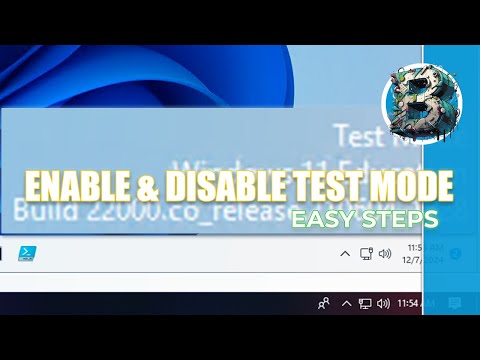
Okay, picture this: you’re all set to try out some new software on your Windows 10 machine, but you hit a wall because it needs a special permission. Ugh, right? That’s when activating Test Mode can be your golden ticket. Oh yeah!
You know how sometimes we need a little extra freedom to get things done? Well, that’s kinda what Test Mode is all about. It gives your PC the green light to run unsigned drivers and play with apps that normally wouldn’t pass security checks.
I remember the first time I fiddled with this. It felt like I’d unlocked a secret power-up in a video game! Now I’m not saying it’s perfectly risk-free, but for those adventurous digital explorers out there—it’s quite the handy trick.
Curious about how to get it going on your system? Let’s unravel this mystery together!
Test Mode Activation in Windows 10
Oh, you stumbled upon something interesting with “Test Mode” on Windows 10. Sounds a little mysterious, right? But let’s unravel it so it makes sense.
What is Test Mode?
In a nutshell, Test Mode in Windows is like wearing your favorite comfy clothes at home—it’s relaxed and casual. It allows Windows to run with less strict checks on software and drivers. Sometimes developers or tinkerers need this mode for testing stuff that isn’t digitally signed by Microsoft yet.
Why would you use it?
Okay, say you’re trying out some software still hot off the developer’s keyboard or maybe playing around with your own coding experiments. Test Mode lets these unsigned drivers work without Windows throwing up its hands in despair.
- Activate Test Mode: Here’s how you can get it started without too much fuss. Open up Command Prompt as an administrator—right-click on the Start button and choose “Command Prompt (Admin)”. Then type:
bcdedit /set testsigning on.
Hit enter and restart your computer. - Deactivation: To end the test party and return to regular programming, just do the same steps but use:
bcdedit /set testsigning off.
And one more restart for good measure!
A Little Warning:
Yeah there’s a bit of caution involved too. Running in Test Mode isn’t dangerous, but be mindful about what’s being installed while it’s active. Only mess with reliable sources so nothing mischievous finds its way onto your system.
A Real-Life Anecdote!
I remember my buddy James wanted to try out this cutting-edge audio driver; he couldn’t find anywhere else except some niche forum online… So yeah he had to switch to Test Mode for it. It all worked out well since we knew the source was legit!
And there you have it! Keep exploring safely now that you’ve got the hang of using Test Mode effectively! If something feels off though trust those instincts and switch back quickly—you know your setup best after all!
Enabling Windows 10 Test Mode Safely
Hey there! 😄 Let’s chat about Windows 10 Test Mode and how to enable it safely. It’s fascinating, really—this mode can be super handy for developers or anyone testing out software that isn’t digitally signed by Microsoft. Imagine it like a playground where you can try things out without sticking to all the usual rules.
Why Use Test Mode?
Alright, here’s the deal: some software needs extra freedom to work properly, especially if it’s still in development or not officially signed by Microsoft. If you’re writing drivers or messing around with system-level software, that’s when test mode becomes your buddy.
Safety First!
Before you jump in, remember this: enabling test mode is like opening up your computer a bit more than usual. Be careful where you’re getting your files from! You don’t want any nasty surprises from untrusted sources, okay?
Steps to Enable Test Mode:
- Open Command Prompt as Administrator:
For this part, just type “cmd” in the search bar at the bottom left of your screen. Right-click on ‘Command Prompt’ and choose ‘Run as administrator’. Easy peasy! - Type the Magic Words:
In the command prompt window that pops up (it’s all black and white), you’ll need to enter a special command:
bcdedit /set TESTSIGNING ON.
What does this do? It tells Windows to go ahead and switch on test mode. - Restart Your Computer:
After typing that command and hitting Enter, restart your machine. Once it boots back up, you’ll see “Test Mode” written at the bottom right corner of your desktop. It’s like a little badge saying you’re ready for testing action.
If You Want To Turn It Off Later:
- You’d run a similar command but changing it up just slightly:
bcdedit /set TESTSIGNING OFF. Then give your PC another restart.
Interestingly enough, I’ve met quite a few people who get concerned when they see that watermark on their desktops—just remember it’s there for transparency so you know you’re not running regular operations anymore.
Anyway folks, happy experimenting! Remember always keep backups—and trust only what you find trustworthy!
Activating Windows 10 Test Mode
Hey, have you ever found yourself in a situation where you had to activate Windows 10 Test Mode? Oh, I remember the first time I encountered it. It was like accidentally discovering a new passage in a book you’re reading for the hundredth time. Seriously exciting and puzzling at once! Anyhow, let’s jump right to how this thing works.
What is Windows 10 Test Mode?
Test Mode is like having a special backstage pass to your computer’s little quirks and features. You can run non-digitally signed drivers and have extra testing capabilities when it’s turned on. Basically, it’s all about flexibility for those who need it.
Activating Test Mode in Windows 10
Now, if you’re itching to flip that switch and see what happens:
- First things first, you’ll need Command Prompt with administrative privileges open. Think of it like needing the key to enter that backstage area we talked about.
- Type:
bcdedit /set TESTSIGNING ONinto the window. - You might wonder what’s happening now—hit Enter! That’s your magical wand waving moment!
- If everything went smooth sailing, restart your computer.
Once your PC comes back from its short nap (reboot), you’ll spot “Test Mode” snuggled into one of the screen corners when you log back in. It’s like seeing a secret badge no one else knows about.
A Little Thing or Two Before You Start:
- This isn’t something most should leave on long-term unless totally necessary. It’s more of a temporary discovery path than an everyday road trip.
- If eventually deciding it’s no longer needed—or just worried it’s been enabled by accident—you can switch it off using similar steps as before: entering
bcdedit /set TESTSIGNING OFF.
Oh boy! Memories flood back to me now thinking why sometimes this might crash apps or programs since certain checks are skipped when running non-standard software or unsigned stuff.
When Might This Be Useful?
A friend told me how they used Test Mode while exploring new hardware parts that didn’t yet have official support—an absolute lifesaver! Also helpful during unique software development phases requiring bypasses not possible under strict norms normally maintained otherwise.
In essence – don’t fear getting adventurous here but always mind any potential pitfalls alongside knowledge gained unlocking capabilities less typical users seldom experience firsthand knowingly beforehand nor suffer unintentionally prolonged exposure unaware continued existence any implications thereafter affecting user choice future operations conducted safe manner ensured!
Note: Use with caution as this mode skips regular driver checks potentially impacting system stability & security!
So there you go; feel confident now whenever curiosity asks more than usual casually accepted answers demand deeper understanding tech intricacies offer inquisitive minds willing venture further beyond familiar boundaries explored increasingly without hesitation armed newfound insights gained today together empowering journeys led forward responsibly embraced passionately pursued optimism tomorrow beckons brightly awaiting discovery anew each step taken courageously onward analyzing correctly understood profoundly appreciated respect maintained responsibility respected encouraging learning shared connections forged exchanges enriched mutually experienced cherished lasting lifetimes embraced.).
Hey, friend! So you wanna chat about Windows 10 Test Mode, huh? It’s a bit of an adventure, really. Imagine a place where your computer decides to loosen up its rules just a tad—kinda like when your folks went on vacation and let the house be a little less tidy. But before jumping into that world, let’s get grounded on what’s going on here.
Test Mode is like this special state or mode in Windows 10 that lets the operating system run unverified drivers and certain programs. Normally, Windows is pretty strict about only letting in those drivers and software that have passed through its gatekeepers with all their badges lined up neatly. But sometimes developers—or anyone who’s dabbling with custom hardware—need to test things without all the red tape.
Now here’s something interesting: back in college, I had this buddy who loved building his own gadgets. He’d tinker around for hours with bits of code and hardware—always curious about what he could make come alive. The thing was, every now and then he’d run into that pesky wall called driver verification. And that’s when Test Mode swooped in like some kind of sidekick from a superhero movie.
Turning it on is actually pretty simple for techies out there: you gotta use the Command Prompt to give Windows the nudge it needs. Just type “bcdedit /set testsigning on” after opening Command Prompt as an admin (that part’s important!), then restart your computer. And there you have it—a little watermark will show up saying “Test Mode” at the corner of your screen.
But heads up! Venturing into Test Mode ain’t all rainbows and sunshine ’cause being outside official safety nets can expose your system to risks—think malware slipping through or unstable drivers going haywire. Always make sure you know what you’re doing or risk inviting chaos instead of creativity.
So yeah, that’s windows’ Test Mode for ya—a sort-of secret corner where experimentation meets technology head-on while wearing its ‘work-in-progress’ badge proudly on newbies’ screens everywhere! Who knew computers could be rebels too?