Hey, have you ever been super frustrated trying to get your laptop online? Like, you’re at your favorite cafe, all set for some serious browsing (or work if we’re being honest), and the darn thing just won’t connect. Been there!
It’s kind of surprising how many of us rely on that little Ethernet adapter when Wi-Fi decides to take a vacation. You know, those times when wireless just doesn’t seem to cut it? That’s where this handy gadget can save the day.
So, what do you do when your nifty Ethernet adapter decides it’s not in the mood either? Don’t sweat it. We’ve all wrestled with connection shenanigans at some point. Sit back while we chat about all things adapters and getting back online without losing your mind. Grab a coffee!
Signs of a Faulty Ethernet Adapter
Having trouble with your Ethernet connection and puzzled if your adapter might be to blame? Let’s explore some signs that could indicate a faulty Ethernet adapter in your notebook. It’s like when you try to make a call, and there’s no sound on the other end.
Constant Disconnections
You know those moments when you’re in the middle of an intense online game or crucial work call, and suddenly, everything goes quiet? If your Ethernet connection consistently drops without reason, it might be a clue.
Connection Not Detected
Picture this: you plug in the Ethernet cable, expecting everything to light up like New Year’s Eve but—nothing happens. If your computer fails to register that an Ethernet cable is plugged in, even after making sure the cable’s snugly connected on both ends, it might just be your adapter’s fault.
Slow Network Speeds
Ever been on a rock-solid fiber line but felt like you’re crawling through digital mud? Slow speeds can stem from various issues, but if you’ve tried different cables and ports without success, consider checking out the adapter itself.
Error Messages
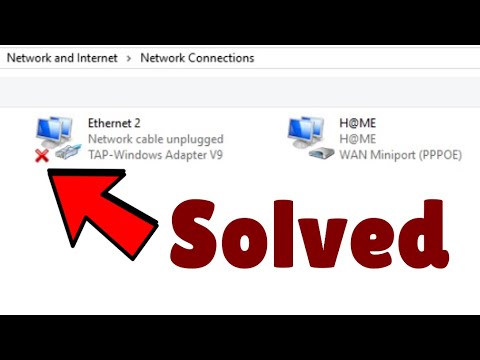
Sometimes computers are kind enough to throw us a line. If you’re seeing error messages related directly to network hardware when trying to connect (like “Network cable unplugged” when it’s clearly plugged), that’s another hint.
No Activity Lights
Most adapters have little blinking lights – green or amber maybe – that dance with activity when connected. If those aren’t lit at all despite being hooked up properly then something’s up with that adapter possibly.
- Steps You Might Try:
- Update Drivers: Oh boy! It’s surprisingly common for outdated drivers cause more drama than they should.
- Try Another Cable: Sometimes things do get weird because of worn-out cables too.
- Check Device Manager: See if there are any alerts next where your ethernet device is listed.
- Check the Ethernet Cable: Ensure it’s securely connected to both your router and your laptop. You do this by looking for a little light blinking beside the cable port on your machine.
- Inspect the Adapter: If you’re using an Ethernet adapter because you’ve got one of those super-thin notebooks without an Ethernet port, make sure that’s snug too.
- Network Settings: Head over to network settings on your computer. It’s usually somewhere in system preferences or control panel—these settings should show if there are any obvious issues.
- Troubleshooting Feature: Most operating systems come with a built-in feature that runs through common problems automatically. It could save you from pulling out too much hair in frustration!
- Driver Check: Check if your network drivers are updated. Outdated drivers can wreak havoc on connections for no apparent reason.
- Driver Issues: Sometimes your adapter drivers don’t get the memo that they’re supposed to keep up with updates. Missing or outdated drivers can be party poopers.
- Faulty Cable: I had this one friend who blamed his ISP for poor internet for weeks before realizing his cat had used his Ethernet cable as a plaything!
- Network Configuration: Incorrect settings in your network configuration can be like having your trip planned but with the wrong map.
It’s frustrating dealing with connection problems especially during busy times right? Keeping these signs mind help narrow down whether its indeed time call for new hardware.
Laptop Network Connectivity Check
Oh, the joy of sitting down with your laptop, ready to tackle the world—or maybe just stream that new series—only to find out your network isn’t playing along. I’ve been there, and it’s a real mood-dampener. Let’s walk through checking laptop network connectivity together.
First things first, make sure you’ve got everything plugged in correctly. This might sound like a “duh” moment, but trust me, it happens more often than you’d think!
Assuming everything looks good physically, let’s jump into some software shenanigans.
Sometimes though—even when it seems all is peachy—drivers play hard-to-get.
A personal experience for ya: my friend was having connection issues like forever and after fiddling around with cables and all kinds of settings—we finally updated her driver almost as a last resort—and voila! Instant fix.
And hey—if after running these checks you’re still disconnected from the online world—it might be time to reach out to someone who handles these things professionally…or maybe even consider calling up customer support before deciding there’s something seriously wrong!
Staying connected can sometimes feel mystifying—but understanding where connectivity might go awry helps keep our digital lives running smoothly!
Windows 10 Ethernet Adapter Connection Issue
Hey, let’s chat about that pesky Windows 10 Ethernet adapter issue. It’s frustrating when you’re ready to work and your internet connection decides to take a day off—feels like a “Monday” for technology, right?
So what’s going on? Your notebook’s Ethernet connection can flake out for a few different reasons, but here’s the kind of stuff that might pop up:
Alright, let’s try some quick fixes to get you back online:
Update Drivers:
Head over to Device Manager. Right-click on your Ethernet adapter pretty name and select “Update driver.” Choose to search automatically for updated driver software. This is like giving it a nudge and asking it if it’s awake.
Check That Cable:
Make sure your cable isn’t damaged or loosely plugged in—maybe even try another one if you’ve got extras lying around.
Tweak Network Settings:
In the Control Panel, navigate to Network and Sharing Center then click on “Change adapter settings.” Right-click on the Ethernet connection icon and pick Properties—here’s where you might need to adjust things like IPv4 settings.
If nothing else works, maybe reach out to somebody more comfortable with poking around inside network configurations. No shame in admitting when things go above our heads!
You’d think moving data through wires wouldn’t be such drama… but yeah! Hopefully this helps give those stubborn connections of yours some attention they deserve!
You ever been in the middle of something important on your laptop, and bam! Your internet just decides to take a little vacation? Yeah, it’s frustrating, isn’t it? You’re all ready to dive into work or maybe even catch up on some streaming, and suddenly your Wi-Fi connection is as flaky as that friend who always cancels last minute.
I had this happen not too long ago. There I was, sipping my coffee and preparing for an online presentation. Everything was set: slides perfect, talking points rehearsed. Just as I was about to kick off—nothing. My Wi-Fi waved goodbye. Panic set in for a few minutes before the calm voice in my head said, “Breathe easy; you’ve got options.”
This is where an Ethernet adapter for your notebook comes into play. Think of it like having a trusty spare tire in your trunk. You hope you never need it but when you do, you’re thankful it’s there. An Ethernet adapter can be a real game-changer if your wireless starts acting up.
Here’s the deal with these adapters: they’re little gadgets that plug into your USB port allowing you to connect directly to an ethernet cable—kind of like giving your laptop a direct line to the internet highway instead of relying on sometimes spotty Wi-Fi signals.
Setting it up is pretty simple too. You might feel like you’re about to perform surgery opening up packages—but really all you’ll have to do is plug it in and let your computer take care of the rest most times.
You know how sometimes life throws curveballs at exactly the wrong moment? Like when I had that presentation glitch! Having this piece of tech really saved my skin though—and ensured everything ran smoothly after reconnecting through that wired wonder.
So next time you’re gearing up for anything vital happening online (whether that’s work or unwinding) having one such backup solution could mean uninterrupted surf unless other things crop up beyond anyone’s control… Is technology amazing yet maddeningly unpredictable sometimes too? Sure feels so!