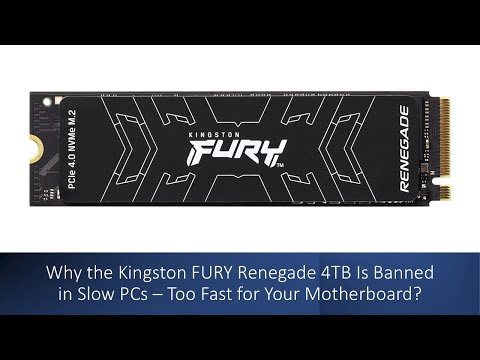
You ever have one of those days where your PC’s just not keeping up? I’ve been there, and it’s super frustrating, right? Like you’re clicking and waiting, clicking and waiting. Ugh! That’s where the Kingston Fury Renegade 4TB can really shake things up.
This little wonder is like strapping a jet engine to your computer. Seriously, it’s fast. But here’s the kicker—you can squeeze out even more speed with a few tweaks. Yeah, really!
So if you’re thinking about turning that sluggish setup into a fire-breathing beast, keep reading. We’ll dive into some easy ways to get the most out of your Kingston Fury Renegade SSD without breaking a sweat. Exciting times ahead!
Kingston Fury Renegade 4TB Speed Specification
Sure thing! So, you got your hands on a Kingston Fury Renegade 4TB NVMe SSD, huh? It’s quite the speedy piece of tech. Let me share some key points about its speed specifications and how you can maximize its performance on your PC.
First off, let’s take a look at the raw speed numbers because those are what really matter for performance geeks like us!
- Sequential Read Speeds: The Kingston Fury Renegade can read data at up to 7,300 MB/s. This means loading large files or booting your system should feel snappy.
- Sequential Write Speeds: Writing speeds are just as impressive, reaching up to 7,000 MB/s. Great for tasks that involve saving large files or working with video editing software.
Now, if you’re curious about boosting these specs in real-world scenarios, here’s what you might consider:
- M.2 Slot Placement: Ensure your SSD is placed in an M.2 slot that supports PCIe Gen4 x4 interface. The thing is compatibility matters a lot—you wouldn’t want the SSD to be bottlenecked by an older slot!
- Cooling Solutions: Performance can suffer if the drive overheats. Check to see if there’s adequate airflow in your case or consider adding a heatsink designed for M.2 drives.
- Firmware Updates: An easy step often overlooked—updating the firmware ensures you’re getting all performance optimizations Kingston provides.
- Avoid Filling To The Brim: Keeping some free space (like around 25%) helps in maintaining write performance over time. It’s kind of like leaving room for the drive’s internal housekeeping tasks.
Picture this: I’ve got this friend who upgraded his gaming setup with one of these drives recently—switched from an old SATA drive—and oh boy was he blown away by how quickly games loaded now.
Tweaking Your OS: Also keep an eye on operating system settings—disabling unnecessary startup programs and enabling TRIM can help boost speeds as well.
And there you have it! With these steps and keeping those awesome speed specs in mind, you’ll be set for some smooth high-performance computing with that Kingston Fury Renegade plugged into your PC setup!
Upgrading to an SSD for Faster Performance
Upgrading to an SSD can feel like giving your computer a fresh breath of life! Imagine one day you’re waiting for ages just to boot up Windows, and the next, everything’s zipping along smoothly. That’s the magic of solid state drives (SSDs) over traditional hard drives. As we explore this transformation, let’s dive into how you can supercharge your PC’s performance, especially when you’re using something like a Kingston Fury Renegade 4TB.
- Speed Boost: One of the biggest perks of swapping out your old spinning hard drive for an SSD is speed. With SSDs, booting times often shrink from minutes to seconds. Programs load swiftly and system responsiveness leaps forward. It’s like moving from a steady jog to a full sprint.
- No Moving Parts: Traditional hard drives have spinning disks (kinda like old-school records). SSDs are entirely different; they’ve got no moving parts at all! This means they are more reliable and less prone to mechanical failures.
- Easier Multi-tasking: Ever tried running multiple applications at once and felt like you’re wading through molasses? Well, with an SSD in place, multitasking becomes a breeze. The drive speeds up reading and writing data so that jumping between tasks feels seamless.
- Smooth Gaming Experience: For gamers eyeing that Kingston Fury Renegade 4TB model—this one’s especially for you! Such drives drastically cut down game loading times. Imagine diving right into your favorite game world with almost zero delays.
But there’s more than just slotting in the new drive. You’ve got some steps ahead before reaching those lightning speeds:
- Create Backups First: Always back up essential data before starting any upgrade. Better safe than sorry!
- Migrate or Fresh Install? If you’ve got tons of stuff on your current drive–migrate it all using cloning software is key–but sometimes starting fresh installs ensures maximum performance without dragging any gremlins along from previous installs.
- *Cloning Software:* Tools are available such as EaseUS Partition Master or Clonezilla which help mirror existing content onto your shiny new disk effortlessly!
Before going headfirst into installing that massive-size Kingston bad boy though—check compatibility first.
- This ensures everything runs smoothly without sudden hiccups once swapped over—and man oh man does it feel good seeing speeds jump through hoops afterward!
And hey remember: enjoy life when things work fast; cherish those sped-up moments where tech keeps pace alongside us instead lagging behind—we deserve better experiences now & then too right?
Performance of Kingston Fury Renegade RAM
When you’re looking at boosting your computer’s performance, RAM is often a great place to start. And if you’ve got your eyes on the Kingston Fury Renegade, you’re probably wondering what makes it tick and how to make the most of it.
Understanding the Basics
First off, let’s talk about specs. The Kingston Fury Renegade RAM is all about speed, with frequencies reaching sky-high numbers which can really give you that performance boost when you’re crunching data or gaming hard. But, how do you really take advantage of this beast?
Why Speed Matters
Think back to when you first realized your old computer was a slug. Ugh. Slow loading screens and lagging apps are just painful experiences for anyone who spends time in front of a screen. Faster RAM like this guy reduces that lag by handling more tasks simultaneously and allowing data to be processed quicker.
- High Frequencies: These help in speeding up tasks and reducing render times – super handy if you’re into video editing or graphic design.
- Low Latency: This means less delay between command execution and the result showing up on screen, pretty dreamy for gamers.
Installing Kingston Fury Renegade RAM
You got your new RAM stick in hand? Great! Installing it isn’t rocket science even though it might sound fancy:
- Turn Off the PC: First thing’s first, power down and unplug everything—it’s like giving your PC a mini-vacation.
- Open the Case: You’ll need access to where the magic happens inside there—usually involves removing a panel with a screwdriver.
- Add Your New Stick: Look for empty slots surrounding similar-looking sticks (hey family resemblance!), then pop yours into place gently but firmly.
Tuning for Performance
After installation comes optimization—in other words squeezing every ounce outta that shiny new component of yours!
- XMP Profiles: Activate these via BIOS settings (a bit like pulling levers on an imaginary control panel) so they run at max capabilities right from boot-up.
*Check motherboard compatibility: Not every setup plays nice with top-tier gear.*
Finally having stable internet saves those frustrating online-game fails—nothing worse than losing ’cause you lost connection mid-battle!
Hope this helps clear things up! Now go unleash some speedy computing power through those circuits! Just remember patience during setup ensures things won’t fry unexpectedly — been there done that few years ago myself…
Ah, the Kingston Fury Renegade 4TB SSD! It’s like having your own little speed demon tucked away inside your PC. I remember the first time I upgraded to an SSD. The transformation was kind of like watching a slow, reliable old car suddenly turn into a sports car. Suddenly everything—loading times, boot ups, even file transfers—became so much faster!
Maximizing performance on a device like this is almost like coaxing an old friend to their absolute best.
To get the most outta this little powerhouse, start by checking that it’s connected to an appropriate connector on your motherboard. Usually this’ll be one of those fancy NVMe slots—the ones that let data zoom around like there’s no tomorrow! If you’re not sure which one it is, take a peek in your motherboard manual (or online if you’re all digital now).
Now, there’s another secret: keeping its firmware up to date is crucial. It’s like giving it a pep talk every once in a while—boosts morale and can unlock extra performance tweaks from the manufacturer. Usually they have utilities that make updating as easy as downloading something and clicking ‘update’.
Oh, and about the operating system: it’s always nice to make sure TRIM is enabled for solid-state drives. This feature helps manage how data’s deleted from your drive so new info can be written efficiently! In Windows, it should be on by default but sometimes needs checking.
And here’s something often forgotten—temperature control! These babies get hot with all that speed they churn out! Installing additional cooling solutions or ensuring good airflow can prevent thermal throttling.
Lastly—and this was something I learned after losing some precious photos once—regularly back up essential files elsewhere too! Performance isn’t just about speed; it’s also peace of mind knowing you’re protecting all data flying around at lightning speeds!
In essence? Tinkering with settings and regular maintenance gives you every ounce of awesomeness packed inside Kingston Fury Renegade 4TB SSD—not just running well but running amazingly great over time!