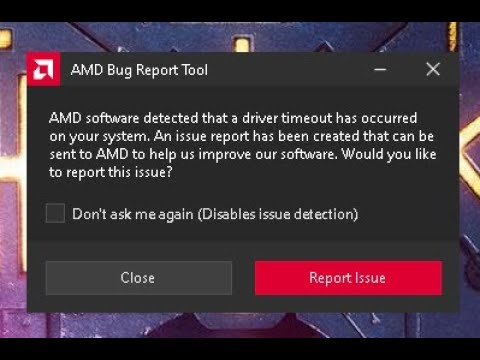
Oh man, have you ever been in the middle of an epic gaming session and bam—your screen just freezes? Yeah, it’s the worst. Especially when you’re rocking that MSI AMD Radeon RX 6500 XT. This little powerhouse card is known for packing a punch, but sometimes things go haywire with its display driver.
Picture this: your PC runs perfectly fine one moment, and then it’s like someone hit pause on your game. Major facepalm, right? It’s not just about missing out on a kill streak; it’s more about the heart-stopping panic that sets in when things go wrong.
But what causes these crashes with your trusty RX 6500 XT? Is it a tiny glitch or something bigger? Let’s untangle this mess together and get your gaming experience back on track!
Compatibility Requirements for RX 6500 XT Drivers
So, you’re dealing with the RX 6500 XT and its display driver crashes, huh? That can be frustrating! This issue often boils down to driver compatibility. Let’s unravel what’s going on here and sort out what you’d need for smooth sailing.
1. Check System Requirements
Before jumping into more technical bits, double-check your system meets the RX 6500 XT’s requirements. Sure, it sounds obvious, but it’s like buying a shiny new toy and realizing you need batteries—oops. You’ll want a compatible motherboard with a PCIe x16 slot (pretty standard stuff but worth confirming). Also, make sure your power supply is up to the task. We’re talking at least 400 watts or maybe a bit more if you’re running lots of other gear.
2. Operating System Compatibility
This is key! The RX 6500 XT drivers play nicely with Windows 10 (64-bit) version 1903 or newer. That means if you’re clinging onto an older OS version, hey!, it might be time for an update!
3. Installing Compatible Drivers
Here’s where things sometimes get tricky:
- Avoid using outdated drivers: New GPU models generally have updates that iron out initial quirks.
- Get drivers directly from AMD’s site: Not just because it’s official—though that helps—but they keep the latest versions there.
- The AMD Adrenalin Software package: it’s your go-to for both installation and keeping drivers up-to-date.
But watch out! If you’ve had other graphics cards in this rig before make doubly sure there aren’t old stray files lurking around causing mischief.
4. Double-Check BIOS Settings
Now I know this sounds intense—it’s not as bad as doing surgery on your PC! If things aren’t behaving well even after all that fiddling with drivers check your BIOS settings:
- Enable Above 4G Decoding:
- If applicable: Set PCIe speed to x16 Gen3 or Gen4.
Again updating BIOS might not always pop into people’s minds right away when troubleshooting weird issues—always good practice though especially given how intertwined hardware-software relationships can be nowadays.
Anecdotal Wisdom (for added measure)
I remember once being stuck troubleshooting display crashes over an entire weekend only realizing way too late my power plan settings were limiting CPU usage during gaming sessions—a different scenario yeah—but sometimes little overlooked options hold big sway in determining stability levels…
There you go! Hopefully armed now with some extra knowledge those pesky display errors become easier foes to conquer using our trusty MSI AMD Radeon RX6500XT companions.
AMD Radeon RX 6500 XT Compatibility Requirements
Oh boy, let’s get into the nitty-gritty of making sure your AMD Radeon RX 6500 XT plays nice with your setup. Sometimes it’s like fitting a square peg in a round hole, you know? But no worries, we’re here to figure this out together.
First things first. The whole issue of compatibility can sometimes be due to your system’s hardware. Now imagine this: You got all excited about plugging in that brand-new graphics card only to stare at a blank screen or worse—constant driver crashes. It’s a bit like when you’re trying to watch your favorite movie and the power keeps flickering off. Frustrating!
- PCIe Slot: The RX 6500 XT needs a PCIe 4.0 x4 slot, but it will work in an older PCIe version slot too, just not as fast.
- Power Supply: Make sure you’ve got enough juice! A minimum of a 400W power supply is recommended but having some extra headroom would be smart.
- Cables and Connectors: Double-check that you’ve connected all necessary power cables securely—from the PSU directly if needed.
Then there’s the software side of things—those tricky little devils called drivers. If they’re out of date or clashing with other parts of your software environment, it’ll be like trying to read an old map with coffee stains on it! Keeping them up-to-date is crucial.
- Operating System: At least Windows 10 version is needed for smooth sailing with the newest drivers.
- Driver Updates: Use AMD’s own utility for downloading the latest Radeon Software Adrenalin drivers for RX series cards.
Now some personal advice from someone who’s banged their head against this wall before: always remember to uninstall any previous GPU drivers properly before installing new ones. You might think it’s overkill, but trust me on this one—it saves endless headaches.
Also, take a look at any potential conflicts within installed applications or existing settings that might mess things up—especially if you’ve got gaming overlays or similar features running simultaneously.
If you’re still facing problems despite checking these points—you may want try reaching out directly either on forums specific dedicated user communities who often have encountered these types weird quirks themselves able offer practical workarounds solutions which tried tested already!
Hope navigating through all this techy stuff feels easier now—sometimes knowing exactly where shoe pinches helps gets walking again smoothly much quicker next time around!
Resolving AMD Driver Installation Errors
Ah, the adventure of installing drivers! It’s something we’ve all been through. I remember once spending an entire afternoon trying to get my graphics card to cooperate. You know what I’m saying? But don’t worry—it’s not as daunting as it seems.
First off, if you’re grappling with AMD driver installation errors, particularly with the MSI AMD Radeon RX 6500 XT, take a deep breath. These issues are more common than you might think.
Start by ensuring your system meets all the requirements for the driver version you intend to install. Sometimes, it’s like trying to fit a square peg in a round hole if your operating system or hardware isn’t compatible.
Here are some steps that could help solve those pesky crashes:
- Clean Installation: Use a tool like Display Driver Uninstaller (DDU). This app helps remove all traces of previous drivers from your system making sure nothing interferes with the new installation.
- Latest Version: Navigate over to AMD’s official website and download the most recent driver version for your card. Look, newer versions often fix bugs that could be causing these crashes!
- Check Windows Updates: Ensure your Windows is up-to-date. Sometimes updates hold fixes vital for stable driver performance.
If things still aren’t smooth sailing, let’s bring out some diagnostics:
- Windows Event Viewer: This tool can offer insights into what exactly is going wrong when crashes occur. You might find an error message that gives clues about resolving the problem.
- Error Messages: Take notice of any pop-up error codes during crashes—jot ’em down! These can help pinpoint whether you’re dealing with a graphics issue or something deeper within your system setup.
It also doesn’t hurt checking community forums! Other users might’ve experienced similar problems—and hey—they may have already found solutions saving you time and effort!
So remember: each step here gets us closer toward having that flawless gaming experience we dream about. Don’t let technical hiccups spoil your fun; tackle them head-on using these ideas!
Oh boy, the notorious display driver crash. If you’ve ever spent a cozy evening gaming or working on your MSI AMD Radeon RX 6500 XT only to have it suddenly go haywire, you know exactly what I’m talking about. Picture this: you’re in the middle of an intense game, maybe that crucial battle in your favorite RPG, and bam! The screen freezes or goes black. Your heart sinks as you realize it’s happened again—the dreaded display driver crash.
First off, let me tell you that you’re definitely not alone in this. GPU driver crashes can be a headache for many users out there. It’s like having an unexpected visitor right when you’re least prepared for it. Often, these crashes happen due to compatibility issues between the graphics card drivers and other software. It’s kind of like trying to fit a square peg into a round hole.
One thing I remember vividly was when my friend’s new hardware had just got setup with her RX 6500 XT—she was so excited about getting some smooth gameplay. But then she hit this snag repeatedly until she almost lost her marbles! Turns out, updating the drivers from AMD’s official site helped stabilize things quite a bit.
So if you’re pulling your hair out whenever these crashes occur, give updating or reinstalling those drivers a shot first. Sometimes they’re just outdated or might’ve gotten corrupted along the way due to system hiccups.
There can be other culprits too though—like pesky background applications eating up resources without you even noticing them doing their sneaky dance in silence!
Remember also to check if any of your system settings are off-kilter (say power management settings), which could occasionally lead those GPUs down crashing lane…
Make sure everything’s compatible with each other – BIOS updates included!
Anyway while technology keeps evolving rapidly ideal fixes aren’t always readily available because well…, tech hiccups evolve along with ‘em too funnily enough!
Patience goes long way here; troubleshooting notwithstanding enthusiastic discover process under wraps such instances arise…
Conclusively doubting waning computer days ruffled bunch alerted hopeful reinstatement abode resumed fond activity 🙌 .