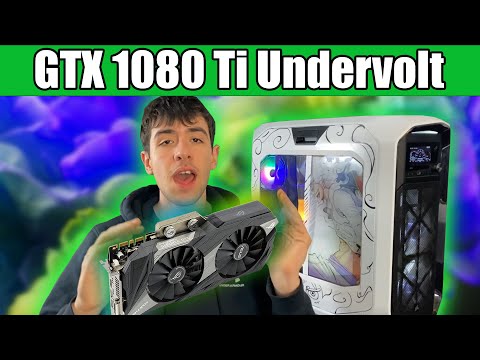
Ah, the GTX 1080 Ti MSI. Remember when you first got it? It was like a dream, giving your games that buttery-smooth performance. But now it’s running hotter than a sunny day in July! What gives, right?
I get it—nothing more annoying than hearing those fans kick up like a jet engine every time you launch a game. Well, this isn’t something we want to just ignore.
So what could be heating it up? Maybe it’s dust bunnies having a party in there—or perhaps the thermal paste is more dried up than an old sandwich. No worries, we’ll figure this out!
We’ll chat cooling tips to keep things chill and bring your card back to life. Because who wouldn’t want their gaming sessions as cool and smooth as they began?
Safe Temperature Range for GTX 1080 Ti
Oh, the trusty GTX 1080 Ti! A fantastic card, I gotta say. Now, if you’re like most folks, you’ve probably found yourself wondering about that sweet spot for temperatures to keep things running smoothly.
Safe Temperature Range
When it comes to the GTX 1080 Ti, temperature is everything. Think of it like a car engine; too hot and things can go awry. You want to aim for a temperature range of 60°C to 85°C under load. This means when you’re playing those high-octane games or rendering graphics, keeping it within this range is optimal.
- Idle State: When your system’s just chilling with no heavy tasks? Around 35°C to 50°C. That’s pretty chill!
- When Gaming or Under Load: 60°C to 85°C. If it touches the higher end occasionally don’t sweat it too much.
- Panic Point:If you see temps going over 90°C, it’s time for some intervention.
Avoiding Overheating
Now, what if you’re hovering near that danger zone? It might be time for a little cooling magic—a bit like giving your car an upgrade so its engine runs cooler.
– Sufficient Airflow:You wouldn’t believe how important this is. I remember my first rig had terrible airflow and was running hot all the time. You know how I fixed it? By re-organizing cables and adding extra case fans.
– Dust Bunnies Beware:Your GPU might look like it’s hosting a dust party in there! Give your PC a thorough cleaning session now and then.
– Pasting Up Your GPU:An often overlooked step is checking the thermal paste on your GPU. Old paste can dry out over time impacting heat transfer efficiency.
The Customer Experience Anecdote
Once upon a time, my buddy Jim was freaking out because his GTX 1080 Ti kept reaching over 90 degrees! Turns out he forgot to remove plastic coverings from his new case fans (oops!). After fixing that misstep his card cooled down faster than an ice cube melting on summer asphalt!
Anyway just remember these tips next time you sense overheating issues with yours then you’re golden!
GPU Safe Temperature Range
So, you’re dealing with some overheating issues on your GTX 1080 Ti MSI? Oh boy, I’ve been there too. Imagine booting up your favorite game and suddenly everything goes haywire because your graphics card is like, ‘Nope, too hot for this!’
Understanding GPU Temperature Ranges
First things first, let’s get a grip on what temperatures are normal for the GTX 1080 Ti. Safe operating temperatures are usually within the range of 60°C to 85°C. When it starts creeping above that—and especially if it hits over 90°C—you could start experiencing performance throttling or worse.
Potential Causes of Overheating
What could cause it to run hotter than a caffeinated squirrel? This is a common issue with several potential reasons:
- Lack of airflow: Sometimes the case doesn’t have enough fans or they’re not in the right spot. For instance, I once added an extra intake fan, and wow—what a difference!
- Dust build-up: You’d be surprised at how much dust can gather in there! It’s like your GPU has started its own little ecosystem.
- Poor thermal paste: Thermal paste helps conduct heat away from sensitive components. If it’s dried out or improperly applied… well, that’s bad news.
Tackling Overheating: Some Cooling Tips
Here’s where we look into cooling measures you can try out:
- Clean regularly: Use compressed air to clean out dust from fans and heatsinks. Believe me—it feels satisfying to see all that grime vanish!
- Add more fans: Improve case ventilation by installing additional intake or exhaust fans.
- Bump up fan speed:: Use software tools like MSI Afterburner to increase fan speed when things start heating up.
- Avoid overclocking:: Additional performance might sound great until your GPU turns into toast—keep an eye on those settings!
Sometimes I’ve found that just repositioning my PC or giving it some more breathing space helped lower temps quite a bit.
A Quick Example: Solving a Friend’s Problem
A friend came over last week nearly pulling his hair out because his gaming rig was acting up due overheating issues–turned out he had placed his PC in tiny enclosed space! By moving components around and cleaning meticulously we got everything running smoothly again without breaking much sweat ourselves!
Remember: keeping those temps down isn’t just good practice; it’ll help prolong lifespan while ensuring reliable performance during epic gaming sessions! Any similar experiences happened? Would love hearing how others resolved theirs too!
GTX 1080 Ti MSI Overheating Causes
Alright, so your GTX 1080 Ti MSI is overheating, huh? That can be super frustrating! Trust me, I’ve been around a few graphics cards that turned my room into a mini sauna. Let’s see what’s cooking.
First things first, let’s talk about what might cause this little piece of tech to run hot.
- Improper ventilation: Your graphics card needs to breathe! If your case is cramped or the fans are blocked by dust bunnies, they can’t cool effectively. Just imagine wearing a sweater under the hot sun; not fun.
- Overclocking: Sure, pushing your card for performance is tempting. But overclocking can send temperatures soaring if not managed well. It’s like running all-out in a marathon with no water breaks.
- Dried thermal paste: This paste helps transfer heat from the GPU chip to its cooler. Over time it can dry out and lose effectiveness—kind of like using an old glue stick that doesn’t stick anymore.
- Fan failures: Sometimes fans just give up or slow down due to wear and tear. You wouldn’t want an understudy trying to act while they’re half asleep!
So what can you do about it? Let’s rain on that overheating parade!
- Clean your PC regularly: Gently blow out dust from the fans and vents with some canned air. It’s weirdly satisfying watching all that stuff puff away!
- Adequate casing space: Make sure there’s enough room inside for airflow—like giving folks at a concert personal space so they don’t bop into each other.
- Pasting up fresh thermal paste: Reapplying thermal paste is good if it’s been long since its last application – just make sure you know how or ask someone experienced because nobody likes sticky surprises.
- You could check on fan performance too.: Sometimes updating drivers helps optimize how they run but do watch those updates carefully—they sometimes have surprises hidden away!
Keeping things cool requires minor maintenance now and then—and being aware of when something starts feeling “off.” Regular checks go along way; afterall preserving precious gaming moments ultimately depend upon our trusty hardware operating safely within limits!
Ah, the GTX 1080 Ti, right? It’s like that classic car that you just love. Mighty fine performance, but sometimes it gives you headaches under the hood. If you’ve noticed yours heating up like it’s preparing for a barbecue party, you’re not alone.
I remember when I first got my hands on this beast of a card. The feeling was exhilarating, standing in line for hours and finally getting it home. It was all fun and games until the fans started revving up like crazy. That’s when I knew something was off.
Firstly, think about dust—it’s everywhere! You might underestimate those tiny particles sneaking into your case. Over time, they can clog your cooling system just like junk food clogs arteries. Regular cleaning is essential; it’s almost therapeutic to pop open the case and gently brush away the dust bunnies.
And then there’s airflow inside your case itself—so important yet often overlooked! Imagine trying to breathe in a stuffy room with no windows open. If you’re stacking components too closely together without proper space for air circulation, well, overheating could be inevitable.
Now let’s chat about thermal paste—that magical goo that helps transfer heat from your GPU to the cooler efficiently. Sometimes it dries out over time or maybe even wasn’t applied properly in the first place! Reapplying some good quality thermal paste can work wonders.
Some folks also forget tweaking fan settings can help a lot too! A simple adjustment through MSI Afterburner or whatever software you’ve got running could create a more aggressive cooling profile during intense gaming sessions or heavy tasks.
There’s something satisfying knowing you’ve solved another little piece of tech puzzle each time your rig runs smoother afterwards—like taming an unruly creature with some patience and care!
Hope these tips help keep your GTX 1080 Ti cool under pressure—and keep it running like a dream for years ahead… Happy gaming!