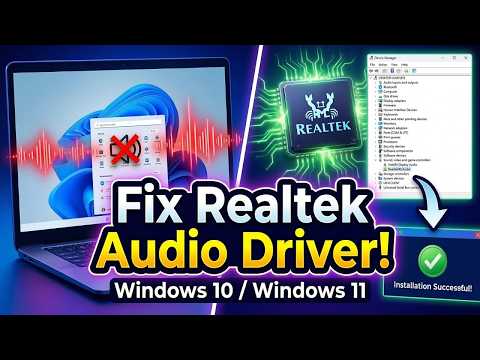
You know that feeling when you’re all set to binge-watch your favorite show, and then… bam! No sound. Like, what? Super annoying, right?
If you’ve got a Realtek ALC887 audio thingy and Windows 10 acting up on you, you’re not alone. It’s like this pesky little gremlin that shows up just when you really don’t need it.
But hey, no need to panic! There are some simple tricks we can try to get those speakers singing again. And trust me, it’s way easier than it sounds.
Ready to tackle this sound issue together? Let’s jump right in and see what we can do!
Fixing No Sound with Realtek ALC887 on Windows 10
Alright, let’s dive straight into helping you fix that pesky “No Sound” issue you’re having with Realtek ALC887 on Windows 10. It can be a bit frustrating, right? There’s nothing like the sound going out when you’re trying to watch a movie or listen to some tunes.
First things first, you want to make sure your computer’s volume is actually up and not muted. I know it sounds super obvious, but sometimes the simplest step solves everything!
Now onto drivers, which are often at the heart of sound troubles.
- Update Your Drivers: You’ll want to check if there’s an update for your Realtek driver. Go ahead and open the Device Manager. You get there by typing it in the search bar next to your Start menu.
- Find Your Sound, video and game controllers: Once there, look for a category called “Sound, video and game controllers.”
- Select Realtek High Definition Audio: When you spot this, right-click on it and hit that little “Update Driver” option.
- Select/Search Automatically for Updated Driver Software: Now just choose “Search automatically for updated driver software.” This lets Windows do its magic—finding if there’s anything new you should install.
If that doesn’t work?
You might be dealing with a specific driver version that’s acting up. Some versions can be real troublemakers!
- Error Rollback: Head back into Device Manager again. Right-click on your Realtek High Definition Audio—same place as before—and this time choose “Properties“. In the window that pops up, there’s a tab called “Driver“. Click that and see if you can roll back to an earlier version using “Roll Back Driver“. Sometimes an update was just not meant for us!
- No Rollback Available?: If rolling back isn’t an option (which happens), uninstalling might help. Well uninstall from Device Manager by hitting “Uninstall device“. Restart your PC after this step—Windows will try reinstalling it on boot-up.
An extra tip?
Sometimes checking control panel settings provides answers too—a trip down memory lane can adjust settings in real-time too!
While these steps cover common issues—they’re definitely not all-encompassing so fingers crossed one works out well :).
Hang tight—you’ll hear those sweet sounds again soon!
Realtek Audio Driver Compatibility with Windows 11
Oh, Realtek audio drivers! Sometimes they can be the unsung heroes—or villains—when it comes to getting your sound working right on Windows 11. You know how a great song just makes you feel everything? Well, without the right drivers, it’s kind of like living in a silent movie.
Let’s get into what happens when your Realtek ALC887 driver decides to play hard-to-get with Windows 11. This is especially important if you’ve had similar issues with Windows 10, where sound just decided to vanish into thin air.
- First thing: Compatibility is king! With any upgrade to another operating system version, it’s essential that both the hardware and software are on speaking terms. That’s why you might want to ensure your Realtek audio driver fully supports Windows 11 specifically.
- If you’re dealing with no sound at all—or if it’s inconsistent or crackly—check out Microsoft’s website for any available updates. They sometimes offer newer versions of drivers that hadn’t quite made it onto your system yet.
- Now here’s an oldie but goodie: accessing the Device Manager. Right-click on ‘Start’, choose ‘Device Manager’, and scroll down to find ‘Sound, video and game controllers’. In there, give a little nudge—a right-click—on ‘Realtek High Definition Audio’ and select ‘Update driver’.
Stuck? Don’t worry just yet!
- Roll back that driver if necessary! Every time an update rolls through, there’s always a chance something doesn’t mesh well. Each one arrives hoping for harmony but occasionally causes chaos instead.
Here’s another trick up our sleeves:
- If all else fails (and frustration levels rise), visit Realtek’s official site directly; they’ve got their own page dedicated solely—to this topic alone—where you could snag fresh downloads specifically designed by those who know these beasts best.
You see—not every tech adventure needs sweat & tears…sometimes we must only double-check minor details before breathing relief once more amid melodic tunes flowing freely ahgain!
Windows 10 Realtek Audio Driver Compatibility
Hey there, let’s chat about something that can be pretty annoying: when your sound suddenly stops working on Windows 10. It’s often related to the tricky compatibility issues with Realtek audio drivers. Ugh, right? Like when you’re all set to watch your favorite show, and bam—silence. So, what’s going on here?
What’s With The Realtek ALC887 Driver?
First up, the ALC887 is a type of audio codec chip from Realtek that’s super common in motherboards. And Windows 10 sometimes has a little spat with it—sounds just stop working!
How Does This Happen?
- Driver Updates Gone Rogue: These updates are kind of like surprise parties—they pop up unannounced and can mess things up if they’re not quite right.
- Sneaky System Bugs: Sometimes bugs crawl into your system without you even knowing, causing glitches.
- Windows Updates: They promise improvements but can accidentally disrupt other functions in the process.
Troubleshooting Steps
Look, before you start pulling out your hair—try these steps.
- Reinstall Drivers: Go to Device Manager (just type it in search), find Sound Video and Game Controllers – there’s your Realtek Audio driver – right-click and uninstall it. Then reboot! Windows will try reinstalling this for ya.
- Get The Right Version: Head over to the Realtek’s website or motherboard manufacturer’s site for the most compatible driver version.
- Tweak Playback Devices: Open Sound settings through the Start Menu search bar – make sure yours is actually set as Default!
Still stuck? Ask yourself: “Is my sound card okay?” Updating drivers sometimes won’t cut it if the hardware’s lost its spark.
Anyway, dealing with tech hiccups like this isn’t fun but keeping calm helps a ton! Trust yourself—you’ll figure it out. Remember that model numbers matter when hunting down those specific drivers too.
Fingers crossed—you should be hearing those tunes again soon!
Oh man, there’s nothing quite like the frustration of sitting down at your computer, ready to dive into your favorite music or a movie, and realizing there’s no sound. It happened to me just last week. I was all set for a work-from-home kind of day—and boom—no audio.
I remember feeling that familiar wave of annoyance, knowing it was probably some driver issue again. You’d think after all these updates Windows goes through, it could sort this stuff out on its own. But nope! The Realtek ALC887 sound card is pretty popular in many systems, and sometimes it just doesn’t want to play nice with Windows 10.
It’s kind of like when you’re trying to have a conversation with someone who suddenly stops responding… It’s awkward and irritating! Anyway, I rolled up my sleeves and decided I’d try fixing it myself.
First thing I did was check if the driver needed an update. Spoiler: it did! Heading over to Realtek’s website was like finding the needle in the haystack sometimes with all those version numbers. But patiently tracking down that ALC887 driver update can often be the ticket back to Soundland.
After downloading and installing the newest version, I rebooted my machine—you know how computers love their naps—and guess what? Sweet music flowed from my speakers again!
But here’s a funny thing: if you’re not hearing anything even then, there might be another step before you throw in the towel. Head into your sound settings. Sometimes computers like messing around with output devices, like choosing headphones when clearly no one’s using them!
In short, tackling the no-sound-on-Windows-10 issue can feel daunting at first but remember—you’re not alone in this battle against silent PCs… Everyone’s been there at least once!