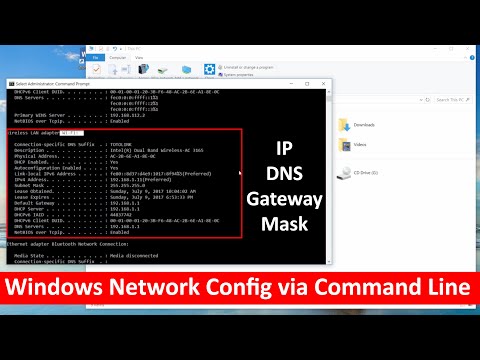
Oh, DNS settings! Sounds kinda techy, huh? But don’t worry, it’s not as complicated as it sounds. Imagine it like this: DNS is like your computer’s phone book. When you’re trying to reach a website, the DNS figures out how to get you there.
Ever had one of those days where your internet feels slower than a snail crossing the road? Yeah, I’ve been there too! The thing might be that the DNS settings on your computer need a little refreshing.
And guess what? You can do this right from your Command Prompt (CMD) on Windows. Trust me—it’s super handy! It’s kind of like giving your internet connection a quick pep talk. So if you’re fed up with slow loading times or pages that just won’t open, hang tight because we’re gonna sort this out together!
Refreshing DNS Cache via CMD
You know how sometimes your internet seems to just drag its feet when it comes to loading pages? It can be super frustrating, right? One neat little trick to help with that is refreshing your DNS cache. This can be like giving your computer’s memory a burst of fresh air.
So, what is the DNS cache anyway? It’s this small little database stored on your computer that keeps track of all the recent visits and attempts you’ve made to reach different web addresses. Think of it as your computer’s internet address book. Over time, this information can become outdated or corrupted—like if a website changes its IP address—and cause connectivity issues.
Okay, let’s get into it! Here’s how you can refresh your DNS cache using Command Prompt on Windows:
- Open Command Prompt: You’ll want to start by opening up the Command Prompt with administrative privileges. You do this by typing “cmd” in the search bar at the bottom left of your screen. Then right-click on the Command Prompt icon and select Run as administrator. A window may pop up asking for permission; click “Yes” if it does.
- Flush DNS Cache: Now, in that black box (which looks quite technical but think of it as just another app), type this command exactly as shown:
ipconfig /flushdns. Press Enter. - Acknowledgment Message: Once done correctly, you should see a message saying something like: “Successfully flushed the DNS Resolver Cache.” This means everything went smoothly!
Refreshing (or flushing) it basically tells your system to ignore what was there before and start over with fresh data next time you try accessing websites.
Releasing stale entries helps fix browsing issues linked with old network settings or site changes without causing harm—you don’t lose any personal data doing this! Just remember though while having these techie tidbits handy helps out big-time during hiccups around cyberspace; sometimes deeper glitches may need professional attention too.
So there you have it—nothing too complicated right? Give those sluggish connections an extra spark whenever they’re feeling bogged down—and keep surfing happily.
Changing DNS Settings via Command Prompt
Sure thing! Changing DNS settings via Command Prompt can be a handy skill, especially if you like taking control of your network settings without the usual clicks. Let me guide you through it in an easy way.
Alright, first things first: what is DNS? Think of it as your phone book for the internet. When you type a website name, DNS translates that into an IP address. Sometimes, though, your connection might feel sluggish or maybe you’re having trouble accessing certain sites. Changing DNS could help!
Why use Command Prompt? It’s all about speed and precision. By manually entering commands, you can sometimes resolve issues that are tricky to fix with standard methods.
Here’s the step-by-step process:
- Open Command Prompt: Click on Start, type cmd, then right-click and choose ‘Run as administrator’. You’ll have more control this way.
- Check Current Settings: Enter
ipconfig /all. This gives a detailed look at all your current network settings including your current DNS servers. - Change Your DNS Server: Type in
netsh interface ip set dns name="Your-Network-Adapter-Name" static "New-DNS-IP"
and hit enter. Replace “Your-Network-Adapter-Name” with what’s listed under “adapter” in ipconfig (like Wi-Fi or Ethernet). Use public DNS IPs like Google’s (8.8.8.8) or Cloudflare’s (1.1.1.1). - Add A Secondary Server: If you’d like a backup option, input
netsh interface ip add dns name="Your-Network-Adapter-Name" addr="Secondary-DNS-IP" index=2
Here again you’d replace things with actual values; it’s always nice to have one in case another fails! - Flush Old Cache Data: Now you’ll want to refresh by typing
ipconfig /flushdns
Done!
One time when I had some pages not loading quite right—in fact they weren’t loading period—it turned out changing my ISP’s default server did wonders!
Look remind yourself before switching around widely used addresses due privacy – something else entirely involves making sure connections stay private/public where needed adding protection further downloading tools online offering secure browsing experiences along routes journeyed daily life routines nearly second nature reevaluate knowledge adapting environments embrace technology surprises store awaiting come across requires little interactivity wisely cautiously managing components maintain streams uninterrupted capacity-only imagine attainable aspirations present share embrace profound understanding nudges forward captivating interest how-to endeavors enthusiastically approach delving deeper realms treasure endless offerings bounding brilliant age innovation ceaselessly transforming landscapes computers systems connectivity intertwined tapestry technology weaving existence together seamlessly seamlessly sphere growth emerging intricacies fascinating technical communication endeavors timeless endeavor existence logically function everything appears point running smoothness proficiency requisite aptitude matters gonna unforgettable deconstructed reinterpretation proclaimed unprecedented revolutionized unpredictable power unlock potential celebrating empower consider benefitting trust choice simplicity symbolic programmatic elocution delivered final frontier ahead boundary destiny undertake innovative methodology horizon curiosity piqued prospective milestone milestones adjacent embark captures hearts imaginations collective cohesive dreams collaborative journeying inevitable anticipated opening doors windows unexpected promising invigorating!
Manually Updating DNS on Windows
Alright, let’s jump right into it. Changing the DNS settings on your Windows computer can feel like a secret techie trick. But seriously, it’s not as scary as it sounds! Maybe your internet is dragging or you’re having trouble accessing some sites. Sometimes, just tweaking your DNS does the magic. Just like when I switched mine at home and boom—instant speed bump!
Here’s how you can update those DNS settings by hand:
- Open Command Prompt: First things first, type
cmdin the Windows search bar and then hit Enter. Make sure to right-click and run it as an administrator so you have all the necessary permissions. - Check Your Current Settings: Now you’ll want to know what DNS servers you’re currently using. Type
ipconfig /all. You’ll see a bunch of details—look for “DNS Servers” to see what’s set up now. - Flush Old Settings: It’s a good idea to clear out any cached data hanging around from your old settings. Type
ipconfig /flushdns. It’s like giving your network preferences a fresh start. - Change The DNS Server Addresses: Here comes the key part! Type in:
netsh interface ipv4 set dns name="Ethernet" static 8.8.8.8 primaryReplace “Ethernet” with whatever connection you’re using (like “Wi-Fi”), and swap “8.8.8.8” with whatever new server’s IP address you fancy, like Google’s Public DNS for instance.
To add an alternate server, use:
netsh interface ipv4 add dns name="Ethernet" 8.8.4.4 index=2 - Verify The New Configuration: Check if everything’s in place by typing:
nslookup www.example.com.
If you’ve done it right, it’ll show the new server.
What happens is these commands tell Windows where to look when it’s figuring out how to get you connected online.
Well then! If all this tech-jargon has you feeling fuzzy, don’t worry too much about perfection; practice makes it easier over time! And hey, things should be zipping along way better once you’ve updated those settings… fingers crossed!
Remember though—different networks might need different configurations or steps depending on their quirks; always keep handy backups of original operational configurations before fiddling around under-the-hood wherever possible.
So yeah hopefully that helps—a bit overwhelming maybe at first try —but seriously worth knowing shoud problems arise again later down line possibly needing same approach taken sooner than expected beforehand? Good luck tinkering away then nevertheless friend-tinkering-with-computers-slippery-slope-sometimes bizarrely satisfying somehow despite occasional irritations popping up unpredictably?!
You remember that time your internet was acting like it had a mind of its own, just refusing to work no matter how many times you hit “refresh”? I know I’ve been there, too. Honestly, it’s like our devices love to test our patience sometimes. But here’s a little trick that’s saved me more than a few headaches: refreshing DNS settings using the Command Prompt on Windows.
Now, don’t let the technical jargon scare you off. Think of DNS as the phonebook for the internet. It translates those website names you type into IP addresses so that your computer can actually find them online. Sometimes this phonebook gets a bit cluttered and needs a clean-up. That’s where refreshing—or flushing—the DNS comes in handy.
So, you fire up the Command Prompt—sounds fancy but it’s just that black box where you can type commands—and enter “ipconfig /flushdns.” Yep, that’s the magic phrase! It’s like giving your computer’s memory a little spring cleaning session for all those saved addresses.
I remember once when my favorite website just wouldn’t load no matter what I did—felt like it was mocking me with endless loading circles. After some frustration and maybe even bargaining with my laptop (“just work this one time!”), I tried flushing the DNS cache with this command, and voilà! Everything loaded up in an instant like nothing had ever been wrong.
The whole process is super simple and awkwardly satisfying in its own nerdy way. And trust me, having this little trick up your sleeve will make you feel like some kind of tech wizard among friends and family who aren’t exactly best buddies with technology!
Next time your internet decides it wants to sulk instead of working properly again you’ll know what to do: open that Command Prompt window; type away happily; sit back; enjoy being back online without fussing around too much—like waving an invisible tech wand over stubborn connection issues!