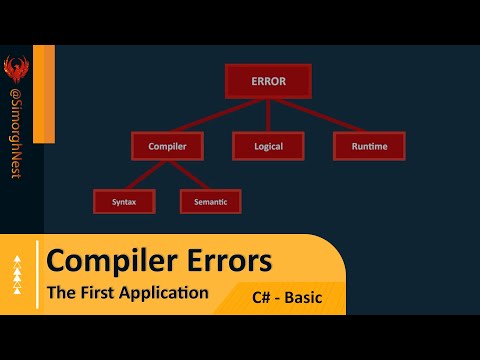
You know, when I first started with C#, I felt like I was trying to understand some alien language. Compiler errors were just… ugh, pure frustration! Picture this: you’re all set for a smooth coding session, coffee in hand, and bam! Dozens of cryptic error messages pop up out of nowhere. It’s like the computer is saying, “Not so fast!”
Now, I’ve been there too many times to count. Those errors can feel like they’re mocking you (and your code). But guess what? They’re not as scary as they seem once you get to know them a bit better.
What if we could turn those annoying red squiggles into tiny stepping stones instead of stumbling blocks? Just imagine cruising through your code without breaking a sweat over every little comma or missing bracket.
We’re gonna take this journey together and wrestle with those pesky compiler errors until we’re back on top of our coding game. Ready to tackle it head-on? Let’s dive into the nitty-gritty and make sense of what’s really going on under the hood.
Common C# Compiler Errors 2022
Oh, the joy of coding! Sometimes the C# compiler decides to act up, and that’s when trouble begins. Let me walk you through some common errors so you can scratch your head a little less and code a bit more efficiently.
1. CS1002: ; expected
Imagine baking a cake and forgetting sugar; that’s missing semicolons in C#. They’re crucial! If you see this error, check if you’ve placed semicolons right at the end of all statements. Example:
“`csharp
Console.WriteLine(“Hello World”)
“`
Missed something? Yeah, that pesky semicolon!
2. CS1513: } expected
Braces are like hugs for your code—balance them out! This error often arises when there’s an open brace without its closure.
Take a peek at blocks like:
“`csharp
if (true) {
Console.WriteLine(“I’m missing something!”)
“`
There should be a closing brace.
3. CS0103: The name ‘X’ does not exist in the current context
Oops, looks like your code is trying to use something that isn’t available yet! Check if:
- You misspelled a variable.
- A variable isn’t defined or is out of scope.
- You’re using a class member before initializing it properly.
4. CS0165: Use of unassigned local variable ‘X’
It’s like attempting to read from an empty book—no data yet! Ensure variables are initialized before usage.
For instance:
“`csharp
int number;
Console.WriteLine(number);
“`
See the issue? Should be `int number = 0;` for starters!
5. CS0117: ‘Class’ does not contain a definition for ‘member’
Your intention was good but unfortunately that member doesn’t exist where you’re trying to access it. Double-check:
- The spelling of class members!
- If you’re using modifications anywhere.
6. CS0246: The type or namespace name ‘X’ could not be found
This one’s shouting “where’s my reference?” Make sure:
- You included necessary `using` directives at the top.
- The assembly reference is added correctly if needed.
.
.
Facing these kinds of glitches can feel frustrating but just remember—you’re learning tons on this journey. Take deep breaths, step away occasionally (hydration break!), and pat yourself on achieving small victories tackling errors like these every day!
Expected C# Preprocessor Directive
Hey, you know how programming languages have all these little quirks and features? C# is no different, and one of those quirky features are preprocessor directives. Yeah, they’re a bit like secret little commands that can make your life easier when coding. Let’s jump in and see what they’re all about.
What Are Preprocessor Directives?
Preprocessor directives in C# are special instructions that get processed before actual compilation starts. They’re not actually part of the language itself but play an important role in compiling your code the right way. It’s like giving the compiler some specific instructions before it even looks at the core code.
Commonly Used Directives
Here are a few that you’ll probably run into:
- #define: This directive lets you define a symbol, which can be used for conditional compilation.
- #if: Allows you to conditionally compile parts of your code based on whether certain symbols have been defined.
- #region: Ever feel like organizing your code better? This one’s for grouping related pieces together — handy for reading!
- #error: Throws an error during compilation with a custom message if something isn’t configured quite right.
This Is Where Things Get Real
Imagine, you’re working on a huge project with multiple team members. You need certain parts of the code to be compiled only under specific conditions. For example, different environments or configurations might need different logic.
Here’s how you might use preprocessor directives in such a case:
“`csharp
#define DEBUG_MODE
class Program
{
static void Main()
{
#if DEBUG_MODE
Console.WriteLine(“Debug mode is active.”);
#else
Console.WriteLine(“Running in release mode.”);
#endif
}
}
“`
In this snippet, when `DEBUG_MODE` is defined, it will print “Debug mode is active.” Cool trick to have up your sleeve!
Watch Out for Pitfalls!
But beware! Overusing these can make your code hard to follow – especially for new folks looking at it later on. They don’t nest within classes or methods as regular C# syntax does, which means sometimes things don’t work quite as expected.
So go ahead and try using them wisely; they’ll definitely help streamline complex coding tasks while allowing flexibility depending on what needs happen during development cycles!
C# Compiler Compatibility Requirements
When you’re diving into the world of C#, you might bump into some quirky compiler compatibility issues. Don’t sweat it; it’s all part of the game. Let’s go through some key things you need to keep in mind to keep your code and compiler on the same page.
Understanding Compatibility
So, when we talk about C# compiler compatibility, we’re really just talking about making sure that your code works smoothly with the version of the .NET framework you’re using. It’s a little like making sure your phone charger fits your phone—different versions require different plugs, so to speak.
Key Requirements
- C# Version: Each version of C# language needs specific features supported only by particular .NET frameworks.
- .NET Framework: Make sure that the .NET framework you’re using supports the C# language features introduced by newer versions.
- IDEs and Tools: You also gotta check if your Integrated Development Environment (IDE), like Visual Studio, supports both your chosen C# and .NET framework versions.
A Little Story
Okay, let me share a quick story—imagine spending hours coding, piecing together what feels like artwork. You hit compile aaand… error! Turns out you used a snazzy new feature not supported by an older framework version. Yep, been there!
Troubleshooting Common Errors
- “Feature Not Available”: This one often pops up if you use language features not supported by the installed .NET version. Double-check which versions work together.
- “Incompatible Types”: You’ll see this error if there are mismatched data types between different framework versions or libraries.
- “Reference Errors”: These happen when dependencies or assemblies aren’t correctly updated or aligned with current project configuration settings.
The fun part? Learning from these hiccups is what makes us better programmers! Making those adjustments is like tightening loose bolts on a bike—you get to ride smoother each time.
A Tip for Smooth Sailing: Always refer back to official documentation for both .NET and Visual Studio (or whatever tools you’re using). They usually have handy info on what’s compatible with what.
Remember these key points next coder’s journey takes an unexpected turn thanks to compatibility quirks! Cheers!
Who hasn’t been there, staring at a computer screen filled with error messages that look like another language? It kinda feels like your computer’s speaking a different dialect, right? I remember when I first dipped my toes into C#. Man, those compiler errors seemed to show up out of nowhere. You’d think everything’s perfect until you hit that run button—bam! A wall of red text. It’s enough to make anyone frustrated.
For me, it all started on a Tuesday evening. I was working on this little project for class, full of excitement and caffeine—always a great combo. As soon as I compiled it, error codes splashed across my screen like fireworks gone wrong: CS1002 this and CS1519 that… Talk about feeling defeated!
The thing is, these errors are just the computer’s way of telling us something isn’t quite right in our code garden. Missing semicolons or mismatched brackets can be sneaky little culprits! But as you get more familiar with these messages, they start to look less scary and more like quirky reminders to check your work.
Making friends with compiler errors has its perks—like having an annoying but helpful sidekick that nudges you towards cleaner code. It’s kinda like your cat plopping down on your keyboard; it’s annoying in the moment, but it gets you moving away from mistakes.
Some common troubles pop up everywhere—a missing semicolon here or a misspelled variable name there. And let’s not forget those pesky curly braces! Misplacing one can throw everything off balance.
So the next time you’re knee-deep in C# errors (or any coding chaos), take a deep breath. Remember that each mistake is just another step toward mastering this techy terrain. And hey, if nothing else works? There’s always coffee and cats! Who would’ve thought learning through trial and error could be such an adventure?