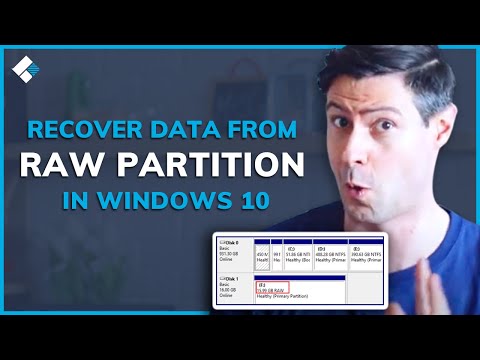
Oh man, have you ever experienced the terror of a RAW partition? It’s like suddenly, poof! Your computer can’t access your data, and everything looks like gibberish. I’ve been there too. Your stomach does that drop thing as if you’ve missed the last step of the staircase.
So, here’s the deal. When your hard drive throws this curveball at you, it feels kind of wild and mysterious but don’t panic. There’s hope! Seriously, it’s not the end of the world. I had a buddy who was all set to reformat his drive until he found out he could actually fix it without losing everything!
Imagine having some tools in your back pocket that can help bring back what seems lost forever—that’s where we’re headed today. No need to freak out or throw in the towel just yet!
Free Tool for Recovering Lost Partitions
Picture this: you’re browsing through your files, and suddenly, a whole partition on your drive seems to have vanished into thin air. It’s almost like magic, but the bad kind. Panic sets in, your heart skips a beat, maybe even two. Before you dive deep into despair, know that there are free tools that can work wonders to recover those lost partitions.
Understanding the Situation
So what’s happening when a partition goes missing? Sometimes your computer might recognize it as a RAW partition. That basically means it can’t read it in the normal way because something’s gone wonky with the file system.
Enter: Free Recovery Tools
There’s hope! Free tools are out there that specialize in bringing these elusive partitions back from the brink. Here’s how they usually work:
- Scan for Lost Partitions: The tool explores your drive and looks for bits of data that belong to those lost partitions.
- Rebuild Partition Tables: Once they find these bits, they try to piece together the puzzle of where everything belongs.
- Restore Access: After rebuilding what they can, you often get back access to that seemingly lost world of data.
A Tool Example: TestDisk
TestDisk is one popular choice that’s been around for quite some time. It’s like a trusty old friend who’s good at finding things you’ve misplaced.
- Open Source: It’s completely free and open-source. That means anyone can contribute to making it better.
- User Friendly (kind of): While not covered in glitter with fancy buttons everywhere, it’s straightforward enough once you get the hang of it.
- Covers Multiple File Systems: Whether it’s FAT32 or NTFS you’re dealing with—or something else—it has options for many scenarios.
The Steps You’d Follow:
1. **Install TestDisk** on another computer or an external disk if possible—this prevents writing over any recoverable data.
2. **Choose “Analyze”:** This tells TestDisk to look at all the available spaces on your disk where data could be hiding.
3. **Select “Quick Search”:** Here begins its magic journey of finding those long-lost partitions.
4. **Check Results:** If all goes well (fingers crossed), you’ll see them pop up like a miracle!
5. **Write Partition Table:** If everything looks good and accounted for—just say yes! And let TestDisk do its thing by writing this newfound information back onto your drive.
Remember though—a personal anecdote here—is when I once recovered some vacation photos with just such tools after accidentally reformatting my memory card during an overly ambitious DIY project!
In essence folks—you don’t need complex gizmos or shelve out big bucks right away just because technology decided today wasn’t going according plan… There are indeed ways within reach without breaking bank right?
Tools for Recovering a RAW Partition in Windows 10
You know, dealing with a RAW partition on your Windows 10 machine can be quite unsettling. I once had a friend who lost all their vacation photos because of a RAW partition mess-up. But here, we’re gonna dive into how you can tackle this without losing your cool—or your data!
First up: what the heck is a RAW partition? RAW means that the file system of the hard drive is not recognized by Windows. It’s like trying to read a book in an unknown language. Because of this, you can’t access the files on it directly.
Here’s what you wanna do if you’re facing this issue:
- Check Disk Utilities: Use built-in tools like Disk Management. Sometimes just reassessing and formatting through this utility can help, though it’ll erase data! Careful there.
- Use Recovery Software: There are plenty of third-party tools out there specifically designed for these situations. For example, software like MiniTool Power Data Recovery or EaseUS Data Recovery Wizard can scan and recover data from RAW partitions.
- Run CHKDSK Command: Open Command Prompt as an admin and type in “chkdsk X: /f” (replace X with your drive letter). This checks for file system errors but might not work if it’s too corrupted.
Remember when my pal tried one of those recovery programs? They ran EaseUS, and luckily got back those beloved beach selfies. Of course it took some time—so patience is key.
Now before diving into any solutions, make sure to back up existing files on other drives if possible because things could get wonky during recovery attempts.
In many cases recovering from a RAW state means converting it back to NTFS/FAT32 which tend to be more stable formats recognized by Windows 10 regularly.
But hey—keep calm! Planning ahead by regularly backing up will save loads hassle down line too!
Tools for Recovering a RAW Partition in Windows 7
So, you’re dealing with a RAW partition on your Windows 7 computer. Don’t worry, it’s a situation that can happen to anyone. Imagine this: one morning, you turn on your trusty PC and, out of nowhere, one of your partitions is inaccessible. It’s showing up as RAW in Disk Management. Frustrating, right? But hey, I’m here to walk you through some tools that could help fix this.
First off, what’s a RAW partition? In simple terms, it means the file system is missing or corrupted. Your data’s still there; it’s just kind of hiding behind an invisible door.
- TestDisk: This one’s pretty robust and best of all—it’s free! TestDisk is known for its ability to recover lost partitions and make non-booting disks bootable again.
- EaseUS Data Recovery Wizard: It’s a user-friendly option that lets you recover files from RAW drives. Just install the software (try the trial first), scan your disk, and follow the prompts.
- Minitool Partition Wizard: Here’s another handy tool which offers features like converting RAW to NTFS without losing data.
Now let’s take a closer look at how these can actually help:
TestDisk: Once downloaded and installed—it runs through CMD—you just need to select ‘Analyze’. The program tries finding missing partitions or rebuilding boots sectors if needed—nice little utility!
EaseUS Data Recovery Wizard: Super easy even if you’re not tech-savvy. Fire up this application after downloading; choose ‘Lost Partition Recovery’ mode… wait while it scans everything then selects what should be restored back onto original locations safely.
Minitool Partition Wizard Free Edition: With similar steps as above-mentioned choices… follow instructions closely during installation process—pay special attention where necessary warnings might appear—for full functionality access conversion capabilities indeed handy in those situations when partitions become “invisible” suddenly because misconfigured setups occur unfortunately sometimes!
And oh yeah—a quick reminder before trying any recovery solution—always backup important files beforehand whenever possible!
Dealing with technical issues may seem overwhelming initially but patience pays off eventually especially when equipped proper knowledge understanding potential solutions available today aim assist guiding us overcoming challenges arising unexpected circumstances situations like these!
Recovering a RAW partition can feel like one of those “oh no” moments. Imagine you’re about to access some important files, maybe your family photos or that project you’ve been working on for months, and suddenly—bam! Your computer tells you the drive is RAW, like what even is that? Yeah, it’s frustrating. It’s like the universe decided to throw a tech curveball at you.
Alright, so what happens with a RAW partition is quite simple but pretty mysterious. It means your computer can’t recognize the file system on that drive. The files are all still there—they’re just cleverly hiding from you! It’s kind of like when you’ve got something really specific stuck in your head and it’s right there on the tip of your tongue but won’t come out.
First thing, don’t panic! This isn’t magic or sorcery—it’s just tech acting up. There are tools designed to help with this sort of thing. Software like EaseUS Data Recovery Wizard or MiniTool Partition can be super helpful in these situations.
You’d need to download one of these programs and follow their prompts—hard stuff that’s been made easy for us non-techie people to grasp. What they do is scan your drive, find those lost little tidbits of data and gently coax them back into existence where you can access them again.
I remember helping out a friend once who was in tears over lost wedding photos due to a RAW drive situation. Using one of these programs really saved the day—and her marriage memory book!
Anyway, it’s always wise to keep good backups before things go all wonky like this (easier said than done though). It’ll save time and stress if anything similar happens down the line—because let’s face it, at some point another version of tech headache will strike again!