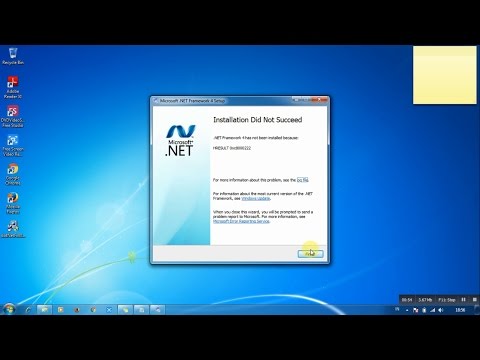
Oh man, dealing with .NET Framework installation issues on a Windows 7 64-bit system can really throw a wrench in your day, right? It’s like you’re all set to dive into something cool or get some work done, and boom! You’re hit with this tech hiccup. I’ve been there myself, staring at the screen and wondering what on earth went wrong. The thing is, these tech gremlins often have us pulling our hair out.
You know what’s funny? Sometimes it’s the simplest things that trip us up. Maybe a tiny detail missed or a weird little error popping up out of nowhere. It’s like trying to put together IKEA furniture without instructions—you think you’ve got it until you don’t. Anyway, we’re gonna dig through some stuff here to get things flowing smoothly again.
And hey, don’t worry too much—you’re definitely not alone in this adventure. Let’s figure it out together and make sure your .NET Framework is running like a dream on your trusty old Windows 7 machine!
.NET Framework Compatibility with Windows 7 64-bit
Navigating the waters of .NET Framework compatibility with Windows 7 64-bit can sometimes feel like assembling a puzzle. You know, one piece at a time. To get you up and running without pulling your hair out, let me walk you through it.
First thing first: when you’re dealing with Windows 7, especially on the 64-bit version, it’s good to know which versions of the .NET Framework are compatible. Here’s a handy overview:
- .NET Framework 3.5: Pre-installed on Windows 7. It often just requires activation through the Control Panel rather than an installation.
- .NET Framework 4.x series: These versions should also work smoothly with Windows 7 but might require specific updates.
Now, let’s look into possible hiccups you might come across during installation.
You ever try double-clicking an installer and nothing happens? Frustrating! This usually means there’s a conflict or missing prerequisite. Check that all important updates for your Windows are installed because some newer .NET versions depend on them.
Another common issue is permissions. Sometimes installing software like this can need administrative rights. Simply right-click the installer and choose “Run as administrator.” It can be that simple!
Occasionally you’ll encounter error messages about particular updates being necessary, like error code x800f081f, which indicates your system may be missing necessary update files or configurations.
And before hitting ‘Install,’ it’s always wise to disable antivirus software temporarily to prevent any unintentional interference. You’d be surprised how many times security settings just block stuff!
Imagine you’re still facing trouble even after all this—don’t throw in the towel yet! Microsoft also offers their own troubleshooting tools dedicated specifically to fixing these pesky .NET issues.
Keeping calm is key here! Sometimes stepping away from your computer for a coffee break while things install isn’t such a bad idea either—the world won’t end if an installation takes some time!
So next time you think about tackling .NET installations on your trusty old Windows machine remember these little nuggets—could save you from major headaches down the road!
.NET Framework Installation on Windows 7 64 Bit
Installing the .NET Framework on Windows 7 64-bit can feel a bit like, you know, assembling IKEA furniture without the instructions. But not to worry, we’re here to help you figure it all out.
Why You Might Need It: The .NET Framework is like this magical toolkit that helps run certain applications on your computer. You might have tried opening a program and seen a prompt insisting on it—that’s why it’s crucial.
Now, first things first. Before jumping into the installation process, ensure your Windows 7 is updated. Search for “Windows Update” in your start menu and check for any pending updates. This step alone can save you headaches later on.
Downloading the Right Version:
Here’s what you need to do:
- Navigate to the official Microsoft website where you’ll find .NET Framework downloads.
- Select **Microsoft .NET Framework 4.8**—as it’s usually compatible with most apps nowadays.
- Click download and keep track of where it gets saved!
Once you’ve got that file ready, double-click it from wherever it’s stored.
The Installation Walkthrough:
This part is straightforward but takes a bit of patience:
- A pop-up will appear. Read through (or skim!) that license agreement and click Accept if you’re okay with it.
- Select Full Install when prompted—not Custom or Lite or anything fancy unless you’re sure what those mean.
- The process might take some time depending on your system speed—you could make coffee while waiting!
Troubleshooting Common Issues:
If installation fails (it happens), try these:
- Error Codes? Look them up online; they often point toward missing components or conflicts.
- No Luck? Disable antivirus temporarily—they sometimes interfere with installations by mistake.
- Your Internet down? Check connections since many installations need online resources even if they’ve been downloaded initially!
A little story for motivation? When I was installing .NET myself ages ago… I forgot my PC needed updates first! Guess who had an evening-long loop fixing errors instead? Lesson learned: Start clean—for real!
In case none of these work still, consider asking online communities (like tech forums) ’cause chances are someone else faced similar woes before figuring things out together too!
So there ya have it—the essentials about installing everyone’s favorite software run-helper program—the mighty Microsoft’s dot-net framework done right…
Windows 7 Installation Error Resolution Steps
Oh, the joys of dealing with installation issues on Windows 7! It can be especially frustrating when trying to tackle problems related to the .NET Framework. I remember one time I was helping a friend, and, honestly, we spent hours scratching our heads over a similar issue. If you’re facing .NET Framework installation woes on your Windows 7 64-bit machine, let’s try and sort this out together.
First thing’s first: make sure your system is fully updated. Yeah, it sounds basic, but trust me—sometimes it’s just these updates that pave the way for a smooth installation. To check for updates:
- Head over to Start, type Windows Update, and hit Enter.
- Select Check for updates and install any pending ones.
Now let’s get our hands dirty with some troubleshooting:
1. Use the .NET Framework repair tool:
Microsoft has a handy little tool that can fix several issues automatically.
- Download it from their official site.
- Run the tool; follow any given prompts.
2. Verify .NET Framework versions:
It’s possible you already have some versions installed or partially installed that might conflict:
- Open Control Panel > Programs > Programs and Features .
- Select “Turn Windows features on or off”.
- You’ll see various versions listed there—ensure they’re checked.
- If unchecked, tick them, hit OK, and wait for changes to apply.
3. Manual Installation:
Sometimes automated ways just won’t do it! You might need to go old-school:
- Download the offline installer.
- This version should match your system (remember: you’re on 64-bit).
- If prompted about previous installations or incomplete installs, remove these first through Control Panel before retrying.
Troubleshoot with event viewer:
For more advanced insight into errors:
- You can access Event Viewer by typing it in Start menu search box; press Enter when found.
- Navigate through Windows Logs > Application section – look specific errors linked closely framework setup events here!
.
.
…Jot down exact messages codes if consulting online resources Microsoft support forums seeking fellow user solutions assists better understanding problem root diagnosing efficiently approached instead guessing blindly around potential fixes!…
And remember sometimes running command prompt administrator privileges helpful resolving hang-ups believe leave related drivers refreshing registry clearing temporary files actions performed safety mindful apart contributed differing factors solutions!
Hope finds solution eases burden friends went realized persistence key tackling mounting technical hurdles eventually successful outcome yields relief satisfaction problems behind turning point story ends happily necessary restart & repeat process smoother strides finer things truly await newfound wisdom gleaned sacrifices lessons learned overcome formidable beasts technological…
Oh boy, .NET Framework installation issues on a Windows 7 64-bit machine can really test your patience, huh? It’s like you’re all set to run that application you’ve been eager to try, and bam! The framework decides it’s not gonna play nice.
I remember this one time, I was helping a friend who’d just gotten into a game development project. Everything was going smoothly until she hit the roadblock called “.NET Framework error”. She was using Windows 7—yeah, I know, kinda outdated now—and every time she tried installing the required .NET version, it would just sit there and throw cryptic error messages.
First thing we thought of? Make sure the system is up-to-date with all those super important Windows updates. ‘Cause sometimes, if your system is missing certain updates or patches, the .NET Framework stubbornly refuses to install. We gave that a shot—installed all pending updates—and prayed it would solve our problem. Unbelievably enough, sometimes that’s all it takes! But not in our case.
Then we went hunting for any previous versions of .NET that might be causing conflicts. Uninstalling older versions turned out to be another hoop we had to jump through. You ever use “Programs and Features” in Control Panel? It’s where you can add or remove programs from your computer. Funny as it sounds now—back then—it felt like we were searching for treasure hidden among so many other applications.
After some more trials and errors—re-running installations and searching forums—we finally cracked it by using the full offline installer for the specific version needed. Those web installers can fail if they lose connection or if something gets corrupted along the way. Firing up an offline installer meant no network disruptions could get in our way!
It felt like a massive victory when that installation progress bar finally completed without hiccups! I bet you can imagine us doing happy dances around her desk.
So yeah—it can definitely feel frustrating at times dealing with these tech quirks on older systems like Windows 7—but there’s usually light at end of tunnel! Just takes patience…and maybe some dancing too once it’s fixed!