Alright, imagine this. You’re all set to binge-watch your favorite series on your Windows 10 laptop, popcorn ready, comfy spot on the couch. But wait! No sound. Nada. Zero. And there you are wondering what’s up.
You, my friend, might be facing a classic Intel audio driver hiccup—because technology loves its little surprises. Sometimes things go haywire without any heads-up.
Anyway, don’t sweat it! These things happen more often than you’d think. We’re gonna figure this out together because nobody should watch their shows in silence—unless it’s a silent film marathon!
Audio Driver Failure Causes
Ah, audio driver failures—frustrating, right? You’re jamming to your tunes when poof! The sound just drops. Really annoying! Especially if it’s an Intel audio driver acting up on your Windows 10. So what gives? Let’s explore some common reasons why this happens.
First off, outdated drivers. Think of them like a bridge between your hardware and software. If they’re too old or rusty, communication just falls apart. Technology evolves and so should your drivers.
Then there are incompatible updates. Have you ever clicked ‘update’ without thinking much? I’ll bet we all have at some point! But sometimes these updates clash with existing drivers. And bam—suddenly nothing works as it should.
No discussion about technical glitches would be complete without mentioning corrupted files. Files can get scrambled due to anything from a power outage to malware. If the files needed for Intel’s audio are corrupt—you’ve guessed it—sound vanishes!
It’s not always software-related though; hardware issues play a part too. Imagine a loose connection under the hood of your computer—it happens! And when it does, even flawless drivers can’t save the sound day.
Another biggie is the quirky Windows settings themselves that somehow change without any explanation (gremlins in the system maybe?). It might look good on-screen but unless you dive into those hidden menus—it remains silent!
To help pinpoint what’s going wrong:
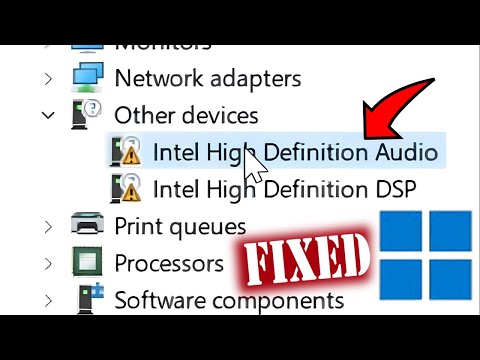
- Check Device Manager: Look for yellow exclamation marks next to audio devices.
- Update Drivers: Visit Intel’s website or use specific tools they’re offering.
- Add-ons/Extensions: Some extras may interfere; disable temporarily see if sound returns.
- Tweak Settings: Open ‘Sound’ settings in Control Panel and verify everything’s spot-on.
I remember this one time my nephew rang me up in panic because his gaming session was dead quiet. Turned out he’d inadvertently toggled something off deep within his PC’s control panel after fiddling around aimlessly… Teenagers!
Wrapping things up (oh wait—not allowed to say that!), tackling these potential culprits one-by-one could bring sweet music back into life again before long—or at least chase away those confounding gremlins sabotaging serenity every now-and-then across our lives online…
Intel Audio Driver Issues on Windows 10
Ah, the joys of computers! They can make life so much easier—when everything works smoothly. But then, there are those times when things just decide to go sideways, like having issues with the Intel Audio Driver on your Windows 10 machine. Ugh! It’s like having a concert ready but no sound comes out!
What’s Happening with Your Audio?
Imagine you’re all set to watch your favorite movie or listen to some music, and boom—no sound. It’s like watching a silent film without wanting to. These pesky audio driver issues can make your device go mute or, even worse, produce that eerie crackling noise.
But Why Does This Happen?
Well, several things can stir up trouble here:
- Driver Updates Gone Wrong: Sometimes an update doesn’t play nice with the rest of the system. Drivers are supposed to harmonize hardware and software but can sometimes hit a bum note.
- Outdated Drivers: If you’re not keeping them updated, they might not work well anymore—kind of like using an old map in a city that’s changed.
- Compatibility Glitches: New apps or updates might mess with existing drivers—like trying to fit square pegs into round holes.
Solve It Like a Pro!
Let’s figure out how you might bring back your sound harmony:
1. Check for Windows Updates:
Regularly updating Windows keeps things fresh and fixes bugs that might mute your device.
2. Please Update Your Audio Driver:
Head over to Device Manager (pressing Win + X will get you there quickly), find ‘Sound, video and game controllers,’ then right-click on Intel’s driver and select ‘Update driver.’
3. bCreate Restore Point:
Before making significant changes it’s good practice—and peace of mind—to create a restore point.
4.Troubleshoot Sound Problems, there’s actually this built-in troubleshooter in settings that scans potential issues faster than calling tech support.
5./ Roll Back Driver:/strong>, if everything was working fine before an update try rolling back drivers through properties under Device Manager until sounds return normalcy level previously enjoyed
If those steps don’t do magic maybe turning towards official channels regarding manufacturer support could provide further insights helpfully guiding solution path forward rather than becoming frustration point instead ease provided potentially getting professional attention where needed most urgent assistance anyway there ya’ go give tricks work found them something useful hope saves day remember technology isn’t flawless understanding problem solving bit patience often necessary finally let know wish happy computing journeys ahead sign off now bye till next time keep exploring nearby solutions online world see ya later!
Intel Audio Driver Issues on Windows 10
Oh, Intel audio drivers issues on Windows 10. That can be a real headache, right? Imagine you’re trying to enjoy a good movie, and suddenly there’s no sound. Frustrating! But don’t worry too much. I’m here to walk you through some common problems and fixes.
Understanding the Issue:
Before diving into solutions, let’s just briefly go over why these issues happen in the first place. You see, an audio driver is like a translator between your operating system and your speakers or headphones. When this “translator” doesn’t work properly, no wonder there’s silence!
Some Classic Signs of Malfunction:
- No sound at all! This is probably the most obvious sign.
- Sound distortion or crackling noises.
- Audio device not being recognized by Windows.
Those moments when you’re ready for some music therapy or are on an important call and boom — silence instead of sound — are super inconvenient.
Potential Fixes:
Now onto the meat! Let’s fix this problem so you can get back to enjoying impeccable sound.
1. Restart Your Computer: Sounds too simple? Sometimes it works wonders! A fresh start can help reset things.
2. Check Connections: Ensure that everything is plugged in properly (headphones, external speakers). It happens more often than you’d think!
3. Update Your Driver: Go to Device Manager:
– Type “Device Manager” into the search bar.
– Find “Sound, video and game controllers.”
– Right-click on your Intel audio device.
– Choose “Update driver” to see if there are new drivers available.
4. Roll Back Drivers: Maybe a recent update did more harm than good?
– In Device Manager again.
– Right-click your Intel audio device.
– Select “Properties,” then tap the “Driver” tab.
– Hit “Roll Back Driver,” if available.
5. Run Windows Troubleshooter: Let Windows lend you a hand:
– Search for ‘troubleshoot settings’ in the search bar.
– Click ‘Additional troubleshooters.’
– Choose ‘Playing Audio’ then run it.
6. Select Correct Playback Device:
Ever had those moments wondering where’s my sound going?
Sometimes it’s just going nowhere because Of incorrect settings:
“`html
Right-click on the speaker icon in your taskbar,
Select ‘Open Sound Settings,’
Check Output Device — ensure it matches what you want!
“`
An anecdote:
A friend of mine once spent hours figuring out why her PC wouldn’t give out sound after installing some suspicious program… turned out she’d somehow disabled her speakers without realizing it during installation! Ever been there?
Anyway hopefully these tips help put an end to any unexpected silences from now onwards musically happy days ahead yay!
Got questions or other computer quirks bugging ya drop them below; we’ll navigate through together cheers till next time…
Oh, the joys of computer audio troubles. You know? I remember one time when I was preparing for an important video call, everything was set—the room, lighting, notes—until I hit “Join” and realized there was no sound. Panic mode: activated! It turned out to be the infamous Intel audio driver causing chaos in my Windows 10 system.
When you’re dealing with a stubborn Intel audio driver malfunction, it can really make you want to pull your hair out. These drivers are like those little elves inside your computer making sure the sound comes through just right. But sometimes they get… well, let’s say they take a nap.
So what causes these hiccups? Often it’s after a system update that drivers decide to act up. It’s like they’ve forgotten how to talk properly with your hardware or something gets lost in translation. You might notice distorted sound or even no sound at all—and that’s super frustrating!
Sometimes the fix is as simple as updating the driver—heading over to Device Manager and letting Windows try its magic—or maybe rolling back to an older version that worked fine before things went south. But hey! Remember to check your speaker connections and volume settings first—trust me, it’s easy to overlook those in a moment of panic!
Dive into troubleshooting (psst… not actually diving!), but seriously, patience is key here. You might have reinstalling on repeat before you find peace again.
And if all else fails? Reaching out for tech support might be a good idea—they’re there for times just like this after all.
Remembering that day makes me smile now; at least I’ve learned always having headphones ready is never a bad idea!