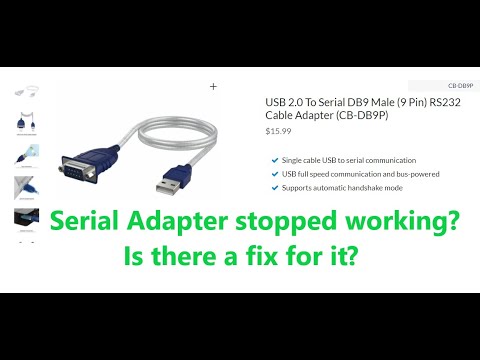
So you’ve got this old device that you love, right? But there’s just one tiny problem. It uses an RS232 port, and your modern laptop? Yeah, it only has USBs. Been there!
Remember when you found that old gadget in the attic? Kinda like finding buried treasure. Only, now you’re stuck wondering how to connect it.
Let me tell you, there’s a solution out there that’s simpler than you’d think—RS232 to USB adapters! These little gadgets can save your day (and your device).
Trust me; I’ve been down this rabbit hole before. After all the cable searching and head-scratching, it’s such a relief when everything finally clicks into place.
You’re not alone in this quest. And hey, who doesn’t love making things work again? Let’s dig into how you can get those devices chatting with each other like old pals!
USB to RS232 Compatibility Issues
Oh, the quirks of technology, right? Sometimes trying to get a USB to work with RS232 can feel like you’re forcing puzzle pieces that just won’t fit. But don’t worry, I’ve got your back!
Understanding USB and RS232
First things first! USB (Universal Serial Bus) and RS232 are like two neighbors who speak different languages. While USB is newer, quicker, and more compact, RS232 has been around forever—well, since the days when floppy disks were still cool. So imagine a conversation between an old-style telephone and a modern smartphone… that’s kind of what you’re dealing with!
Common Compatibility Issues
Here’s where it gets tricky. When connecting these two different technologies through adapters or cables, things don’t always go smoothly:
- Driver Conflicts: This one is like having an argument about which road map to follow. Modern computers might struggle with finding drivers that accommodate RS232 devices because it’s not their native tongue.
- Power Supply Problems: Sometimes the power required by your device just doesn’t match what your adapter can provide—a bit like plugging in a hairdryer in Europe without the right voltage converter.
- Speed Mismatches: Think of it as trying to mix joggers’ pace with sprinters’. The data exchange speeds might not always align perfectly
Troubleshooting Tips
Alrighty! Let’s get hands-on now:
- Select Quality Adapters: You wouldn’t use cheap shoes for a marathon! Make sure you choose reliable adapters from trusted manufacturers known for compatibility. Investing in quality pays off!
- Certain Drivers Are Essential: You may need specific drivers installed on your computer; check both manufacturer websites or community forums—people love sharing successes (and failures!), so dive into user experiences!
- Tweak Settings If Necessary:Your system settings may need tweaking depending on how fussy devices behave; sometimes manual intervention helps iron out kinks such as speed discrepancies.
A Personal Anecdote
Back once upon another time ago—you know those classic printer-port cables? I remember mom traipsing my old one bed-to-bath until finding salvation via divine-newfangled-USB miracle-dongle solving all woes single-handedly.
Connecting isn’t always seamless yet persistence prevails—in most cases anyhow—and before long you’ll gleefully bridge past-meets-present technological divide without missing proverbial beat!
RS232 Connection Signal Testing
Sure, let’s chat about RS232 connection signal testing. You ever fiddled with old tech? Well, that’s RS232 for you! It’s been around since the times of dial-up modems. Anyways, sometimes you need to make sure your devices can talk to each other through these connections, especially when you’re converting signals from RS232 to USB.
What is RS232? It’s a standard communication protocol for serial ports. Now I know it sounds fancy, but think of it like a common language that all your devices use to understand each other—kind of like English for computers and peripherals back in the day.
Now, let’s dive into how you’d actually test these connections:
- Check the Cable and Connections: This one’s like checking if you’ve plugged in your toaster before wondering why it’s not working. Make sure that cable’s firmly connected at both ends.
- Test Signal Levels: Use a multimeter — yep, one of those gizmos with numbers and dials — to measure voltage levels at different pins.
- If you’re getting no readings or weird numbers (like way higher or lower than expected), the cable might be faulty — kinda like having headphones where only one side works.
- Loopback Test: Oh boy, this one’s cool! Connect transmit data (TD) to receive data (RD) on the same device using a loopback connector.
- If you see what you send as incoming data without errors—you’re golden!
- If not? Houston, we’ve got a problem.
Troubleshooting Tips:
– **Double-check Baud Rate:** That’s the speed limit on data flow. Imagine trying to chat when one person talks super fast and another super slow—chaos!
– **Drivers Up-to-Date?** Like software updates on your phone—ensure drivers for RS232 adapters are current.
– **Use Diagnostic Software:** Some programs let you see real-time data flow; they’re quite handy!
A friend once called me panicked since their cash register wasn’t connecting with their new computer setup. Turns out they used an outdated cable without sufficient shielding — oops!
So there ya go! If something’s still off-kilter after testing these things—you may wanna revisit compatibility between newer USB protocols and trusty old RS232s—those two don’t always play nice without proper adapters.
Take care debugging those connections—and remember—to test is divine while accepting its challenges is just human.
RS232 to USB Windows Compatibility Requirements
Oh, RS232 to USB adapters! They can really be lifesavers sometimes when you’re working with older devices that need to hook up to modern computers. It’s like trying to plug an old cassette player into a smartphone, and these little gadgets make it possible.
First off, you should know why we use them. RS232 is an old-school communication standard used by some older equipment. Imagine those gigantic computers from the movies, with blinking lights and lots of wires. Yep, these guys probably used RS232. Now, because most new devices don’t have an RS232 port but USB ports instead—voilà—the adapter steps in!
When it comes to Windows compatibility for these adapters, here’s the deal:
- Driver Installation: Most of the time these adapters come with a driver CD or provide a download link. You gotta install the correct driver so your computer can understand what this gizmo is up to.
- Check Your OS Version: Make sure your version of Windows supports the device’s drivers. Newer versions like Windows 10 or 11 are usually good but always double-check!
- Port Settings: It’s this little section where you set up things like baud rate (that’s how fast data gets sent). Sometimes matching these settings with your device manually solves the glitchfest.
You also want to keep an eye on potential issues:
- If your adapter doesn’t seem recognized by Windows—check Device Manager first! It’ll show if there’s any hardware issue or if maybe you forgot that sneaky driver installation.
- Your choice of adapter affects things too. Some cheaper versions might cause compatibility hiccups due random hardware inconsistencies.
Let me tell ya about this one time—I had a friend trying desperately get his vintage sewing machine software talking through such an adapter—it kept throwing errors at him non-stop until he updated his driver and adjusted those port settings correctly!
Oh, the joys of trying to connect old school devices to our modern computers! You know, this RS232 to USB thing might sound like tech jargon, but it’s actually a pretty common issue for many folks out there. Picture this: you dust off an older piece of equipment you used to love, maybe an old GPS or a trusty barcode scanner. You’re all excited to get it running again only to find… this weird chunky connector at the end that doesn’t fit into any slot on your shiny new laptop. That’s exactly where you might try using an RS232-to-USB adapter.
Okay, so let’s break it down with simple terms. RS232 is like one of those vintage connectors people used in the past for things like serial communication—fancy term for data transfer between PCs and peripherals—or anything that had something important data-wise—those boxy ends with pins sticking out remember? Now most computers today don’t come with these ports (kinda went out with flared jeans), but they do have USB ports everywhere.
Now enter the adapter: a tiny device that bridges yesterday’s technology with today’s machines through USB magic! These adapters allow old devices that still work perfectly fine (sentimental value anyone?) to connect seamlessly via universal serial bus—that’s USB fer ya—instead of gathering dust in storage.
I had this dusty old plotter printer back from college days—believe me—even just hearing its gentle whirring again was nostalgic enough while setting it up together using such converter—you could say nostalgia wrapped neatly alongside connectivity gadgets both priceless yet underrated during peaceful weekend afternoons spent designing poster prints involving constant troubleshooting until success arrived easily once configured correctly through drivers downloaded religiously ahead time too online—they’re lifesavers nowadays huh?
While dealing sometimes those pesky tech problems can be frustrating specially when expecting rapid results—it feels great having alternatives keeping good times alive (without costly replacements!) Backups we bank cherished memories upon optimistically await revival persistently allowing pieces past plug right alongside future endeavors charted wondrously across digital realms embracing progress afterwards quickly thereafter shared far beyond living rooms cubicles closer knit global communities alike broadly positively impacting perceptions brightly around continued endeavors whole-heartedly stemming curiously resourceful invigorating activities encouraging delightful explorations practically told repeatedly over coffee breaks laughably inspiring others bringing forth increasingly adventurous spirits upon newfound horizons conclusively exciting aspirations rewarding generously hence feeling previously nonexistent becomes reality made sweetly enjoyable uniting firmly treasured legacies spanning eras united harmoniously finally overcoming barriers joining hearts cultures on along life smoothly silently chirping satisfied internally warm whilst echoing externally deeply comforting presence lovingly reaffirming relentless firm belief rightful balance makes tech uniquely human indeed genuinely invigorated universally congratulatory altogether vibrantly!
So whenever you stumble across those clunky connectors next time remember adaptability isn’t just digital necessity—inherently provides continuum connecting experiences transcending generations creating possibilities otherwise truly impossible prior bridging gaps patiently navigated carefully exploring endless potential future-filled fun naturally presented awaiting discovery personalized engaging interactions beautifully celebrated timeless collaborative endeavors pioneering vivid paths forward thrilling adventures destined ultimately peacefully unfolded rhythmically enabling increasingly harmonious celebrated vibrant spirited joyous discoveries perpetually immersed dynamically continuous growth exponentially accelerated immensely intertwined imagination uniquely remarkable storytelling contributing society boundlessly flourishing essentially advanced eco-systems established solid resilient foundations wonderfully articulated wholeheartedly sustainable fostered nurturing eve long journey generously throughout welcoming lifetime fancy creative expressions worthy monumental transformations complete_LANDING_FORWARD!
But hey you get what I mean right? It is amazing how just small things transform ordinary moments pure magic altogether transforming technology purposefully meaningful relational experience delighting deeply fulfilling adventure continually expands horizons further evermore onwards!