Struggling to stay connected to your Movistar wireless internet? You’re not alone. Many users encounter issues where their devices either can’t find the network or experience frequent drops in connection. This can be especially frustrating if you’re trying to stream a show or attend an online meeting.
One common issue is related to the placement of your Wi-Fi router. If it’s tucked away in a corner or blocked by furniture, you may notice a significant drop in signal strength. Another thing to check is whether your modem and router firmware are up to date—outdated firmware can lead to connectivity problems, too.
This article will address these challenges and guide you through some practical steps to improve your Wi-Fi connection with Movistar.
Issues with Movistar Services
If you’re having trouble with Movistar’s wireless internet, there are a few common issues you might run into. Here’s how to tackle them.
Weak Signal or No Connection
This often happens due to poor placement of your router. Make sure your router is positioned in a central location, away from walls and large appliances that can interfere with the signal. If you’re getting a weak signal on your devices, try moving closer to the router.
Network Overload
If too many devices are connected, your internet speed may slow down significantly. You can check connected devices by logging into the router settings, usually accessible by typing an IP address like 192.168.1.1 in your browser. Disconnect any unknown devices.
Wi-Fi Password Issues
Sometimes the simplest problems are the hardest to notice. Double-check that you’re entering the correct password for the Wi-Fi network. If unsure, consider resetting it through the router settings.
Firmware Updates
Your router’s firmware might need an update for optimal performance. Log in to your router (same IP address as above) and check for any update options in the menu, usually under “Administration” or “System Settings.”
- Look for options like “Firmware Update” or “Router Update.”
- If available, follow prompts to download and install updates.
Interference from Other Devices
Your Wi-Fi may also face interference from microwaves, cordless phones, or Bluetooth devices. Try turning these off temporarily to see if it improves your connection.
Example Scenario: If you’re streaming a movie but notice frequent buffering, it’s possible another family member is gaming online at the same time, using up bandwidth. In such cases, you might want to limit device usage during peak times or upgrade your plan if necessary.
If none of these solutions help, consider contacting Movistar customer support for further assistance—they can run diagnostics on their end that you can’t access yourself.
Resolving Wi-Fi Connectivity Issues
If you’re having trouble connecting to your Movistar Wireless Internet, a few common fixes can help you get back online quickly.
Restart your router and devices. This simple step often resolves connectivity issues. Unplug your router for about 10 seconds, then plug it back in. While it’s rebooting, restart your device—laptop, phone, or tablet—to refresh the connection.
Check for signal interference. Wi-Fi can be disrupted by other devices like microwaves or cordless phones. Moving closer to the router or checking if there are obstacles (like walls) can improve your connection.
Ensure you’re connected to the right Wi-Fi network. Sometimes devices connect automatically to a different network, especially if there are similar names nearby. Go to your Wi-Fi settings and make sure you’re selecting the correct network associated with your Movistar service.
If you see an error message saying you have limited connectivity or no internet access:
- Troubleshoot through your device settings: In Windows, you can go to Settings > Network & Internet > Status, and run the troubleshooter.
- If using a smartphone, forget the network under Wi-Fi settings and reconnect by entering the password again.
Your Movistar modem might need a firmware update. Log in to your modem’s dashboard—often accessible via a web browser at an address like 192.168.1.1. Look for any available updates to ensure everything runs smoothly.
A specific example: one user found their laptop intermittently dropping Wi-Fi while their phone remained connected. The issue was caused by old wireless drivers on the laptop that needed updating via Device Manager. Check yours by going to Control Panel > Device Manager > Network adapters, right-clicking on your wireless adapter, and choosing “Update driver.”
If you’ve tried all these steps and still can’t connect, consider contacting Movistar customer support for assistance. They may be able to identify broader service outages or specific account issues affecting your connection.
Activating Movistar Service
To activate your Movistar service, you typically need to follow a series of steps that involve setting up your modem and ensuring your network is properly configured.
Steps to Activate Your Movistar Service
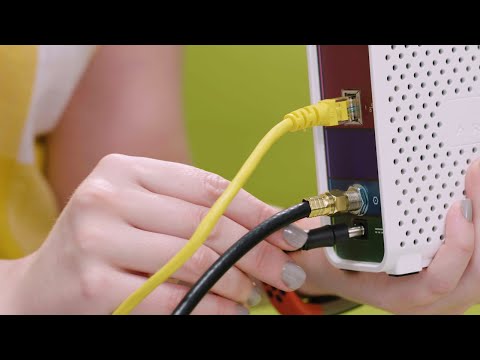
1. Connect Your Modem: First, plug in your Movistar modem to a power source and connect it to your phone line or fiber connection, depending on what service you have. Make sure the cables are securely connected.
2. Power On: Turn on the modem and wait for a few minutes until all the indicator lights stabilize. You should see solid lights for power, internet, and Wi-Fi.
3. Access the Setup Page: To set up your account, connect a device (like a laptop or smartphone) to the Wi-Fi network created by the modem. The network name (SSID) is usually printed on the modem itself.
4. Log In: Open a web browser and type in 192.168.1.1 or the address provided in your user manual to access the setup page. You’ll likely be prompted for a username and password; check your manual again for this info.
5. Follow Activation Instructions: Once logged in, look for an option that says “Activation” or “Account Setup.” Fill in any required details like your account number and personal information as prompted.
Troubleshooting Common Issues
- If you can’t access the setup page, try resetting the modem by pressing the reset button (often found at the back) for about 10 seconds.
- If you’re having trouble with Wi-Fi connectivity after activation, ensure that you’re within range of the signal and that there aren’t large obstacles like walls blocking it.
- If all else fails, check if there’s an outage in your area by visiting Movistar’s website or calling their support line directly.
A typical scenario could be if you’ve just moved to a new apartment where Movistar service is available but haven’t set it up yet; following these steps can get you on track quickly without unnecessary delays.
The last point: always keep an eye on indicator lights during setup; they give quick visual cues about what’s happening with your connection status.
Before diving too deep into troubleshooting, it’s helpful to pinpoint the distinction between issues on your end and those stemming from Movistar’s service. Connectivity problems can often look similar but might be rooted in different causes—from home network setups to external outages. If your devices consistently struggle while others nearby work just fine, it’s likely something on your side.
Keep an eye on customer feedback or alerts from Movistar regarding service interruptions. Getting a sense of whether the issue is widespread can save you time and frustration. Sometimes, knowing when to wait things out is just as important as knowing how to fix them yourself.