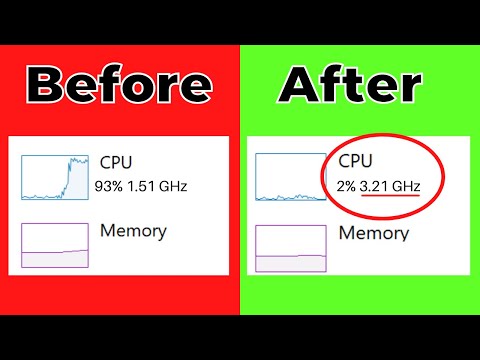
Seeing your Windows system lag while using an Intel Celeron N3060 can be a real drag. This budget-friendly processor is often found in entry-level laptops and tablets, which means it’s designed for basic tasks like web browsing and word processing. However, if you’ve noticed your device struggling to keep up with multiple tabs open or slow application launches, you’re not alone.
The N3060 has limitations when it comes to handling demanding software or multitasking beyond simple tasks. Its dual-core design and lower clock speed might make it ideal for lightweight applications but can leave you wanting more when you’re trying to juggle several processes at once. Understanding these performance quirks can help you optimize your experience with this processor.
Assessing the Intel Celeron N3060 Performance
The Intel Celeron N3060 is a budget-friendly processor that works fine for basic tasks but can struggle under heavier loads. If you’re experiencing performance issues on a Windows system, there are several common factors to consider.
One typical symptom is slow response times during tasks like web browsing or document editing. You might notice lag when switching between programs or delays in loading web pages, especially with multiple tabs open.
Common Performance Bottlenecks
- RAM Limitations: This processor often comes paired with 4GB of RAM. Running multiple applications simultaneously can overwhelm the memory, causing slowdowns.
- Background Processes: Check your task manager (Ctrl + Shift + Esc) for unnecessary programs running in the background. These can hog resources.
- Insufficient Storage: If your hard drive is nearly full, it can significantly impact performance. Windows needs space for virtual memory and temporary files.
A real-world example: Imagine you’re trying to watch videos and do a bit of online shopping at the same time. With the N3060, if your RAM is maxed out or if there are too many browser tabs open, you might find that videos stutter while pages take an eternity to load.
Tips to Improve Performance
- Add More RAM: If possible, upgrade to 8GB of RAM; this can provide a noticeable boost in multitasking capability.
- Ditch Unused Programs: Uninstall software you rarely use to free up resources.
- Clear Cache: Regularly clear your browser cache and temporary files using built-in tools like Disk Cleanup.
If you’re still struggling, consider a lightweight alternative operating system or applications better suited for low-powered hardware. The N3060 has its limits, but with some thoughtful management and upgrades, you can enhance its usability significantly.
Intel Celeron N3060 Performance Issues on Windows
If you’re experiencing performance issues with the Intel Celeron N3060 on a Windows system, there are a few likely causes and fixes you can consider. This processor is designed for basic tasks, so if you’re pushing it too hard, like running multiple heavy applications, you may notice slowness.
Common symptoms include:
- Frequent lag or stuttering when using apps.
- Poor performance during web browsing.
- Longer boot times and slow system responsiveness.
Here are some steps to troubleshoot the problem:
- Close Unused Applications: If you have many programs open, your system might be overwhelmed. Try closing unnecessary tabs or applications to lighten the load.
- Check Task Manager: Press Ctrl + Shift + Esc to open Task Manager. Look for processes that use a lot of CPU or RAM. Ending those might improve performance.
- Update Windows and Drivers: Ensure your Windows is up to date. Sometimes driver updates from Intel can enhance compatibility and performance. Go to Settings > Update & Security > Windows Update to check for updates.
- Disable Startup Programs: Excessive startup programs can slow down boot times. Go to Task Manager > Startup tab and disable any non-essential programs.
A practical example: imagine trying to browse the web while running video editing software. Tasks like these can bog down the Celeron N3060 because it’s not intended for intense multitasking. Closing the video editor could make your browsing smoother.
If none of these tips help, consider upgrading your RAM if possible or check if an SSD might be a good upgrade for better speed overall. Sometimes, hardware limitations will mean it’s time for a more powerful system depending on your needs.
Intel Celeron N3060 Performance Issues on Windows 10
Performance Issues with Intel Celeron N3060 on Windows 10
If you’re running into performance hiccups with an Intel Celeron N3060 on Windows 10, you’re not alone. This low-power processor is designed for basic tasks, but it can struggle under heavier loads. Here are some common causes and quick fixes to help boost performance.
Common Symptoms
You might notice things like:
- Slow boot-up times.
- Lag when switching between applications.
- Frequent freezing or crashing during video playback.
Possible Causes and Fixes
1. **Background Processes**: Windows often runs various background processes that can eat up resources. Open Task Manager (Ctrl + Shift + Esc) to check what’s using CPU or memory.
– *Fix*: Disable unnecessary startup programs. In Task Manager, go to the “Startup” tab and disable items you don’t need on launch.
2. **Windows Updates**: Sometimes updates can slow things down during installation.
– *Fix*: Make sure all updates are completed. Check in Settings > Update & Security > Windows Update.
3. **Low RAM**: The N3060 devices typically come with limited RAM (often 4GB). Running multiple applications can overwhelm this.
– *Fix*: Close unused applications and browser tabs, especially ones using lots of memory like Chrome.
4. **Hard Drive Health**: If you’re using a traditional hard drive instead of an SSD, this will significantly affect speed.
– *Fix*: Consider upgrading to an SSD if possible, or run a disk cleanup. Go to Settings > System > Storage and use the “Storage Sense” feature.
5. **Power Settings**: Sometimes power settings limit performance to save energy.
– *Fix*: Change your power plan to High Performance via Control Panel > Hardware and Sound > Power Options.
When All Else Fails
If you’ve tried all these steps and performance still lags, it might be time for a more drastic solution like a factory reset or considering a new device if your needs have outgrown the N3060’s capabilities.
You may want to also evaluate what tasks you’re trying to accomplish with your device—if it feels like too much for the hardware, looking into an upgrade could be beneficial in the long run.
When dealing with performance issues on the Intel Celeron N3060, it’s crucial to recognize its limitations. This processor is aimed at light tasks, so expecting it to handle resource-heavy applications or multitasking can lead to frustration. If you find yourself pushing its boundaries regularly, it might be time to reconsider how you’re using your machine.
Keep in mind that sometimes, tweaking settings or managing background processes can improve performance without needing a full overhaul. But if you’re constantly running into slowdowns that hinder your daily tasks, exploring hardware alternatives could be a more effective long-term solution.