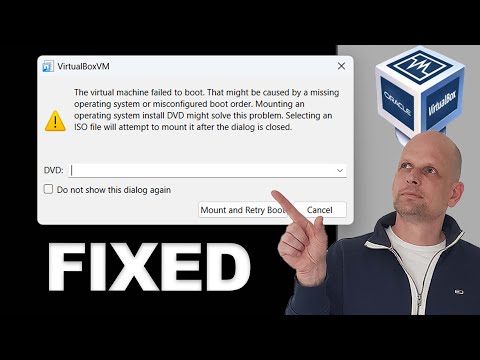
So, you decided to run Windows on VirtualBox? Nice choice! But, you might be hitting some bumps on the road with your ISO files. I get it. It can be super frustrating when things don’t just work like they should.
You’re probably wondering: why won’t my ISO load properly? Or maybe you’re stuck at some weird error message that makes no sense. Trust me, I’ve been there!
Let’s break it down and figure this out together. By the end, you’ll have a better grip on troubleshooting those pesky issues in your VirtualBox setup. Sound good? Let’s jump in!
Troubleshooting Guide: Why VirtualBox Fails to Recognize Your ISO Files
VirtualBox is a pretty popular tool for running virtual machines. But every now and then, you might hit a snag where it just refuses to recognize your ISO files. It can be super frustrating, especially if you’re in the middle of setting up a new OS or testing something. So, let’s break down why this happens and how to fix it.
First off, one common reason why VirtualBox doesn’t see your ISO file could be related to file permissions. If the file isn’t accessible, VirtualBox ain’t gonna show it. Make sure you have the right permissions set on that file. You can right-click on the ISO file, go to its properties, and check if it’s set to read-only or not.
Another possibility is that the ISO file itself is corrupted or incomplete. If there’s an issue with how the ISO was downloaded or created, VirtualBox just won’t recognize it. Try downloading it again from a reliable source. And hey, make sure it’s an actual ISO file—some folks accidentally download things like zip files instead!
The file path could also be causing issues. If your ISO file is buried too deep in folders or has special characters in its name, VirtualBox might throw an error trying to locate it. Move your ISO to a more straightforward location like your desktop or create a new folder specifically for virtual machine stuff.
Also, check if you’re using the latest version of VirtualBox. Sometimes older versions have bugs that get fixed in updates.
Now let’s talk about virtual machine settings. Are you assigning the correct storage controller? If your VM’s configuration doesn’t match what the ISO needs—like if it’s looking for a SATA controller but you’re using IDE—it can lead to recognition issues. Go into your VM’s settings and double-check.
Lastly, make sure that when you’re adding the ISO under “Storage,” you’re clicking on “Choose existing disk” and selecting your downloaded ISO correctly. It sounds simple but sometimes we forget those small steps!
So there you have it! Whenever VirtualBox fails to recognize an ISO file, look first at permissions, then at potential corruption of the file itself and check that pathing issue as well as software updates and VM settings before getting too stressed out about it! Troubleshooting these things can feel daunting at times; just take each step one at a time and you’ll be back on track before long!
Essential Guide: How to Identify and Fix a Corrupted ISO File
So, let’s talk about corrupted ISO files. You know how frustrating it can be when you’re all set to install your favorite OS on VirtualBox, and then BAM! It just won’t work because the ISO file is corrupted. It’s like waiting for a bus that never shows up—super annoying!
First off, what is an ISO file? Basically, it’s like a digital copy of a physical disk. You can use it to install operating systems or run software without needing the actual disk. When that file gets corrupted, though, things start going sideways.
**Identifying a Corrupted ISO File**
You might be wondering how to know if your ISO file is actually corrupt. Here are some signs to look out for:
- Error messages during installation or mounting.
- The ISO fails verification checks.
- Unexpected behavior when trying to load it in VirtualBox.
- The download size doesn’t match the expected size.
Now, if you see any of these red flags, there’s a good chance your ISO isn’t in tip-top shape.
**Fixing a Corrupted ISO File**
So, what do you do about it? Here are some steps you can take to fix or get around that pesky problem:
- Check the Download Source: Make sure you download from reputable sites. If the source is sketchy, chances are high that the file could be corrupt from the get-go.
- Use Checksums: Many sites provide checksums (like MD5 or SHA-256). You can use tools to calculate the checksum of your downloaded file. Compare it with what’s listed on the website. If they don’t match, well…you guessed it—corrupted!
- Re-download the ISO: This one might seem obvious but try downloading it again from a trusted source. Sometimes connections drop or hiccup during downloads.
- Repair Tools: You can try using specific tools designed to repair corrupt files. Tools like WinISO allow you to fix some minor corruption issues in ISOs.
- VirtualBox Settings: Sometimes tweaking settings in VirtualBox helps too! Ensure you’ve properly configured things like storage and network settings before blaming the ISO.
Keep in mind not all corruption can be fixed—if it’s severely damaged; it might just be time for a fresh start.
**Testing After Fixes**
After trying any fixes above, run that setup again! Sometimes issues linger even after repairs due to lingering settings on VirtualBox.
- If you still face issues after “fixes,” consider trying another virtualization software like VMware just to see if it’s really an issue with VirtualBox compatibility.
- If all else fails and Windows isn’t installing because of an uncooperative ISO, just bite the bullet and grab another version instead!
In short, dealing with corrupted ISO files isn’t fun at all but knowing how to identify and fix them does make your tech life easier! Just remember: always validate your downloads and keep those virtual machines running smoothly!
Top Alternatives to VirtualBox: Find the Best Virtualization Software for Your Needs
Finding the right virtualization software can be a bit like choosing your favorite pizza topping. Everyone has their preferences, right? If you’re feeling a little frustrated with VirtualBox and are looking for alternatives that might work better for you, there are some solid options to consider.
VMware Workstation Player is one of the most popular choices out there. It’s pretty user-friendly and allows you to run multiple operating systems on one machine without a hitch. The thing is, it’s free for personal use, but if you’re looking for advanced features, there’s a Pro version that comes at a cost.
Microsoft Hyper-V is another great alternative, especially if you’re on Windows 10 Pro or Enterprise. It’s built right into the OS, so no extra software installation is needed. Hyper-V integrates well with other Microsoft services and works smoothly for Windows environments. Just keep in mind that it might be less friendly for Linux users compared to some other options.
If you’re leaning more towards open-source solutions, KVM (Kernel-based Virtual Machine) could be your jam. It’s part of Linux and turns your machine into a hypervisor without needing any extra tools. Just know that you’ll need some technical know-how to set it up properly; it’s not quite as plug-and-play as VirtualBox or VMware.
Then there’s Parallels Desktop, which stands out if you happen to be an Apple user who needs to run Windows apps seamlessly. With its smooth interface and easy integration with macOS, it feels pretty natural to switch between systems—kinda like turning on and off a light switch!
Don’t forget about Xen Project. While it’s primarily used in enterprise settings, it’s pretty powerful when it comes to managing virtual machines at scale. But this option isn’t the most straightforward—it’s more geared towards advanced users who need robust performance.
Last but not least is Bhyve. This one’s specifically for FreeBSD users but has gained traction with those using other Unix-like systems too. It’s lightweight yet effective; however, just like KVM, setting it up might take some patience if you’re not used to working through command lines.
So when you’re troubleshooting ISO Windows issues in VirtualBox environments—or just pressuring yourself into considering alternatives—you’ve got options! Each of these platforms has its quirks and features tailored to different demands. Whatever route you decide on, it’s all about finding what fits your workflow best. You follow me?
Alright, let’s talk about troubleshooting ISO Windows issues in VirtualBox, because, honestly, it can be a bit of a rollercoaster ride. You know those moments when you try to set up a fresh Windows installation, and instead of smooth sailing, you end up in what feels like a tech nightmare? Yeah, I’ve been there.
Picture this: you’re all set to run some tests in your shiny new virtual machine. You’ve got your ISO file ready and everything looks perfect. But then you hit that wall—maybe it’s an error message saying the ISO is corrupt or that it simply won’t boot. The frustration can feel like you’re trying to assemble IKEA furniture without the instructions and missing pieces.
First off, before diving deep into troubleshooting, double-check the basics. Make sure your ISO file isn’t corrupted by verifying its checksum. Sounds techy? It’s actually just a fancy way of ensuring the downloaded file is intact. A simple step that can save you hours later! And if there’s something off with VirtualBox settings—like not allocating enough RAM or not enabling virtualization in your BIOS—you might as well be trying to start a car with no gas.
And let me tell you about my personal “lightbulb” moment. Once, I spent ages setting up my virtual machine only to find out I hadn’t configured the optical drive correctly. Just a tiny checkbox away from success! Seriously, it felt ridiculous but also so enlightening when I finally realized what was wrong.
When nothing seems to work, don’t forget about the VirtualBox forums or documentation; they’re usually packed with tips from people who’ve had similar headaches. And sometimes it helps to just take a break and clear your mind for a bit—tech issues can get overwhelming fast!
In the end, troubleshooting ISOs in VirtualBox is kind of like solving a puzzle; frustrating at times but oh-so-satisfying when everything finally clicks together. So hang in there. You’ll get through it and maybe even laugh about it later on!