So, you’re having trouble with your Intel SVGA driver? Man, that can be frustrating. It’s like your computer just refuses to play nice, right?
You might be staring at a blank screen or dealing with weird graphics glitches. Seriously, who wants that?
Look, don’t sweat it too much. Figuring this out isn’t rocket science. Stick around and let’s dive into some easy fixes. We’ll get your display back in action in no time!
Step-by-Step Guide to Fixing Corrupted Intel Drivers for Optimal Performance
Okay, so you’re dealing with corrupted Intel drivers, huh? That can be such a headache. Don’t worry, though! Let’s break this down step-by-step. We’ll get you back to smooth sailing with your Intel SVGA driver in no time.
Why Your Intel Drivers Matter
First things first, the Intel drivers play a key role in how well your computer handles graphics and displays. When these drivers are corrupted, it can lead to all sorts of problems—like screen flickering or crashes. It’s like trying to drive a car with a flat tire; things just don’t work as they should.
Symptoms of Corrupted Drivers
Before we dive into fixing it, let’s look at some signs that your drivers are on the fritz:
If any of these sound familiar, then you’re in the right place!
Step 1: Uninstalling the Corrupted Driver
Let’s get rid of that corrupted driver first:
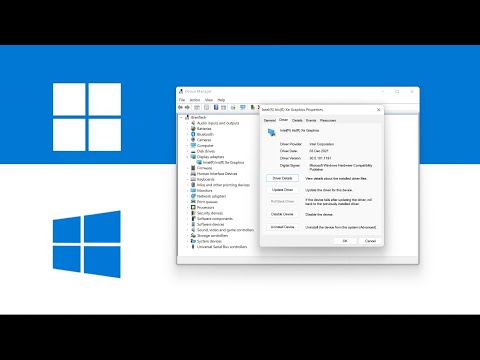
1. Press Windows + X, then select Device Manager.
2. Look for Display adapters. Expand it and find your Intel graphics driver.
3. Right-click and choose Uninstall device. Check the box that says “Delete the driver software for this device” if it pops up.
4. Click Uninstall.
It’s like cleaning out that junk drawer—you gotta remove what’s broken before you can add new stuff!
Step 2: Restart Your Computer
This is super important! After uninstalling the driver, just hit restart. This action basically resets everything and gets rid of any lingering issues from that corrupted driver.
Step 3: Downloading the Latest Driver
Now we need to fetch a fresh driver:
1. Head over to Intel’s official website.
2. Navigate to their support page and look for “Download Center.”
3. Enter your product information or browse through their list until you find your specific model.
4. Make sure to grab the latest version—this is crucial for optimal performance!
If you’re unsure about what to download, you can also use their automatic detection tool which is pretty handy.
Step 4: Installing the New Driver
Once you’ve got that fresh driver file ready:
1. Open the downloaded file (it should end with .exe).
2. Follow the prompts on-screen; it usually involves clicking “Next,” then “Install.” Easy peasy!
3. Once it’s done, restart your computer again.
It’s like giving your computer a new pair of shoes—they need some time to adjust!
Step 5: Check for Updates Regularly
After everything’s back up and running smoothly, don’t forget to check for updates regularly! Keeping those drivers updated helps prevent future headaches.
1. You can go back to Device Manager.
2. Right-click on your display adapter again.
3. Select “Update Driver” and choose “Search automatically for updated driver software.”
This keeps everything fresh without letting problems build up again.
Troubleshooting Further Issues
Sometimes things can still go wrong even after this process—and that’s okay! Here are some quick fixes if you’re still having issues:
Each situation might be unique but tackling these challenges step-by-step makes it manageable!
Doing all this might feel like a bit much at first but trust me, once you’ve got those drivers sorted out, you’ll enjoy much smoother performance on your PC! Just remember—keeping things up-to-date is key! Good luck!
How to Fix Intel SVGA Driver Issues on Windows 11: A Step-by-Step Troubleshooting Guide
So, you’re dealing with Intel SVGA driver issues on your Windows 11 machine? That can be super frustrating, especially when your graphics aren’t performing right. Let’s dig into some ways to troubleshoot and fix those pesky problems without getting too technical.
First off, let’s understand what an SVGA driver is. Basically, it’s a piece of software that helps your operating system communicate with the graphics hardware in your computer. If it’s acting up, you might notice weird screen glitches or poor performance when running applications that need good visuals.
Check for Windows Updates
Before diving into driver specifics, make sure your Windows 11 is fully updated. Here’s how:
- Click on the Start button.
- Select Settings.
- Go to Windows Update.
- Click Check for updates.
Sometimes, just updating Windows can resolve underlying issues automatically.
Update Intel SVGA Driver Manually
If updating Windows didn’t solve the problem, it might be time to update or reinstall the driver manually.
1. Right-click the Start button and select Device Manager.
2. Find and expand the section called Display adapters.
3. Right-click on your Intel SVGA driver (it might say something like “Intel UHD Graphics”) and select Update driver.
4. Choose Search automatically for drivers.
Now, if there are any new drivers available, Windows will find and install them for you.
If Automatic Update Doesn’t Work…
Sometimes the automatic route doesn’t cut it. In that case:
- Select Browze my computer for drivers.
- You can then choose to locate drivers already downloaded from Intel’s website—we’ll get to that in a sec.
Downloading Drivers from Intel’s Website
If you need a specific version or want to ensure you’re getting the latest:
1. Go to the official [Intel Download Center](https://downloadcenter.intel.com/).
2. In the search bar, type “SVGA” or “Intel UHD Graphics.”
3. Download the appropriate version for Windows 11.
4. Once downloaded, go back to Device Manager.
5. Right-click on your Intel SVGA device and choose Update driver.
6. This time select Browze my computer for drivers., then point it to where you just downloaded.
If All Else Fails: Roll Back Your Driver
Maybe a recent update caused this issue in the first place? In Device Manager:
1. Right-click on your Intel SVGA device again.
2. Click on Properties.
3. Head over to the tab labeled Driver.
4. If available, click on Roll Back Driver..
This option will take you back to a previous version of your driver which was working fine.
Troubleshooting Compatibility Settings
If after all this you’re still struggling with those issues, check compatibility settings:
1. Find an app or game that isn’t working well.
2. Right-click its shortcut and select Properties.
3: Under compatibility tab, check “Run this program in compatibility mode” and pick an earlier version of Windows like 10.
4: Click apply changes.
Might Need Some Extra Help?
You’ve tried all this stuff but nothing seems to work? Sometimes hardware could be at fault or conflicts with other software could arise—like outdated antivirus programs messing with everything if they’re not configured properly!
Don’t be embarrassed; we all experience tech troubles! Sharing experiences on forums can also provide insights from others who faced similar dilemmas—it really does help sometimes!
Just don’t lose hope! Most of these problems are resolvable with some patience and step-by-step trying different things out!
Step-by-Step Guide to Troubleshoot Intel SVGA Driver Issues on Windows 10
Alright, let’s get into troubleshooting those pesky Intel SVGA driver issues in Windows 10. The thing is, when your graphics driver isn’t working properly, it can mess up your whole computer experience. You might see weird graphics glitches or even bluescreens. So, here’s a way to sort it out step by step.
Check Your Current Driver Version
First things first, you gotta know what driver you’re dealing with. Go to the Device Manager.
– Right-click on the Start button and select Device Manager.
– Look for the Display adapters section and expand it.
– Double-click on your Intel SVGA driver to open its properties.
Under the Driver tab, you can check the version. Make note of this because if it’s outdated or corrupted, that could be the culprit.
Update Your Driver
If you find that your driver is outdated—or just not playing nice—updating it might fix things:
– In Device Manager, right-click on your Intel graphics device.
– Select Update driver.
– Choose “Search automatically for updated driver software.” Windows will look for a newer version and install it if available.
Reinstalling the Driver
Sometimes an update doesn’t cut it. If things are still wonky, try reinstalling:
– Go back to Device Manager, right-click again on your Intel device.
– This time choose Uninstall device. Don’t worry; we’ll reinstall it in a sec.
– Then check the box that says “Delete the driver software for this device” if prompted. Hit yes and reboot your computer.
Now to get that fresh install:
1. After rebooting, go back to Device Manager.
2. Click on “Action” in the menu bar and then click “Scan for hardware changes.”
3. This should prompt Windows to reinstall the original drivers automatically.
Manually Downloading Drivers from Intel’s Website
If Windows isn’t cutting it (let’s be real—sometimes Windows can be slow), go directly to Intel’s website:
1. Search for “Intel Driver & Support Assistant.” It’s an app that finds all available updates specific to your hardware.
2. Download and run that app; it’ll scan for outdated drivers and offer you new ones.
3. Just follow its prompts to update everything smoothly!
Troubleshooting Display Settings
You might still face glitches even after updating everything! In such cases, let’s check some display settings:
– Right-click on your desktop and select Display settings.
– Scroll down to find “Advanced display settings.”
Here’s where you’ll want to make sure everything looks good—especially resolution and refresh rates.
SFC Scan for System Issues
Sometimes it’s not just about drivers but system files too! Running a System File Checker (SFC) scan can help identify corrupted files:
1. Type `cmd` in the search bar.
2. Right-click on Command Prompt and select “Run as administrator.”
3. Type `sfc /scannow` and hit enter.
This will take some time but basically checks through system files like a cleanup crew, fixing any issues along the way!
If All Else Fails: System Restore or Resetting Windows 10
Alright, if none of this works out—no worries! You’ve still got options here:
1. **System Restore**: If you’ve set restore points before issues started happening:
– Search for “Restore” in Windows search bar, then select “Create a restore point.”
– Click on “System Restore” and follow prompts.
2. **Resetting Windows**: Just as a last resort:
– Go to Settings > Update & Security > Recovery.
– Here you’ll find Reset options; decide if you want to keep files or remove everything (backup first!).
Remember these steps can feel like walking through mud at times—frustrating but not impossible! If you’re ever feeling stuck or overwhelmed during this process, don’t hesitate to call someone who knows their way around tech better than most!
Good luck getting that Intel SVGA moving smoothly again!
Alright, let’s chat about something that can be a bit of a headache: Intel SVGA driver issues. I mean, if you’ve ever dealt with a blank screen or funky graphics while trying to play your favorite game or work on an important project, you know how frustrating it can be. Trust me, I’ve been there.
I remember one time my computer suddenly decided it didn’t want to cooperate anymore. Everything was going smoothly—until it wasn’t. Out of nowhere, the colors went haywire, and I was staring at a pixelated mess like I had traveled back to the ’90s. Not fun! It turned out my Intel graphics driver was either outdated or just plain cranky. So here’s the thing: fixing it can feel daunting, but breaking it down makes it way easier.
First off, what is this driver anyway? Think of your graphics driver as a translator between your computer’s software and hardware. If it’s not working properly, your videos and games are going to look like they’ve had too much caffeine—shaky and jittery.
If you find yourself in that situation with Intel SVGA drivers acting up, start by checking for updates. You can do this through the Device Manager on Windows; just search for “Device Manager” in your start menu and expand the Display adapters section. Right-click on your Intel adapter and hit “Update driver.”
You could also uninstall the current driver and let Windows automatically reinstall it when you reboot. Sometimes drivers just need a fresh start! Just be careful—if you’re not sure what you’re doing, you might end up in deeper trouble.
But hey, if you try all that and still can’t shake those issues? It might be time to hit up Intel’s website directly for their tools or forums where other users have shared similar experiences.
Honestly though, nothing beats that little rush when everything clicks back into place after troubleshooting! You see that screen light up again without any glitches? Pure relief!
In the end, dealing with these kinds of tech problems is part of life—kind of like getting caught in the rain without an umbrella. Annoying as all get out at first but then it turns into one of those fun stories later on! So next time you’re battling those pesky SVGA issues, just remember: you’re not alone in this tech rollercoaster ride!