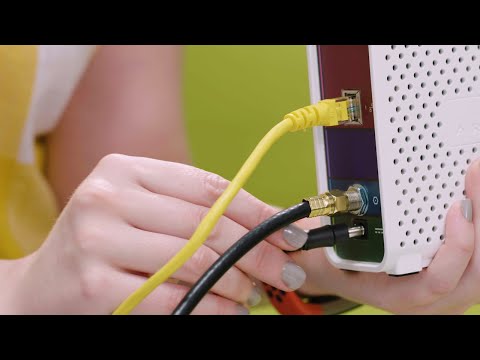
Alright, picture this. You’re sitting at home, trying to stream your favorite show, and boom—suddenly, the internet just decides to take a little nap. Frustrating, right?
You’re staring at your Telmex modem like it’s got all the answers. But here’s the kicker: sometimes it just needs a good ol’ restart.
Now you might be thinking: “I gotta get up?” Nope! You can actually do this from your PC. Crazy neat, huh?
Trust me—when I found out I could reboot my modem without leaving my comfy chair, it was like discovering secret superpower. Let’s get that connection back on track!
Restarting Your Modem from a PC
Restarting your modem right from your PC can be a real lifesaver when you’re experiencing internet hiccups. I’ve been there too—you’re in the middle of a binge-watch or an important Zoom call, and then, bam! Everything freezes. Here’s how you can give your modem a fresh start without leaving the comfort of your chair.
Why Restart Your Modem?
Sometimes modems need a little reset to clear out any temporary glitches and reconnect with your service provider properly. It’s kind of like giving it a good night’s sleep. And no worries, it’s pretty straightforward to do!
Steps to Restart Your Telmex Modem from a PC:
1. Open Your Browser:
Pop open any web browser you have on your computer—it could be Chrome, Firefox, probably even Safari if that’s what tickles your fancy.
2. Enter the IP Address:
In that address bar at the top—where you usually type in “funny cat videos” or whatever—type: 192.168.1.254. Then hit Enter.
3. Login to the Admin Panel:
A login screen should appear (hopefully!). Usually, it’s asking for both username and password; they might be something like “admin.” If you never changed them before, just give that a shot.
4. Navigate to Device Management:
Once you’re inside that admin panel thingy, poke around for anything labeled like “Device Management” or maybe “Utilities.” They’re not always in plain sight but dig around!
5. Select Reboot Option:
There should hopefully be an option to “Reboot.” Click it! It’s as simple as clicking buttons which we all do every day anyway!
6. Wait Patiently:
Give it some time! The modem needs about three minutes (okay maybe 5 tops) before everything powers back up again and starts playing nice with those cables we rely on so much.
And there ya go! Don’t worry if things seem slow initially; departments always need their little warm-up routine after resting.
If this doesn’t quite work out or seems daunting because every techie interface is different these days—isn’t technology fun?! That’s when hitting up Telmex support might come handy—they deal with these daily traffic jams constantly after all so they should know what’s what regarding routers misbehaving etc., right?
Anyway hope this method brings peace back into those browsing sessions pronto next time internet acts grumpy!
Accessing Your Router from a PC
Oh, routers. They’re like the magical boxes in our homes getting us on the internet. Seriously, have you ever thought about all the data they handle? Anyway, let’s chat about accessing your router from a PC. It might sound fancy, but it’s pretty straightforward once you know what to do!
- Connect to Your Router: You need to be connected either through Wi-Fi or with an Ethernet cable. It’s like being invited into a secret clubhouse—without a connection, no entry!
- Find Your Router’s IP Address: Most routers use something like
192.168.0.1or192.168.1.1. Ever looked on the back of your router? That’s usually where you’ll find it. - Open a Web Browser: Pop open any browser—Chrome, Firefox…you get it—and type that IP address in the address bar like you’re visiting any other website.
- Login Credentials: Routers come with default usernames and passwords like “admin” and “password.” Easy for beginners but not so great for security once you’ve set things up!
- The Control Panel Awaits You: Once logged in, you’ll see all sorts of settings you’re free to explore—or change if you’re feeling brave!
A quick example: If you’re using a Telmex Modem specifically and want to restart it, you’d navigate to something called ‘management’ or ‘utilities’ once logged in.
Now remember that time when your internet just wouldn’t cooperate? Restarting the router often does magic tricks! Accessing it through your PC can give more control over settings which might even optimize performance a little further.
But hey—mistakes are human! If ever changing settings messes up connectivity (oops!), most routers can reset back default configurations by pressing that hidden button usually marked as “reset.”
And there we have it—you’re now onboarded into an aspect of tech world only geeks rave around everyday taverns about!
Force Restarting Your Modem Procedure
Oh, modems! Sometimes they just stop working like they used to. If you’ve got a Telmex modem giving you trouble, restarting it from your PC might just do the trick. Let’s walk through this whole process together, shall we?
Start by making sure you’re connected to the network—wired or wirelessly. You need this for everything else to work smoothly.
Step 1: Accessing Your Modem’s Settings
- Open up your web browser—the one you use every day.
- In the address bar (where you type website names), type in 192.168.1.254. That’s kind of like your home’s street address but for the modem.
- If all goes well, you’ll see a login page pop-up asking for a username and password.
Step 2: Logging In
- The default username is usually something simple like “admin”. Same for the password—“admin”, or maybe even “1234”. Depends on how secure you’ve been!
- If none of these work, check your modem’s manual or look for a sticker on its side with more info.
Ever feel stuck already? Been there myself! Don’t worry if things don’t go as planned at first; it’s pretty common.
Step 3: Restarting Your Modem
- Once logged in, look around for an option that’s labeled something similar to “Device Management” or “Advanced Settings”. Every model’s slightly different so it might take a bit of hunting.
- Find and click on “Restart”!
Your internet connection will drop briefly while this happens—it’s just your modem taking a quick nap before waking up refreshed!
Finally—and here comes a little patience game—wait until all connecting lights return green or blue depending upon what brand yours is wearing today!
Note down any issues like different colors appearing during startups—it helps when describing things over support calls later—which nobody ever likes doing!
Remember though folks these reset instructions change over time as technology evolves (or sometimes devolves!). Keep an eye out monthly updates regarding devices used within homes; tech companies release firmware updates which often include ways improve functionality alongside security patches too part & parcel package deal!!
Alright, so you’ve got a Telmex modem and maybe it’s acting up, huh? Happens to the best of us. You’re probably wondering how to give it a little kick in the pants from your computer rather than fiddling with cables and buttons. It’s actually not too complicated.
Imagine you’re sitting at your desk, trying to stream that new show everyone’s raving about or maybe you’re attempting a work call. Then, bam! The internet starts crawling like it’s 2001 dial-up all over again. Frustrating, right? Well, instead of getting up and digging around for the modem in some dusty corner or behind your TV stand (where all those spider webs could be lurking), you can handle it from right where you’re sitting.
All you need is the IP address of your modem. Usually, it’s something like 192.168.1.254 but check the manual or underneath the device just in case yours decided to be special. Once you’ve got that number ready to roll, punch it into your browser’s address bar as if you’re visiting any other website.
You’ll see a login page pop up asking for a username and password—most likely it’ll be both “admin” unless changed before (which would be wise for security reasons). And if passwords aren’t really memorable for ya… ugh, join club forget-me-not!
Once inside this digital sanctuary of settings heaven—or chaos depending on perspective—look around for an option concerning rebooting or restarting under system management/configuration tabs somewhere along there because every model slightly differs from another due to updates etc., etc., tech stuff yadda yadda…
Anyway! Click okaying whatever warnings pop-up requesting confirmation since they’re merely alerting how connectivity will shortly vanish during process duration lasting minutes top acceptance granted neatness restored ultimately after reconnection performed warming slightly safer browsing better streaming outcomes grand relief upon life continues thereafter cheers embrace humanity friends sincerely open free spiritedly joyous calmly joyously embracing human existence marveling wonderously therein universal intricate intertwining wild crazy magnificent dance unending cosmos!