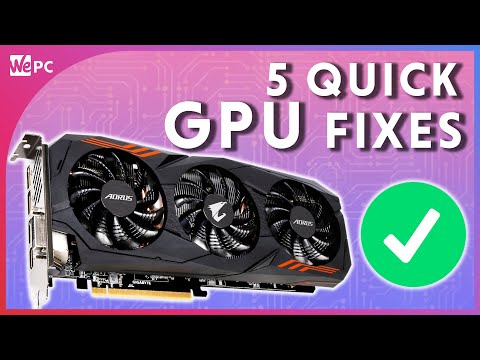
Alright, let’s get into the fascinating world of BIOS and GPUs. Imagine sitting down at your computer, ready to dive into a game with jaw-dropping graphics or tackle a demanding project that requires some serious processing power. What makes all this possible? A tiny yet mighty thing called the BIOS (Basic Input/Output System) plays a big role here, especially when it comes to how your GPU (Graphics Processing Unit) interacts with your system.
So, why does it matter? When you power on your computer, the BIOS kicks in first. It’s like the conductor of an orchestra, making sure all the pieces are in harmony before anything else starts. This includes getting your GPU up and running smoothly. Without that initial nudge from the BIOS, you could be left staring at a blank screen.
But there’s more to it than just switching things on. The BIOS can also affect how well your GPU performs over time. For instance, if you’re into tweaking settings for better performance or efficiency…oh boy! That’s where understanding some BIOS settings can come in handy. Whether you’re a PC enthusiast looking to eke out every last drop of performance or just curious about what’s under the hood—there’s plenty of intriguing stuff to explore!
How to identify GPU failure
Hey, you know that moment when your screen just goes all wonky or doesn’t display anything at all? Yeah, it could be a sign of GPU trouble. But before you panic and decide on a new expensive graphics card, let’s look into what’s going on with your BIOS.
Alright, the thing is, the GPU—or Graphics Processing Unit—is the heart of what makes your visuals pop. When it starts acting up, one place to snoop around is in the BIOS. Think of the BIOS as a mini-boot-up brain for your computer before it actually launches into Windows or any other operating system.
You might notice some telltale signs of GPU issues if you can’t even get past the boot-up phase. Maybe you’re greeted with a series of beeps—like some sort of mysterious code. These beeps are actually telling you something! They can indicate that there’s something funky going on with your graphics card.
Now, if you’re brave and want to dive into your computer’s belly, get into the BIOS settings first (usually by pressing keys like F2, Delete, or F10 right when you power up). Once inside there umm see if there’s an option for integrated graphics. If you enable that and suddenly everything’s working like magic again—it means there might be an issue with either detecting or booting off your dedicated GPU.
You could also try reseating your GPU in its slot—y’know sometimes they just need a little nudge like we do sometimes when we’re tired—and make sure all connections are secure. It can often solve display issues without too much hassle.
If adjusting settings isn’t doing wonders and you’ve tried everything in between including switching cables or using another monitor just ask yourself; have I updated my drivers? Old drivers might cause conflicts as well!
Rummaging through these options will help clarify whether it’s time for that new shiny graphics card investment yet (or maybe not). So there ya go—that’s how monitoring helpful clues via BIOS helps pinpoint potential causes behind GPU hiccups!
Bios not detecting gpu identifying and fixing the issue windows
Ever had that moment of excitement when you’re all set to play a game, but your computer decides to play its own game by not detecting the GPU? Yeah, it’s a bummer. Imagine this: you’ve just installed a shiny new graphics card, but instead of being wowed by the graphics, you’re scratching your head as the BIOS fails to recognize it. Let’s sort this out.
Firstly, let’s look at some basics. The BIOS is like that tiny instruction manual inside your computer that tells all the components how to get along. If it doesn’t see your GPU sitting in there, well, nothing’s going to work properly.
Start by ensuring the GPU is securely fitted into its PCIe slot on the motherboard. Sometimes, repeated re-seating can get it right. Just be gentle! It’s like making sure a plug is fully inserted into an electrical outlet – sounds simple but super important.
Now, check if there’s sufficient power going to your GPU. Many higher-end GPUs require extra power connectors; if they’re not plugged in correctly or missing altogether, that’s an easy miss.
Sometimes it’s about what’s happening on screen before anything even loads up – resetting or updating the BIOS might help here. You can find updates on the manufacturer’s website. Be cautious because updating BIOS isn’t without risks; you wouldn’t want things freezing midway through.
If you’ve been hearing beeps when starting up or seeing strange lights on your motherboard (some have little LED indicators), those are hints too! They’re not just for show – they convey error codes that can point you in the right direction.
A friend once spent hours trying every trick in his book when his system refused to detect his new card… only to realize later he was using an outdated driver from his previous setup! Always check your Windows Device Manager and ensure device drivers are up-to-date because compatibility issues can sneak up quietly.
- Reseat and secure connections thoroughly
- Ensure adequate power supply
- Consider updating the BIOS carefully
- Listen for beep codes or watch indicator lights
- Keep drivers current via Device Manager
If none of these tips hit home and everything else fails though – seeking advice from online tech communities might just bring fresh insights from others who’ve faced similar battles!
GPU not detected but fan spinning
Oh man, dealing with computer quirks can be a real head-scratcher sometimes! Imagine this: your GPU’s fan is whirring away like it’s going to take off any minute, right? But here’s the kicker—it doesn’t show up anywhere in your system. It’s like the Bermuda Triangle of computer problems. So, here’s the deal: you’re peeping into the BIOS (that’s like the brain of your computer before it fully wakes up) and nada—no sign of your GPU there.
Now, don’t fret just yet! This is often more common than you might think. One simple thing could be a loose connection! I’ve had moments myself where I plugged everything in only to realize later that I didn’t actually push it all the way until it clicked. You might wanna double-check that card is snugly fit into its slot.
Or maybe it’s just having one of those “off” days with power delivery issues. Your PSU (that’s power supply unit) might be struggling to give enough juice or maybe the cables aren’t fully connected—yeah, even if you swear they’re fine! Swapping out those cables for some known good ones does wonders sometimes.
You should also peek at your BIOS settings because they can be sneaky! Sometimes integrating graphics settings or PCIe slots need a little tweak just to let everyone play nice together. Don’t worry about doing anything fancy; there’s usually an option to reset everything back to default so if things go sideways, it’s easy peasy getting back on course.
If nothing seems off there, think about BIOS updates too—they’re like sending a strongly-worded complaint letter that fixes weird tech bugs which pop up for no apparent reason!
Breathe easy; we’ve all been there wrestling these tech hiccups but once you’ve gone through this rodeo you’ll know what signs say “fix me” next time around!
Anyway, the BIOS and GPU, they’re like the unsung heroes of your computer. They work behind the scenes ensuring everything runs smoothly. And you know, it’s fascinating how these tiny chips can determine the performance of your entire system.
I remember once my friend was having terrible problems with their PC randomly shutting down during games. Turned out, it was their GPU overheating because of some misconfigurations in the BIOS settings. After tweaking a few settings, their gaming experience changed completely for the better!
So, if you’re ever dealing with any glitches or need a performance boost, don’t forget to peek into those BIOS settings or give your GPU a little attention. It might just be what saves your day…or maybe even your game-winning moment! Keep exploring and learning about these crucial components. It’s always exciting!