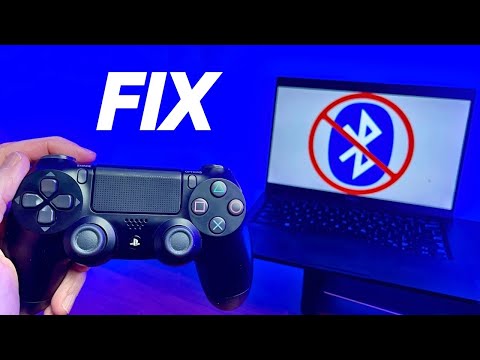
So, you’re trying to play your favorite game. You grab your Bluetooth joystick, but it just won’t connect. Frustrating, right?
Trust me, you’re not alone in this. Bluetooth issues can be super annoying!
But don’t worry; I’ve got your back. We’ll figure this out together. Whether it’s a connection hiccup or something else entirely, there are ways to get that joystick back in action.
Let’s dive into this and get you gaming again!
Ultimate Guide to Fixing Bluetooth Controller Issues on Your PC
So, you’re trying to get your Bluetooth controller to work with your PC, and it’s just not happening, huh? Believe me, I’ve been there. It’s a real bummer when you’re all set for a gaming session but can’t connect your joystick. Let’s break down how to troubleshoot these annoying Bluetooth controller issues so you can get back into the game.
First off, make sure your controller is actually compatible with your PC. A lot of times, people think they can just pick any Bluetooth controller and it’ll work seamlessly—with their computer. But that’s not the case. Check the manufacturer’s website or manual for compatibility details.
Now let’s dive into some common problems and solutions:
1. Check Bluetooth Settings: Sometimes, it’s just a matter of your Bluetooth being turned off. Go to the settings on your PC by clicking on the Start menu and choosing Settings > Devices > Bluetooth & other devices. Make sure Bluetooth is turned on.
2. Pairing Issues: If your controller isn’t pairing, put it in pairing mode first! Usually, this involves holding down a specific button—like the PS button on PlayStation controllers or the sync button on Xbox controllers—until you see a flashing light.
3. Update Drivers: Outdated drivers can cause all sorts of headaches. Go back to that Settings menu and navigate to Devices Manager (you can search for it if you don’t see it). Find “Bluetooth” in the list, right-click on your device and select “Update driver.” This will help if it wasn’t recognizing the controller properly.
4. Remove Old Pairings: Older pairings can sometimes interfere with new connections. Go back into Settings > Devices > Bluetooth & other devices and remove any old or unnecessary devices that you aren’t using anymore.
5. Restart Your PC: Sounds super simple right? Well, trust me when I say that restarting your machine clears up a lot of glitches!
6. Check Power Levels: Ensure that both your controller and PC have enough battery life; low power levels can affect connectivity big time!
And if you’re still having trouble after all this:
Troubleshoot via Windows Diagnostics: Windows has built-in diagnostics tools that could help find problems with hardware peripherals like controllers. You get there through Settings > Update & Security > Troubleshoot > Additional troubleshooters.
A bonus tip?: If nothing else works, consider using a wired connection temporarily while you figure out what’s wrong with Bluetooth—it could give you some peace while fixing things!
Most importantly, don’t stress too much about this stuff! Tech issues are like unexpected guests—annoying but usually manageable once you know what to do! Just take a step back if you’re feeling frustrated; sometimes walking away for a bit does wonders for perspective.
So there ya have it! With these steps in mind, you should be well on your way to solving those pesky Bluetooth joystick issues on your computer without losing too much hair over it! Happy gaming!
Step-by-Step Guide to Configuring Your Bluetooth Joystick for Optimal Performance
When it comes to gaming, using a Bluetooth joystick can really amp up your experience. But, sometimes things can go wrong, and dealing with Bluetooth connections can be a bit tricky. So, let’s chat about getting your Bluetooth joystick set up right and troubleshooting any issues that pop up along the way.
First things first: Pairing Your Joystick
Before diving into troubleshooting, you’ve gotta make sure your joystick is paired properly with your computer. Here’s how to do it:
If you’ve done this correctly, you should see a message saying it’s connected. If not—let’s look at some troubleshooting steps!
Troubleshooting Connection Issues
Sometimes, even after following those steps, you might run into problems connecting your joystick. Here are some solutions to try:
If you’re still having trouble after these steps, there are more advanced things to check.
Updating Drivers
Sometimes outdated drivers can cause connectivity issues too. Here’s how to update them:
After updating drivers, reboot your machine and try pairing again.
Tweaking Your Settings for Optimal Performance
Once everything’s connected fine but still not performing like a champ? Consider tweaking some settings:
Every game may behave differently depending on how you’ve set things up.
If All Else Fails…
If you’ve tried everything but nothing seems to work:
1. Check whether the joystick works on another device; this helps isolate whether it’s a problem specific to the computer.
2. Look at forums or support sites related specifically to your model; sometimes others have had similar experiences.
3. Lastly, contacting tech support may be needed if all else has failed!
With these tips in mind, getting everything running smoothly with that Bluetooth joystick shouldn’t feel impossible anymore! Just take one step at a time—you’ll get there!
How to Troubleshoot Bluetooth Joystick Issues on Windows 11: A Step-by-Step Guide
Well, dealing with Bluetooth joystick issues on Windows 11 can be pretty frustrating, right? It’s like when you’re all set for an epic gaming session but find yourself stuck at a “not responding” screen. So let’s break this down step by step, so you can get back to your game without losing your mind.
Check Your Battery Level
First things first, make sure your joystick is charged! A low battery can cause connection issues. If it’s rechargeable, plug it in and let it juice up for a bit. If it uses replaceable batteries, swapping them out might do the trick.
Ensure Bluetooth is Enabled
Next up, check if Bluetooth is actually turned on on your PC. Here’s how:
- Click the Start button and go to Settings.
- Select Devices, and then click on Bluetooth & other devices.
- If Bluetooth is off, toggle it to turn it on.
Sometimes it’s just not as simple as flipping a switch—though that would be nice!
Pair Your Joystick Again
If your joystick still isn’t connecting, try removing and re-pairing it:
- In the same Bluetooth settings menu, find your joystick in the list of devices.
- Select it and then click on Remove device.
- Once it’s removed, put your joystick back into pairing mode—usually involves holding down a button until it starts flashing.
- Add the device again by clicking on Add Bluetooth or other device.
Sometimes a fresh connection does wonders!
Troubleshoot the Device
If re-pairing doesn’t work, Windows has its own troubleshooting tool that can help:
- Open Settings again.
- Select Update & Security, then go to the Troubleshoot tab.
- Select additional troubleshooters.
- You’ll see an option for Bluetooth; run that troubleshooter!
This may help identify what’s causing the hiccup.
Update Drivers
Outdated drivers can be sneaky culprits behind connection problems. Let’s give those drivers a little boost:
- Go to Device Manager by right-clicking the Start button.
- Select “Device Manager” from the list.
- This opens up all kinds of stuff—find and expand the “Bluetooth” section.
- Right-click your joystick and select “Update driver.” Choose “Search automatically for updated driver software.”
If there are updates available, they’ll start downloading.
Check Game Settings
You should also take a peek at any game settings related to controllers:
- The game might have its own configuration settings—make sure it recognizes your joystick!
If there are options to switch between different controller modes (like Xbox or PlayStation), try toggling those as well. li >
Sometimes games are picky about which controller they want to recognize.
Reboot Your PC b >
If nothing else seems to work? Restarting might just be what you need! It sounds simple but clearing out temporary files and refreshing connections could solve a multitude of problems.
So basically, troubleshooting bluetooth joystick issues doesn’t have to be scary. With these steps in mind, you’re likely to get that controller working again soon! And hey, if after trying all this you’re still having issues? It might be time to reach out for some professional help or check if your hardware has developed a fault. Good luck!
You ever try to get your Bluetooth joystick to work with your computer and suddenly feel like it’s the most complicated puzzle ever? I know the feeling! One day, I was all set for a gaming marathon when my joystick just decided to play hard to get. I mean, it had been working fine just yesterday. What gives, right?
So, let’s break this down a bit. First off, you need to make sure that your computer’s Bluetooth is actually turned on. Sounds simple enough, but it’s easy to overlook in the heat of the moment. If your Bluetooth is on and you still can’t connect, check if your joystick has any kind of pairing button. Sometimes there’s this little button that needs a love tap before it’ll be recognized by your PC.
Now, if you’ve done all that and it still won’t pair up, well… frustration might start creeping in. I once spent an hour checking all the settings and even rebooting my computer—classic move! But here’s a tip: sometimes, just restarting the joystick can do wonders. And please don’t forget about those pesky batteries! Low power can totally ruin the mood.
You might also want to look into the driver situation too. Old or outdated drivers can be sneaky little troublemakers. Head over to your device manager —it’s like checking in on all your tech buddies—and see if there are any updates available for your Bluetooth drivers.
And hey, don’t underestimate the power of interference! If you’re surrounded by other devices—like that Bluetooth speaker or even microwaves—it can mess with connections sometimes. Try moving closer to your computer or turning off other Bluetooth devices nearby.
Honestly though? It can be so annoying when technology fails us at pivotal moments! But once you figure these things out—like a mini tech detective—you’ll feel pretty accomplished. Next time you grab that joystick and everything works, you’ll be pumping your fist in victory! It’s all part of the gaming journey, right?