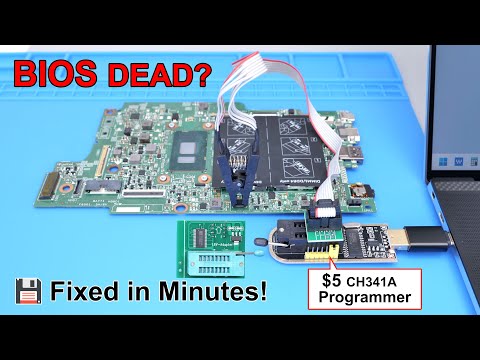
You know how frustrating tech stuff can be, right? Like when you’re all set to program something, and your computer’s just like… “nah.” If you’ve been there with the CH341A programmer and Windows isn’t playing nice—you’re not alone. Happens more often than you’d think!
Picture this: You’ve got a neat electronic gadget project going on. The excitement is real! You plug in your CH341A to get things rolling, but wait—nothing happens. Just crickets. It’s like trying to start a party with no music.
This little chip isn’t talking to Windows, and it’s giving you a headache. But hey, don’t worry too much—I’ve got some good news for you. It’s totally fixable! I know it sounds like a mystery now, but stick around; we’ll make sense of it together.
Trust me, I’ve been in this boat before—the endless Googling and “Why is this happening?” moments are no fun at all. Let’s tackle this mess step by step and get that programmer up and running pronto!
NeoProgrammer CH341A Compatibility Requirements
Alright, let’s dive into the world of CH341A programmers and how to get them working smoothly on Windows. You know, those little devices can be quite handy, but sometimes they don’t want to cooperate right away. Here’s what you need to know about getting these guys detected properly.
Compatibility Requirements:
First off, let’s chat about why compatibility matters here. The CH341A programmer is a popular device used for programming flash memory chips, and it needs some specific conditions met in your Windows environment for smooth operation. These aren’t fancy or anything, just some simple prerequisites.
- Driver Installation: Before anything else, you need the right driver installed on your system. The CH341A programmer requires a specific driver for Windows to recognize it properly. If you haven’t installed it yet or you’re unsure if it’s correctly set up, grab the latest version from a reliable source.
- USB Port Selection: Not all USB ports are created equal! Some may not provide enough power or may have quirks that affect detection. If you’re running into detection issues, try switching ports—preferably direct ports on the motherboard rather than front panel ones.
- Cable Quality: Sometimes it’s as simple as the cable you’re using being faulty or of low quality. A high-quality USB cable can make a difference in ensuring consistent communication between your computer and the programmer.
Troubleshooting Common Detection Errors:
Got everything set up but still seeing detection errors? It happens! Here are some steps to troubleshoot these common issues:
- Device Manager Check: Open Device Manager on your Windows machine and see if there’s any yellow exclamation mark next to unknown devices—this could be our CH341A yelling for attention!
- Power Cycle: Disconnect the programmer and restart your computer before reconnecting it again. Sometimes this little cycle is all that’s needed to refresh things.
- Software Compatibility: Ensure that any software you’re using with the CH341A is compatible with both your operating system version and hardware setup.
It’s almost like when my nephew couldn’t find his favorite toy because it was hidden under another one! Simple solutions sometimes solve seemingly complex problems.
In case everything fails after trying all of this out—well—it might not be user error at this point; contacting support forums where seasoned users hang out might provide you new insights.
Hang in there; technology is quirky but there’s always a way through its puzzles!
CH341 Not Found Error Solution
Oh boy, if you’re seeing a “CH341 Not Found” error while working with your CH341A programmer on Windows, you’ll surely want to get that sorted out quickly. You know how it goes with these tech hiccups!
First off, let’s get right to the meat and potatoes of this issue: the missing or incorrect drivers. When these little gadgets act up, they’re often just looking for their drivers like a lost puppy searching for its owner.
Key Steps to Solve the “CH341 Not Found” Error:
- Check your USB connection: Start simple—make sure your CH341A is properly connected. Sometimes it’s as basic as unplugging and plugging it back in.
- Update or reinstall drivers: Drivers are crucial. Go to the manufacturer’s site or an official source to download the latest driver for your programmer.
- Device Manager inspection: Open up Device Manager (just type it in search) and see if there’s an exclamation mark next to any USB device. If you spot one, that’s likely our troublemaker.
So there I was on a Wednesday morning… my CH341A wouldn’t communicate with my PC at all after some Windows update that decided it was smarter than everyone else! Turns out, I just needed those spiffy new drivers.
Troubleshooting Tips That Might Just Do It:
- Disable driver signature enforcement: Sometimes Windows gets picky about which drivers it approves. Disable this temporarily if other solutions fail.
- Tweak power settings: USB ports on laptops have energy-saving settings that can mess things up. Dive into power settings and make sure they’re not set to cut power from unused devices.
Remember how frustrating technical issues can be… But with a little patience and these steps, you’ll have your system recognizing that gadget again in no time!
Understanding Basic Syntax in Python
Ah, syntax. It’s one of those words that might sound fancy, but really, when we’re talking Python, it’s just the basic structure of the code. You know, kind of like how we need proper grammar in sentences for them to make sense? That’s syntax in programming.
Python’s Simplicity: Here’s the deal with Python—it’s known for being readable and straightforward. Unlike some other languages with curly braces and semicolons everywhere, Python uses indentation (spaces and tabs) to define its blocks of code.
- Indentation: This is crucial in Python. Each block or section is denoted by its level of indentation. Forget a space or add an extra one? You’ll get an IndentationError.
- Variables: Unlike some languages where you need to declare a variable’s type (like int for integer), in Python you just set it:
x = 5. Simple as that! - Comments: Wanna leave notes or explanations there? Use the hash symbol:
# This is a comment. Helps both you and others understand what’s going on later. - Print Statement: If you’ve ever written Hello World, you’ve probably seen this:
print( Hello World ). In older versions, it was different (‘print’ wasn’t a function there). - If Statements & Loops: Very straightforward! Just remember those colons at the end:
if x > y:print( x is greater )
Now let me switch gears here for a moment because I had this friend—every time he’d face issues with his programmer not being detected on Windows, he’d curse up a storm over something called CH341A errors.
Sneaky CH341A Programmer Issues?
You see? The CH341A programmer is this cool tool used mainly for reading and writing firmware on motherboard chips. But every now and then Windows wouldn’t play nice with it.
- If your computer doesn’t detect it right away,
consider checking if drivers are installed properly—including those hidden under Devices in Device Manager.You might even try disconnecting other USBs too since sometimes they interfere like troublesome siblings. ;
This error reporting message only displays when `Allow dynamic content` checkbox gets unchecked inside Edge browser settings page:[More info](https://support.contoso.com)
;
}
‘
‘{/about.html}.
]side-by-side%22;which isn’t perfect either but worth giving shot before throwing hands up altogether ⁺
;
;
//——-
; }
————–
Output#=Null
}OptionsResolverBuilderConfigure
‘/hook/default/view-ctag/parser’ ; if constructing UpstreamEachParseCommand *(CO2Vue ~/.bash_profile)
Good luck debugging!
Ah, the joys of diving into the nitty-gritty of hardware and software. You know those moments when you’re all set for a project, plugged in, ready to flash that chip, and then bam! The CH341A programmer just won’t play nice with your Windows machine. Frustrating, right?
I remember my first run-in with this quirky little device. I was so excited to finally get my hands on a CH341A programmer for a side project I was working on—a retro gaming console revival. Yeah, call it nostalgia or whatnot! Anyway, I got everything connected and… nothing. My computer simply shrugged at me like it had no clue what I’d just plugged into its USB port.
Turns out, it’s not an uncommon issue and usually boils down to driver problems or even those sneaky conflicting applications that lurk in the background. Let’s say you have an older version of the driver installed; Windows might just throw up its hands and refuse to recognize your device correctly.
First thing? Always check if you’ve got the correct drivers installed. Sometimes a quick visit to the manufacturer’s website saves all that hassle—it’s like giving your PC a friendly nudge in the right direction! And speaking of nudges, I stumbled upon this online forum where someone shared their trick: uninstalling any previously malfunctioning drivers completely before reinstalling fresh ones did wonders for them.
And oh boy did I learn the value of patience—especially when dealing with USB composite devices conflicting with other serial devices on my computer. Unplugging everything not essential often helps streamline identification processes… like decluttering your workspace!
Then there’s antivirus software that’s got some serious trust issues with new hardware—giving you grief by flagging perfectly innocent drivers as suspicious characters.
After wrestling with these steps—and perhaps letting loose a few too many choice words—I eventually got things running smoothly again and flashed that chip without another hiccup! Finally reviving those classic game sounds free from detection woes brought pure joy!
So yeah! If you’re like me taking this path down memory lane or whatever technical adventure strikes your fancy next time around – remember patience along with updated drivers might be just what saves both sanity & project success alike.