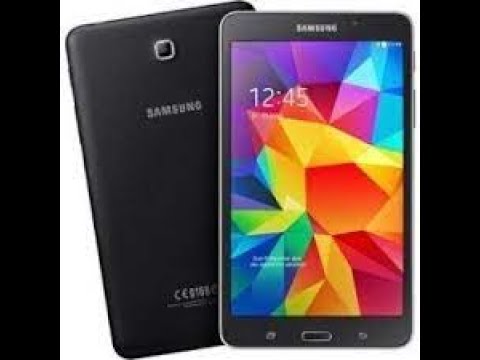
Oh boy, hitting a snag during a firmware update can really throw a wrench in things, right? Especially when it’s your Samsung SM T230 acting up. I bet you’re feeling all sorts of panic and frustration right now. Trust me, you’re definitely not alone in this!
You were probably just trying to get everything running smoothly, and boom—stuck update. It’s like one minute you’re all excited for those new features, and the next minute everything’s at a standstill. Super annoying!
But don’t worry too much—there’s usually a way out of these sticky situations. You might have to try a couple of different tricks to get it unstuck. We’re talking about patience here—and maybe a bit of tech magic.
So, grab that tablet and let’s see what we can do to bring it back to life! I’m here cheering you on (and crossing my fingers). Let’s get this sorted together, yeah?
Firmware Update Compatibility Requirements
Updating firmware, especially for devices like your Samsung SM T230, can sometimes feel like trying to solve a mystery. You know, it’s those moments when you’re eagerly waiting for the update bar to complete but it stubbornly refuses to move. Let’s dive into understanding what might go wrong with those updates and how you can tackle these sticky situations.
Understanding Firmware Updates:
Firmware is kind of like the conductor in an orchestra—guiding all parts of your device so it runs smoothly. It’s the software that’s installed on hardware components to make them work efficiently. And these updates? They help fix bugs or add new features! Exciting, right?
Why Do Updates Get Stuck?
- Compatibility Issues: Sometimes your current firmware version and the new one just don’t get along.
- Network Problems: An unreliable internet connection can cause interruptions during download.
- Lack of Storage: Your device needs space for download and installation. If it’s full, that could be a hiccup!
Steps to Resolve It:
1. **Check Compatibility:**
Ensure that the update is meant for your specific model (SM T230). People often overlook this detail because there are so many similar models out there.
2. **Stable Internet Connection:**
Connect to a reliable Wi-Fi network before starting an update process—just like how you’d prefer solid ground before starting a hike!
3. **Free Up Space:**
Take some time to delete unused apps or move photos/videos to cloud storage or another device.
4. **Battery Charge:**
Make sure your tablet has more than 50% charge—or better yet—plug it in while updating!
5. **Reboot Device:**
Sometimes turning things off and back on really does fix problems!
6. **Download Update Again:**
Try downloading fresh files if previous attempts failed.
7 .**Seek Help if Needed:**
Still stuck? Have someone else take look at error messages together; maybe they see something overlooked.
In short—that stuck bar doesn’t mean defeat; sometimes following simple steps saves day! Remember patience key getting through process without throwing stuff around room…
How to Fix Samsung SM-T230 Firmware Update Stuck
Oh, the frustration of a firmware update getting stuck on your Samsung SM-T230! It’s something most of us have experienced at least once with our devices. Sometimes, it happens when you’re in the middle of doing something important. Let’s dive right in and explore what can be done.
- Patience is Key: Before jumping into more complicated solutions, sometimes just waiting a bit longer could help. It might feel like eternity, but updates can occasionally take longer than expected.
- Check Your Internet Connection: A stable internet connection is critical during updates. If you’re on Wi-Fi and it’s acting up, try switching to a different network or resetting your router. Remember when we had dial-up? Thankfully, things are faster now, but issues still happen!
- Soft Reset: This old trick often works wonders. Just press and hold the power button until your tablet turns off and restarts. You know how sometimes turning things off and on again just fixes them?
- Sufficient Storage Space is Necessary: Updates need room to breathe—make sure there’s adequate space on your device by deleting unnecessary apps or files.
- Battery Level Requirements: Ensure your battery isn’t running out—a minimum charge level is crucial during updates to avoid interruptions. Plug it in if needed.
- If plugged into power when the update begins, check if there’s any problem with your charger or cable.
- Caches Clear Up Clutter: Sometimes cached data gets tangled up in processes like a spider web—clearing cache might help. Go to Settings > Storage > Cached Data and clear it out.
- Manual Firmware Update via Odin Tool: When automatic methods fail… this approach steps up as an alternative hero! Download appropriate firmware from reliable sources (like SamMobile), install ODIN software onto computer then follow provided instructions closely for flashing firmware onto device manually.
Be aware though – any wrong step could result adversely affecting functionality so ensure understanding beforehand! Look around online communities where fellow users share experiences troubleshooting similar situations.
Here’s an example story: my friend once solved his stuck update using this method—it took time navigating learning curve initially based tutorial he found—but relief felt afterwards worth every effort!
-
This won’t delete personal data—it’ll simply remove temporary files used by apps.
Remember not rush deciding factors course action understanding possible consequences involved… following these suggestions sort through intricate maze updating state achieving operating system harmony again possible smoother journey ahead whichever method chosen experiment few approaches eventually everything clicks back rightful place allowing enjoy tablet new features benefits fresh installation!
Isn’t technology amazing—even if occasionally temperamental?
Resolving Samsung SM-T230 Firmware Update Stuck Issue
Hey, having a device freeze up during an update can be super frustrating, right? If you’re dealing with your Samsung SM-T230 getting stuck on a firmware update, let’s walk through it together. No one wants to feel left in the lurch by their tech.
Understanding the Issue
First things first, why is this happening? You might find your tablet halting for a bunch of reasons. It’s possible there wasn’t enough memory available for the update. Or maybe a glitch interrupted it mid-process. Sometimes, network hiccups play their part too.
What to Do First
The simplest move is rebooting your tablet. Just press and hold down the power button until it switches off and then back on again. It might just clear whatever was causing it to freeze up.
Check Your Internet Connection
To ensure all goes smoothly, make sure you’re on a solid Wi-Fi connection rather than relying on mobile data which can cut out unexpectedly.
Free Up Space
Having enough room is crucial for updates! Check how much storage you have left by:
- Navigating to Settings > Storage.
- If it’s full or nearly full, try deleting unnecessary apps or files.
- Aim to have at least 20% of space free.
Plug It In!
Always keep your device charged during updates—running out of juice mid-update can mess things up hardcore.
Alternative Route with Smart Switch
You could also use Samsung’s Smart Switch software as an alternative way of updating:
- Download Smart Switch if you haven’t got it already!
- Connect your tablet via USB cable.
- Select ‘Update’ in Smart Switch when prompted—it can handle updates smoother sometimes compared itself merely relying upon OTA (over-the-air).
Hopefully some these steps helped jog loose whatever held back progress before! Sometimes gadgets just need gentle nudge get back track again afterall.
Stay patient friend! Tech troubles happen everyone—they’re part adventure owning electronic devices really aren’t they?
Oh, getting stuck during a firmware update can be such a headache, right? It’s like when you’re all set to watch your favorite movie, popcorn ready and everything, and the power goes out. Super frustrating! Anyway, let’s see how you can tackle this issue with your Samsung SM T230.
First of all, take a deep breath. It’s not the end of the world. If your device is stuck while updating its firmware, there’s usually a way to fix it without too many tears shed. You see, firmware is like the brain of your tablet—it keeps everything running smoothly. But sometimes things don’t go as planned.
Start by checking if the tablet has enough battery life. I know it might sound silly but it’s one of those things we often overlook. Plug it in and make sure it has at least 50% juice before attempting any fix.
Then there’s the good old restart trick—just like when you need a little nap to reset after a long day. Hold down that power button until it powers off and then switch it back on again after waiting for about thirty seconds.
If restarting doesn’t work its magic, try using Samsung Kies or Smart Switch on your computer. These programs can manually update or restore your firmware. It might seem technical at first glance but they’re really user-friendly once you get started—you’ll see.
Now here’s another anecdote for you: A friend of mine once spilled coffee near his tablet mid-update (can’t make this up!). Panic ensued as he thought he’d ruined everything forever…turns out re-downloading the firmware through Smart Switch brought his device back to life with no issues!
And don’t forget—a stable internet connection is crucial during updates; losing connection can cause these interruptions too! Double-check Wi-Fi strength or even switch networks temporarily if needed.
So yeah tackling this kind of hiccup requires patience more than anything else—and maybe keeping liquids far away from electronics next time!