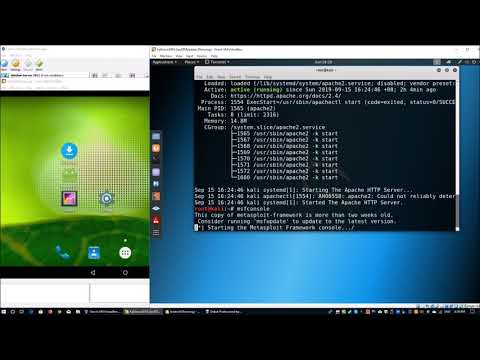
So, you’ve probably heard of Kali Linux, right? That super handy operating system that’s all about hacking and cybersecurity? What if I told you that you can run it on your Android phone? Yeah, it sounds wild!
Look, I get it. Maybe you’re thinking, “Why would I need that?” Well, if you’re into troubleshooting tech issues or just want to beef up your security skills on the go, this could be a game-changer.
Imagine being able to test networks or dive into security audits—all from your pocket! Pretty cool, huh? So let’s chat about how you can set this up and why it might just become your new favorite tool. You ready? Let’s dive in!
Exploring the Role of Kali Linux in Cybersecurity: Tools, Benefits, and Best Practices
Kali Linux is kind of like the Swiss Army knife for cybersecurity experts. When it comes to tackling security challenges, this powerful Linux distribution packs a serious punch. It’s specifically designed for penetration testing and security auditing, making it a go-to for many in the field. You might be wondering how it fits into the mobile world too, especially on Android devices. Let’s break down its role, tools, benefits, and some best practices.
Tools
So first off, Kali Linux comes with a ton of built-in tools. These aren’t just your average run-of-the-mill applications; they’re specifically crafted for various cybersecurity tasks. Here are a few key categories:
These tools are incredibly helpful whether you’re working on penetration testing or simply trying to understand what’s out there.
Benefits
Now let’s chat about why Kali Linux is so valuable in cybersecurity. For starters, it’s free! Seriously, who doesn’t love something that saves money? Plus, it’s open-source, which means anyone can tweak it to suit their needs.
Another big win is its community support. There are forums and online groups buzzing with users sharing knowledge and tips. This can really come in handy when you hit a bump in the road while troubleshooting issues.
Oh! And speaking of troubleshooting, if you’re thinking about running Kali Linux on Android—yes, you can! It allows you to perform security assessments right from your pocket. This flexibility means you’re always equipped with tools when needed.
Best Practices
Using Kali Linux effectively requires some know-how though. Here are some best practices you should consider:
Sticking to these tips ensures that you’re not only using Kali Linux effectively but also responsibly.
Ultimate Guide to Running Kali Linux on Android for Troubleshooting and Cybersecurity Without Root Access
Running Kali Linux on Android can be a game changer, especially for those interested in troubleshooting and cybersecurity. But you might be wondering: how do you pull this off without root access? Well, let’s talk about it!
First off, Kali Linux is this super powerful Linux distribution specifically designed for penetration testing and security auditing. Imagine having a mini cybersecurity lab right in your pocket! Now, usually, you’d think you need root access to do something like this. But nope! There are ways around that.
One popular method is using Termux, which is basically a terminal emulator and Linux environment app that runs on Android. Here’s how to get started:
Phew! Sounds like a lot of commands, huh? But once you get comfortable typing them out, it becomes second nature. Now you’re running Kali Linux right on your Android device without needing root permissions.
So what can you actually do with this setup? Here are some cool uses:
Now let’s talk about some limitations here—because every rose has its thorns! Running Kali like this means you might not get all hardware features or full functionality compared to running it from a dedicated machine or virtual machine.
Plus, using it responsibly is super important! Make sure you have permission when testing networks or applications—you don’t want any legal headaches!
In summary: running Kali Linux through Termux on Android is totally doable without root access. While there are limitations to consider, it’s still packed with potential for learning and troubleshooting in cybersecurity scenarios.
And there you go! You’ve got yourself a handy little setup right in the palm of your hand. Just remember—the more comfortable you get with those commands, the smoother it’ll all go!
Unlocking Kali Linux on Android: A Comprehensive Guide for Troubleshooting and Cybersecurity via GitHub
Unlocking Kali Linux on Android is an exciting way to bring powerful troubleshooting and cybersecurity tools right to your pocket. Seriously, it’s like having a whole toolkit at your fingertips. But, let’s face it; diving into this can feel a bit overwhelming. So, let’s break it down step by step.
First off, Kali Linux is known for its robust suite of tools aimed at penetration testing and security auditing. You might be wondering why you’d want this on an Android device? Well, imagine being able to test network vulnerabilities or conduct security assessments wherever you go.
To get started, here’s what you need to do:
- Install Termux: This nifty terminal emulator for Android is essential. You’ll run all your commands through it. Grab it from the Google Play Store.
- Update Packages: After installing Termux, open it and type:
pkg update && pkg upgrade. This brings all your packages up to date. - Get Required Tools: Now you’ll install some packages that are crucial for running Kali Linux. Type:
pkg install wget proot tar. These will help set things up. - Download Kali Linux: Here comes the fun part! You can use wget to download the Kali Linux image from GitHub or other sources. Just type:
wget https://github.com/EXALAB/AnLinux-App/releases/latest/download/kali.tar.gz. - Extract Files: Once the download is complete, extract the files using:
proot -0 tar -xzf kali.tar.gz. Make sure you have enough space on your device! - Run Kali Linux: To start Kali, simply enter:
proot -0 -w /root -r ./kali /bin/bash. This command will launch your session.
Now that you’ve got Kali running on your Android device, it’s time to explore its tools! From network scanning with Nmap, vulnerability assessment using tools like Nessus, or even web application testing with Burpsuite, there’s a lot at your fingertips.
But hey, let’s talk troubleshooting because sometimes things can go haywire:
- No Sound Issues:If after installation you notice no sound or weird errors while trying to access certain features in Termux, check if you’ve allowed permissions in your app settings.
- Slow Performance:If everything feels sluggish, try closing unnecessary apps in the background or restart Termux. You’d be surprised how much that helps!
- Error Messages During Setup:If you see error messages while executing commands—double-check that each command is typed correctly! Copy-pasting can sometimes lead to unexpected symbols being included.
- No Internet Connection:This is crucial for using most of Kali’s features! Ensure you’re connected and that Termux has permission to access Wi-Fi/mobile data.
Having trouble getting support? GitHub communities are fantastic for troubleshooting issues when things don’t work as planned. Check out forums related to AnLinux or even specific GitHub repositories where many users share their experiences.
In this digital age of troubleshooting and cybersecurity on-the-go, having Kali Linux handy adds a robust dimension to your skills as a tech enthusiast or professional. It might take a bit of patience initially but once you’re set up—well worth it!
So there you go! That’s the scoop on unlocking Kali Linux on Android—easy peasy if you take it one step at a time!
So, let’s chat about Kali Linux on Android, right? It’s pretty wild how this whole thing works. I remember when I first learned about Kali Linux, I was all intrigued by its capabilities for cybersecurity and troubleshooting. The idea that you could have this powerhouse of a tool right in your pocket is, like, mind-blowing!
Kali’s basically this flavor of Linux that’s designed for penetration testing and security audits. You know, it helps you find weaknesses in networks or systems, which is super important these days with all those cyber threats lurking around. And having that kind of functionality on an Android device can be a game-changer. Imagine being out and about—maybe sipping coffee at your favorite café—and you spot a network vulnerability; boom! You’ve got the tools to analyze it right there in your hand.
But let me tell you something—it’s not all sunshine and rainbows. First off, setting it up isn’t exactly a walk in the park. You’ve gotta juggle a few apps to get it running smoothly on Android, and if you’re not careful, stuff can get a bit wonky. Plus, some people think it’s as easy as downloading an app and poof—you’re a cybersecurity expert. Spoiler alert: it’s not that simple.
There’s also that ethical side to consider. You really don’t want to go poking around without permission—trust me on that one. One time I got so caught up in learning about network testing that I almost slipped into trouble myself by scanning networks without thinking twice. It was a close call! It’s easy to lose sight of the line between ethical hacking and just plain old hacking.
On the flip side though, if you’re serious about learning security practices or troubleshooting techniques on the go, this setup can seriously boost your skills. It’s like having a mini lab wherever you are! You get to experiment with different tools and learn things firsthand instead of just reading textbooks or watching videos.
So yeah, even though setting up Kali Linux on Android has its challenges and ethical dilemmas to navigate through, the potential for improving your troubleshooting skills or diving into cybersecurity is definitely worth it for tech enthusiasts like us! Just remember—stay ethical while you’re at it!