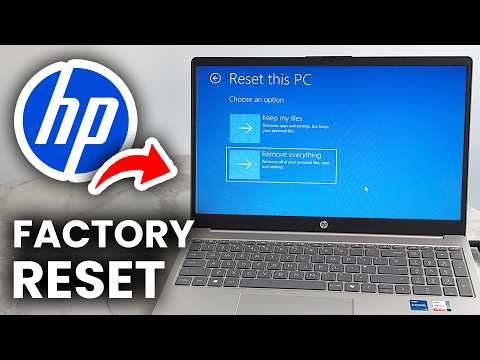
Remember that time you got a fresh start? Like moving to a new place or starting a new job, everything felt so clean and exciting. Restoring your HP PC to factory settings is kind of like giving your computer that same fresh start. It’s like dusting off the cobwebs and saying, “Hey there, let’s do this all over again.”
But hey, before you dive in, it’s good to know why you’re doing it. Maybe things have been running slow or there’s some pesky software acting up. Or maybe you’re just in the mood to start from scratch. Whatever it is, it feels like clearing out old clutter—pretty satisfying!
And don’t worry! If the thought of restoring sounds daunting, I’ve got your back. I’m here with you every step of the way. Honestly, it’s easier than you’d think… So grab a coffee and let’s get started!
Hard Reset Impact on HP Computer Data
Alright, let’s talk about the impact of a hard reset on your HP computer. Imagine your computer like a library full of all sorts of books: photos, documents, apps… you name it. Now, if you’re thinking about hitting that restore button to get everything back to factory settings, here’s what you might want to know.
First off, what exactly happens when you do a hard reset? Well, it’s kind of like taking all those books in the library and putting them back in their original boxes—poof! All the stuff you’ve added over time gets removed.
- Stored Data: All personal files—like music files or grandma’s cookie recipe—get deleted. Poof.
- Installed Software: Any programs you’ve installed after buying your PC? Bye-bye!
- User Accounts and Settings: Remember that cool wallpaper you set up? That’s going too. Gone.
Now here’s a friendly tip from someone who’s been there: if there’s something special on your computer that you’d hate to lose—a family photo maybe or some important work document—it’s an awesome idea to back it up before starting a reset.
The bright side? If you’ve been having trouble with unwanted software or slow performance, sometimes this reset can make your device feel like its shiny new self again because it takes away everything that’s weighing it down.
Think of it this way: If resetting is cleaning out the entire library and starting fresh, then backing things up is making sure those valuable books are safe somewhere else where they can be returned later!
Oh! And one last thing: after restoring factory settings on an HP PC (or any PC honestly), make sure to crank up security settings again once everything comes back online—you know how important protecting our digital life is these days!
So, there ya go! Hard resetting isn’t as scary once you break down what’s happening behind-the-scenes and prepare yourself properly beforehand. It could bring just what was needed all along—a breath of fresh air for both machine…and user alike!
Booting HP Computer to System Restore
So, you’ve got your HP computer and it’s throwing a fit. Maybe it’s running slower than molasses in January, or maybe it just won’t behave. Whatever the reason, booting your HP computer to System Restore can be like hitting the reset button on a sticky situation.
Why Use System Restore?
Sometimes, stuff gets cluttered in our computers. It’s kind of like that junk drawer in the kitchen—things pile up over time. System Restore can help by reverting your PC back to an earlier point when everything was running smoothly.
How Does It Work?
Think of System Restore as a time machine for your computer. It doesn’t affect your documents but rolls back system files and settings to an earlier date.
Steps to Boot to System Restore
Here’s a simple way for you to get started with that:
- Restart Your Computer: Hit the restart button, or turn it off and back on again.
- Tapping That F8 Key: As soon as it starts up, start tapping the F11 key repeatedly until you see something pop up.
- Select ‘Troubleshoot’: On the screen that appears, choose “Troubleshoot.”
- Click ‘Advanced Options’:This is where you’ll find more magical tools.
- Select ‘System Restore’: Click this option and hey presto—you’ve found what you’re looking for!
The Thing Is…
Once inside System Restore follow those simple instructions on-screen. You’ll be picking out a date when things weren’t all topsy-turvy.
Remember that little cousin’s birthday last month? That might just be far enough! Choose wisely because this is where those aches and pains might go “poof.”
It’s also possible some recent installs will vanish so don’t fret if games or software might need reinstalling afterward!
If everything clicks into place perfectly great news! You should have smoother sailing ahead without any unnecessary hassle lingering behind anymore … fingers crossed anyway right?
But remember: If ‘restore’ doesn’t solve everything completely then worst-case scenario sometimes resetting factory settings remains an option…but only use gently please 😉
And hey—it always helps knowing there are people out there going through similar stuff; trust me tons face daunting troubles daily yet emerge victorious eventually!
HP Laptop Factory Reset Procedure Without Password
Sure thing! Dealing with computers can sometimes be like trying to figure out a really complex puzzle, but don’t worry. I’m here to help you through it, step by step.
So you’re looking to reset your HP laptop back to its factory settings, and hey, it’s perfectly normal if you lost the password or just want a fresh start. Maybe your laptop has been slower than a snail on vacation and a reset could give it that brand new feeling again.
Here’s what you’ll want to do:
- Turn Off Your Laptop: First things first, make sure your computer is off. Press the power button if needed.
- Turn It Back On: Now, as you turn it back on, keep tapping the F11 key repeatedly. This opens up the recovery environment.
- Select Troubleshoot: Once you’re in that menu (fingers crossed!), click on “Troubleshoot.”
- Select Reset This PC: Next up is choosing “Reset this PC.” Here comes the magic!
- You’ll see two options: keep files or remove everything.
- If you choose “remove everything,” it’ll be like a clean slate—everything goes away.
- Select this option if you’re really aiming for that fresh start without any traces of old stuff.
- No Need for Passwords Here: Since you’ve gone through F11 route, no passwords will block your way during this process. Sweet relief!
Here’s where patience pays off—it might take some time while everything resets (go grab a coffee perhaps?)
A Little Tip Before You Start:
Remember to back up anything important before proceeding! Photos from Aunt Sally’s last reunion or those documents for work—make sure they’re safe elsewhere ’cause once it’s done they’re gone from your device.
In case things look different when going through these steps – don’t panic! Sometimes systems have slight variations due updates etc., but generally sticking with these directions usually does trick most times.
Hope all goes smooth sailing ahead with getting things all set up again just way want them—like reliving first date kinda excitement right?
Oh, resetting a computer to its factory settings. Ever had one of those days where your computer just won’t follow your lead? I’ve been there plenty of times. Sometimes, all the little gremlins hiding in your system seem to conspire against you, and nothing seems to work right. That’s when restoring it back to factory settings feels almost like hitting a magical reset button.
Picture it: your HP PC is acting up, running slower than molasses in winter, or maybe you’ve picked up some unwanted nasties—viruses—that simply refuse to go away. Restoring it can feel daunting at first, especially because you know you’re going back to square one. But it also brings that fresh start sensation!
So here’s the deal – when you’re ready for that clean slate, it’s actually more about patience and following steps than anything too tricky. You’d probably want to back up any important files first—photos from that family reunion or those essential documents—because they’ll all vanish post-reset as if by magic.
Once you’ve saved what matters to you on an external drive or cloud service (managing backups might become a breeze after a couple attempts), you’ll need to jump into the settings menu of your HP PC. There’s typically an option for recovery or resetting, something like stepping into a time machine and taking everything back to how it was when you first unboxed the machine.
A small tip here: expect this process might take some time—not ages—but enough for you maybe go enjoy a cup of coffee while waiting.
What’s fascinating though is after everything resets—the system feels as crisp and new as the day you first switched it on! It can really turn frustrating days around quite effectively.
So yeah, restoring isn’t just solving technical hiccups; it’s like giving new life—and sometimes we do need that reboot both in our tech and personal lives too!