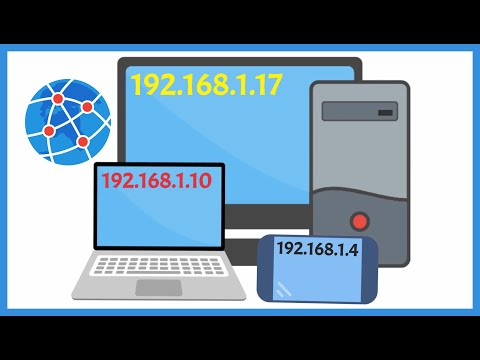
When you’re setting up a new device or troubleshooting your home network, you might come across the term “IP” quite often. But what exactly does it mean? In the simplest terms, IP stands for Internet Protocol. It’s a set of rules that dictate how data is sent from one device to another over a network. Every device on your network—like your laptop, smartphone, or gaming console—needs a unique IP address to communicate effectively.
Think of an IP address like a home address for your devices. Just as mail needs an address to be delivered accurately, data packets require IP addresses to reach their destinations across the internet or local networks. Without this system in place, devices wouldn’t know where to send their information or where to find the data they need.
Understanding the Four Layers of IP
IP, or Internet Protocol, operates in four layers that help manage how data is sent and received across networks. Understanding these layers can clarify how devices communicate.
The Four Layers of IP
Here’s a simple breakdown of each layer:
- Link Layer: This is the physical layer where data travels over a network medium like Ethernet or Wi-Fi. It handles things like MAC addresses. Think of it as the delivery truck on the streets.
- Internet Layer: This layer manages packets of data through routers using IP addresses. An example is IPv4 or IPv6 addressing, which determines where data is sent on the network.
- Transport Layer: Here, protocols like TCP (Transmission Control Protocol) ensure that data arrives accurately and in order. It’s akin to making sure your package isn’t just dropped off but secured and tracked during its journey.
- Application Layer: This is where user applications interact with the network. When you send an email or browse a website, this layer comes into play. It translates application calls into messages that can go through lower layers.
As an example, consider sending an email. The application creates your message within the application layer. It’s then handed down to the transport layer to ensure it’s properly formatted and delivered without errors before reaching its final destination via the Internet layer and physical link layer.
Dive into these layers when troubleshooting issues with connectivity or performance. Knowing which part may be failing can save time and effort when seeking solutions.
Understanding IP in Networking Contexts
IP stands for Internet Protocol, and it’s a set of rules that control how data is sent over the internet or other networks. Think of IP like the address system for your computer. Just as you need a home address to receive mail, your device has an IP address to send and receive data.
When devices communicate, they use IP addresses to know where to send packets of data. An IP address is usually written in one of two formats:
- IPv4: This is the most common format, represented as four numbers separated by dots (e.g., 192.168.1.1).
- IPv6: A newer format designed to replace IPv4 because we’ve run out of IPv4 addresses. It looks more complex, like this: 2001:0db8:85a3:0000:0000:8a2e:0370:7334.
For example, when you browse a website, your computer sends a request to the server hosting that site using the server’s IP address. The server then responds with the requested information, sending packets back through the network to your device’s IP address.
If there’s an issue with an IP address—for instance, if it’s incorrect or not responding—you might see error messages like “Unable to connect” or “Network timeout.” To troubleshoot these issues:
- Check your network connection settings in your device’s control panel.
- Try restarting your router; sometimes a simple reboot fixes connection problems.
- If you’re using Wi-Fi, ensure you’re connected to the right network.
Understanding how IP works helps you grasp why certain network issues occur and empowers you to troubleshoot effectively when needed.
Understanding IP Address Definition
An IP address is a unique identifier assigned to every device connected to a network. It helps devices communicate with each other over the internet and local networks. Think of it like a postal address for your computer, smartphone, or printer—without it, data can’t find its way to the right destination.
There are two main types of IP addresses: IPv4 and IPv6. IPv4 is the most common and looks something like this: 192.168.1.1. It consists of four sets of numbers, each ranging from 0 to 255. As we’ve run out of IPv4 addresses due to the explosion of devices online, IPv6 was introduced, which uses a longer format (like 2001:0db8:85a3:0000:0000:8a2e:0370:7334) and provides a much larger pool.
For example, when you connect your laptop to the Wi-Fi at home, your router assigns it an IP address like 192.168.1.5. If you try to access a website, say www.example.com, that site has its own unique IP address too. Your laptop uses its assigned IP address to send requests through your router and reach the website’s server efficiently.
If you ever run into connection issues, such as getting “Unable to connect” errors or slower internet speeds, checking your IP settings can help troubleshoot the problem.
When diving into networking, remember that IP isn’t just about being connected. It’s a way to find and communicate with devices, whether it’s your phone at home or a server miles away. If you run into issues, like devices not communicating or strange error messages, checking the IP settings should be one of your first steps.
Also, keep in mind that the type of IP address—whether static or dynamic—plays a big role in how your devices interact on the network. Knowing when to expect changes can save you from unnecessary troubleshooting later on.