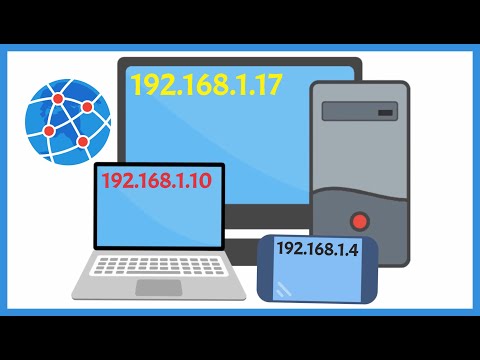
Hey, you ever tried figuring out your internet connection’s IP address? It’s like hunting for a mystery clue in a detective story. You know it’s there, somewhere, but where exactly? And what even is it? Well, it’s nothing too wild—just your unique address on the internet map.
I remember the first time my friend asked me about IP addresses. I was like, “Uh… Internet Protocol what?” You’re not alone if you’re scratching your head. Your IP is kinda like the street number of a house. It tells other computers how to find you online. No biggie! But yeah, knowing it can be super handy.
So stick with me here, and I’ll walk you through it. It’s more straightforward than you’d think! We’ve all been there, feeling lost in a sea of tech terms. But once you get it—aha moment guaranteed! Who knew finding an IP could be this chill?
Checking Your Internet Connection’s IP Address
Finding out your internet connection’s IP address can feel a bit like solving a little mystery, right? But, it’s really quite simple once you get the hang of it. Let me walk you through it.
First off, there’s two kinds of IP addresses: public and private. Your private IP is what things on your home network see—like your printer or smart TV. But when you want the world wide web to identify you, that’s where your public IP comes in.
Now, if you’re curious about what your public IP is (and who isn’t?), there are a few quick ways to find it:
- Online Search: The easiest method is just searching “What’s my IP?” on Google or Bing. They’ll display it right there at the top!
- Router Settings: If you’re feeling adventurous, log in to your router. That’ll have more details than you’d even know what to do with.
For those who’d rather know their private network identity:
- Windows Users: Run a command prompt (you find this by typing “cmd” into the start menu) and type in “
ipconfig“. Look for something that says “IPv4 Address”. That’s your private one. - Mac Users: Head over to ‘System Preferences’, pop into ‘Network’, and you’ll spot it under ‘Status’. Easy peasy!
And hey, remember how I mentioned that anecdote? Once upon a time, I was setting up my own little Wi-Fi haven at home. Couldn’t figure out why nothing was connecting properly. Turns out? Wrong IP settings! A quick peek at my settings had everything sorted faster than brewing coffee.
So yeah! There you have it! Finding those numbers doesn’t need fancy gadgets or wizardry—just curiosity and maybe a minute or two online. If ever you’re scratching your head and wondering if someone’s knocking on your digital door… now you’ll be prepped!
Find Your Wi-Fi IP Address
Hey there! So, you wanna find your Wi-Fi’s IP address, huh? It’s like trying to find out the street address of your router. Basically, it’s a piece of cake once you know where to look. When your devices connect to the internet through Wi-Fi, they get an internal IP from your router. But hey, that’s not what we’re after here.
Look, it’s a bit like when you get those letters in the mail—your device needs an IP address to send and receive info on the internet.
Here’s how you can track down Wi-Fi’s IP address:
- Windows Users: Open up the command prompt by typing “cmd” in the search box. Then type
ipconfigand hit Enter. You’ll see some gobbledygook on screen (it might look confusing), but watch for something called “Default Gateway.” That’s usually your router’s IP. - Mac Users: Click that Apple icon in the top left corner and select “System Preferences.” Go to “Network”, then pick “Wi-Fi” and click “Advanced.” Check out what it says under “TCP/IP”—there you’ll find it marked as “Router.” Easy-peasy!
- Your Handy Smartphone or Tablet: For those using Android or iOS, open Settings, head down over into Wi-Fi settings and tap on your network (the one you’re connected with). There should be detailed info showing like signal strength or security type—and right there will be an IP smaller than you’d expect!
Ready for some techie talk about using IPv4 versus IPv6? Well no need now unless curiosity gets best of ya! Most connections use IPv4 (those are shorter numbers), but you might also see longer clumps—that’d be pointy-end cutting edge protocol called—guess—IPv6!
A little warning here: Don’t forget sharing this private-ish info openly could lead strangers through back doors onto wireless network… So keep things secure by changing password every few months! Just saying.
Finding these digits won’t turn anybody into hacker superstar overnight—that comes after plenty late nights squinting at code screens—but knowledge is power against possible cyberbies cyber issues lurking nearby seeking prey online… phew!! Meanwhile stay safe surfing waves out there until futures come knocking around again alrighty?
Finding Your IP Address
Sure thing! Let’s dive into the whole IP address bit. You know, sometimes it feels like that mysterious series of numbers everyone talks about, right? But honestly, finding your IP address is as easy as pie once you know where to look.
So first off, what is an IP address? It’s like your home address but for your device on the internet. It helps computers and other devices find each other online. Now there’re two types: Public IP and Private IP. Public is what the world sees; private is just for local networks—like home or office Wi-Fi.
Now, let’s break down how you can find these addresses:
- Public IP Address:
- Using a Web Browser: Open up any search engine like Google and simply type “What is my IP?” Right at the top, you’ll see those digits—yep, that’s your public face to the web.
- Router’s Admin Page: If you’re feeling a bit techie, log into your router’s admin page. Usually you enter an address like “192.168.0.1” in your browser (totally depends on the router though). Look through the settings; it’ll be there waiting for you.
- Private IP Address:
- Windows Devices:
- Clever Shortcut: Hit Windows Key + R to run options and type “cmd”. In that black box (Command Prompt), type “ipconfig” and hit Enter. Look for something that says “IPv4 Address.” And voilà!
-
Go click that apple logo in top left corner > System Preferences > Network. Then choose your active connection—Wi-Fi or Ethernet—and see there under Status?
> They will tell ya all ya need ta know bout yer personal & private doorway which allows access within any confidential setting.
You follow me yet?? Don’t worry if not–it takes practice understanding these curious codes -whether eyeballing ’em once never kills anyone!
There we have it – understanding different parts takes patience/curiosity maybe even percolating questions far afterward…Cheering kind friends who asked first those things called networks likely went unnoticed until now?? Ain’t life strange but wonderful too?!
You ever tried tracking down your internet connection’s IP address and found yourself scratching your head? I remember the first time I did it. Gosh, it felt like trying to solve a puzzle without the box cover. You’re not alone, trust me.
Everyone’s had that moment when they suddenly need their IP address. Maybe you’re setting up a new device or trying to play tech support for a family member over the phone. And sure, it sounds like something only IT wizards need to know…but–surprise!–it’s actually something we all might have to tackle at some point.
Here’s how you can find it: if you’re on a Windows computer, you can open up what’s called the Command Prompt. Just type “cmd” in that search bar near your Start button and hit enter. When this black window pops up (don’t worry, it’s supposed to look like it’s from the ’80s), type “ipconfig” and press enter again. You’ll see a bunch of information, but keep an eye out for something that says “IPv4 Address”. That’s your ticket!
Using a Mac? No biggie—it’s just as straightforward! Head into System Preferences, click Network, and select your active connection—Wi-Fi or Ethernet—and boom! Your IP should be right there.
But here’s the kicker: Why bother knowing this alien-sounding sequence of numbers? Well… because it’s like knowing where you live on the internet highway! Your IP address identifies where you are online in some network sense—not physically but still unique enough.
What strikes me is how often we overlook these tiny details until they become necessary… and then suddenly they’re important! Whether you’re streaming movies more smoothly or just keeping things secure Ahem hackers!, understanding these bits will boost both confidence and connectivity skills.