Ah, the infamous 0x80070424 error in Windows 10. If you’ve stumbled upon this cryptic combination of numbers and letters, you’re probably scratching your head wondering what’s going on. See, errors like this can feel like a tangled web of techie lingo, but they’re actually just little hiccups that your computer experiences now and then. I remember once my old laptop threw a similar curveball at me right before a big presentation—talk about panic mode! But don’t worry, we’ll unravel what this error means and how you can sort it out without breaking a sweat. Grab your favorite cup of coffee or tea; let’s get into it!
How to fix error code 0x80070424
Alright, let’s chat a bit about that pesky error code 0x80070424 you’re seeing on Windows 10. It’s like when you try to cook a simple recipe but something just doesn’t click, and you end up with a small disaster. Happens to the best of us! This specific error usually pops up when there’s trouble with the Windows Update service or Windows Defender.
So, imagine this: you’re all set for your computer to do its updates or defend itself against nasties, but it just throws a tiny tantrum instead—represented by that code. What you’ll want to start with is checking whether the necessary services are running. This means heading over to your Services app (just type “services” into your search bar), and making sure both ‘Windows Update’ and ‘Background Intelligent Transfer Service’ are marked as ‘running’. If they’re not, right-click them and select ‘Start’. Easy peasy.
Another common issue might be related to system files being damaged or missing. So kind of like when you’ve lost a puzzle piece under the couch—it messes up the whole picture! To fix that part, open Command Prompt as an administrator (you can do this by searching “cmd”, right-clicking it, and choosing ‘Run as administrator’) and type in `sfc /scannow`. It’s a neat little trick where Windows checks if everything’s in order file-wise.
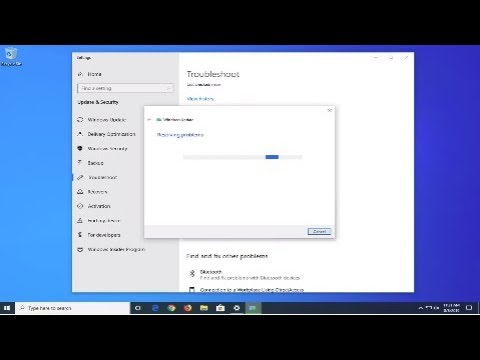
If things still aren’t looking good after doing these quick checks, another option is using the Windows Update Troubleshooter. Microsoft made it like one of those puzzles that guide you through fixing things without needing to Google endlessly. Just search for it in your settings under Troubleshoot settings.
I remember this one time when my friend was dealing with something similar—and he was totally ready to toss his laptop out of frustration! But after starting those services manually and running some system scans? Things smoothed out pretty well without any further techie drama! So maybe give these steps a go before considering anything too drastic.
How to fix we couldn’t complete the update
Running into the “we couldn’t complete the update” with that pesky 0x80070424 error on Windows 10 can feel like a real headache, can’t it? It usually shows up when Windows Update stumbles over some service or component hiccup. But, hey, let’s just say there are ways to get past this and back to peace of mind.
You might want to start by checking if your Windows Update services are running smoothly, alright? Here’s a nifty trick: you can use the Services app to peek and see if everything’s as it should be. Press that magical combo of Win + R keys and type ‘services.msc’ in there. Hit Enter! You should see a list of services now. Look for “Windows Update” in the mix and make sure it’s running. Sometimes setting it to automatic helps too.
If you’re thinking: “Does it really make that much difference?” Well, believe me, I’ve been there when these little adjustments saved my day! Sometimes a small tweak is all you need.
Another tactic? Give the built-in troubleshooter a shot. It’s like having your own little detective inside the computer! Head over to Settings – click Updates & Security – then Troubleshoot on the left pane. You’ll spot “Windows Update” under “Get up and running.” Just hit ‘Run the Troubleshooter,’ sit back, sip that coffee while it does its thing.
Oh, there’s another angle—ensure your system files aren’t playing mischief with you. Use System File Checker (SFC) to check for any corrupted files. Here’s what to do: type ‘cmd’ into your search bar, right-click Command Prompt from results—pick Run as administrator (important!). Then throw in this command: sfc /scannow. It’ll scan for naughty files causing trouble.
One last thing—it might sound odd—but verifying Network List Service is also worth double-checking! It sometimes plays hide-and-seek with updates too—a quick look doesn’t hurt!
You see how addressing these technical quirks has become an accidental adventure? Good luck taming those digital gremlins!
How to fix we couldn’t install this update
You know, dealing with Windows updates can sometimes feel like trying to herd cats—it’s unpredictable and, at times, a little frustrating. One moment everything’s fine, and then bam! You get hit with an error code like 0x80070424 while trying to install updates on Windows 10. Annoying, right? But don’t worry too much; I’ve got your back.
First things first, this error typically shows up when there’s an issue with the Windows Update service or a related component that’s gone haywire. Imagine it as a key player in your team not showing up for the game. You just need to nudge it back into action.
One quick thing you can try is using the built-in Windows Update Troubleshooter. Head over to your Settings (you know the gear icon!), then go to ‘Update & Security’ and select ‘Troubleshoot.’ If you find ‘Windows Update’ there under ‘Get up and running,’ click on it and follow through the prompts. It’s kind of like having someone gently guide you out of a maze—most of the time, it does wonders.
If that doesn’t do the trick, you might need to check if some services are misbehaving or missing in action. Press Win + R (that little Run dialog box is your friend), type in services.msc, and hit Enter. Once you’re there, look for ‘Windows Update’ and make sure it’s running properly by right-clicking on it—the option should be pretty straightforward from there.
Sometimes though, these gremlins still persist! In such cases resetting certain components manually could help clear things up too. You might have heard about resetting Windows Update components; it’s basically giving them a fresh start without throwing everything away.
- Open Command Prompt as Administrator (right-click Start button > choose Command Prompt as Admin).
- Type these commands one by one:
net stop wuauservnet stop cryptSvcnet stop bitsnet stop msiserver
- This stops certain services temporarily so they don’t interfere during resets…
Restart them afterward using:
net start wuauserv
…and similar commands for other stopped services
If any files seem off during this manual intervention—like missing catalogs—you’d benefit from running ‘sfc/scannow’. Basically puts those quirky glitches back straight where they belong inside system files land!
Navigating tech troubles always feels easier together somehow doesn’t it?
Hey, wrapping up our chat about the 0x80070424 error on Windows 10! It’s a pesky code that pops up mostly during updates or Windows Defender issues. Think of it like a hiccup in your system’s smooth operation.
Like that time my buddy Dave tried updating his computer right before a deadline—talk about bad timing! He was just staring at his screen in disbelief and muttering something about bad luck and technology.
Anyway, the thing is, you can fix this by checking out your services. Maybe toggling the status of Windows Update Service or BITS (Background Intelligent Transfer Service) might help. And sometimes jumping into the command prompt for a quick scan using SFC (System File Checker) or DISM (Deployment Imaging Service Management) can do wonders too.
If it gets real tricky though, checking in with Microsoft Support could be your best bet. They’ve got ropes to help pull you back on track when things turn techy chaotic. I hope you manage to get that update rolling smoothly again!