Have you ever tried connecting your Corsair K83 and found yourself staring at your computer with a puzzled expression? It’s frustrating! You know, sometimes tech just doesn’t want to cooperate. I get it. We all have those “why won’t you work?” moments.
Okay, pull up a chair! Whether your keyboard refuses to connect, or it just randomly drops off the grid—yeah, that’s totally annoying—we’re in this together. Windows 10 is usually pretty solid, but every now and then it likes to throw a curveball our way.
Let’s figure out those pesky connectivity issues without pulling out more hair than necessary, alright? Sure thing! It’s all about the little things we might overlook. You got this!
Corsair Keyboard Detection Issues in Windows
Oh, dealing with keyboard issues can be pretty annoying, right? Especially when you’re all set to get some work done, and your Corsair keyboard decides to play hide and seek with Windows. If you’ve got a Corsair K83 and it’s giving you trouble with Windows 10—don’t worry. I’ve got some tips that might just help you out.
First things first, you want to check the basics. Sometimes it’s the simple things that slip our mind. Make sure your K83 is charged (it sounds almost silly, but it happens!). Double-check you’re using the correct USB port. These keyboards have quirky personalities—you remember Susan in accounting who always needed everything just-so?
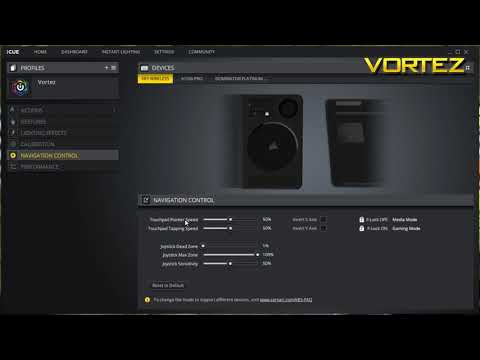
The Corsair iCUE software could be another culprit here. This handy tool is what makes your keyboard shine, literally and metaphorically speaking, but it needs to play nice with Windows too! Here’s a neat trick:
- Update or reinstall iCUE: Head over to the Corsair website and grab the latest version of iCUE. A simple fresh installation can sometimes clear up confusions.
- Firmware update: Within iCUE itself, see if there’s a firmware update waiting in line for you.
Sometimes drivers kind of go on strike without telling anybody!
Now let’s move onto checking if Windows itself is to blame. It might be getting its updates mixed up or maybe there’s a driver hiccup going on:
- Device Manager Check: Open Device Manager; it’s like the backstage where all your device stuff happens. Look for “Keyboards” and see if anything looks funny—exclamation marks are usually bad news!
- Driver Update: Right-click on any dodgy-looking device under Keyboards and opt for an “Update driver.” Let Windows give it a shot.
- Troubleshoot Option: Go through “Settings > Update & Security > Troubleshoot” just because sometimes letting Microsoft fuss over itself works.
If none of these work?, try connecting your keyboard to another device running Windows 10 if you can; this helps make sure it’s not a hardware issue oh no!
It reminds me of that time—my friends kept suggesting crazy fixes when my car wouldn’t start… only for me eventually discovering I’d used an old keychain remote control by mistake every day! It was barely funny then… now though? A little.
So yeah—I hope one way or another these pointers help get those keys back under control again! If nothing sticks though after trying everything out…who knows: there may well be something deeper behind this story lurking somewhere beyond our sight here today…
Troubleshooting Wireless Keyboard Connectivity in Windows 10
Oh boy, wireless keyboards can be such a breeze when they work! But encountering connectivity issues with your Corsair K83 on Windows 10? Kind of frustrating, isn’t it? Let’s see how you can get things clicking again.
First off, make sure the keyboard is powered on. I know it sounds too simple, but you wouldn’t believe how many times it’s just that. The power switch should be in the “on” position and, if necessary, charge it a bit.
Are you sure your device is paired? Sometimes connections drop or get forgotten. So here’s what to do:
- Head into your Windows 10 settings by pressing Win + I.
- Select Devices, then go to Bluetooth & other devices.
- If your Corsair K83 is listed but not connected, click on it and choose Remove device. Then try pairing again.
- If it doesn’t show up at all, try putting the keyboard back into pairing mode – often done by holding the Bluetooth button until an LED begins to flash.
Speaking of pairing modes: Did you know that some keyboards offer multiple connection profiles? If your K83 supports this feature, make sure you’re using the right one for your computer.
Batteries are another sneaky culprit. It might sound funny—like blaming an empty cookie jar on not having dessert—but if there’s any doubt about battery life or charge levels affecting performance… swap ’em out!
Next up: Drivers. Oh yeah! Windows sometimes needs a little push in keeping these up-to-date:
- You could run an update check by typing “Device Manager” in Start Menu search bar; click when found (or use Cortana).
- In Device Manager window under “Keyboards”, expand so all devices show their faces!
- Select yours and right-click; choose “Update driver” option from context menu.
If something still seems off after trying those steps – consider restarting everything involved (keyboard/computer/router), unplugging anything unessential temporarily from USB ports nearby… It clears random noise!
There’s no one-size-fits-all solution here due diverse possibilities contributing techno-troubles–but every puzzle worked through gets us closer toward unlocking our wireless world!
Corsair K83 Connectivity Issues with Windows 10
Ah, the Corsair K83—a sleek and nifty gadget for navigating your PC while lounging comfortably on your couch, right? But when it starts playing hard to get with Windows 10, it can be a real hassle, no kidding! Let’s have a look at how to smooth out those connectivity issues.
Check the Battery:
You might not like hearing this, but could it be just low on charge? Make sure it’s got enough juice. If it’s acting up without reason, maybe a low or faulty battery’s behind all this drama.
Get Bluetooth Functioning Properly:
- Turn Bluetooth on and off: Sometimes a little nudge does wonders. Try toggling Bluetooth off and on through settings.
- Forget device: Head over to ‘Bluetooth & other devices’ in settings. Remove the K83 from the list of devices—don’t worry, it’ll come back! Just re-pair by hitting that pairing button again.
Update Your Drivers:
We all know Windows isn’t perfect at keeping drivers up-to-date. That’s why taking things into your own hands may work better.
- Device Manager Check: Search Device Manager from the taskbar. Find Bluetooth adapters or mouse/keyboards to seek updates there.
Corsair iCUE Software:
If you’ve got iCUE installed—which you probably should if you’re using Corsair stuff—make sure it’s updated too! Sometimes these apps throw curveballs with outdated versions.
Troubleshoot Hardware Connections:
If you’re using dongles or physical connectors (yeah they still exist), check them carefully:
- The correct port matters!: Some USB ports might not work as fast; swap between them till you hit gold.
I had my own tech hiccup story once—a keyboard simply refused connecting while friends were visiting (oh great timing!). Turns out my little nephew decided pressing buttons randomly was fun…
You’ll find sometimes those small steps above get things rolling again surprisingly often! Remember though patience is key—you’ll have your couch-friendly gadget back in action soon enough!
Oh, the Corsair K83! It’s quite a sleek little gadget, isn’t it? Now imagine: You’re sitting there ready for some serious Netflix binge or maybe tackling some remote work, and then—bam—your fancy Corsair K83 decides it’s not in the mood to connect to your Windows 10 system. Annoying, right?
First off, let’s chat a bit about this keyboard. It’s more than just looks. The Corsair K83 is known for merging gaming aesthetics with a touch of home theater PC functionality. It’s got that touchpad thing going on and those multimedia keys that feel like they can do practically everything except make a cup of coffee!
Now onto the connectivity hiccups—which can be such a drag. Sometimes it’s just Bluetooth being finicky. You know how it goes… One moment you’re connected, then suddenly your keyboard seems like it’s ghosted your computer.
Here’s what usually happens: You’ll try to pair them up and Windows acts all nonchalant like “Who dis?” even when the Corsair is screaming its name out loud in Bluetooth language. Been there? Yeah, it’s frustrating.
A friend of mine ran into this too while trying to set up for movie night. After much fiddling around and almost tossing the keyboard out the window (not recommended), they realized it was an issue with outdated Bluetooth drivers or sometimes just needing to re-pair from scratch.
A quick tip? Check on those drivers first – Windows Update might’ve missed them in its last cycle. And sometimes simply removing the device from your list and adding it back can work wonders – like unplugging something and plugging it back in!
Have you ever found yourself shaking your fist at technology? Ah, who am I kidding—we’ve all been there! Just remember that sometimes technology just feels moody too—but it’ll come around with a bit of patience (and maybe some updates)!