Oh boy, we’ve all been there, haven’t we? You pull out your iPhone to take a quick pic of that adorable puppy you just saw, and bam! That dreaded “Storage Almost Full” message pops up. Ugh, right?
I remember the time when I was at this epic concert. The lights were blaring; everyone was singing along. I took my phone out to capture the magic, and then—nothing. No space left! I missed recording one of my favorite songs.
So let’s chat about clearing up some space on your phone so you’re ready for the next spontaneous moment life throws your way. Ready to lighten that load?
Delete Unused Apps and Data
Freeing up some space on your iPhone can feel like a real lifesaver, right? Especially when you’re trying to take a picture, and your phone’s like, “Nope!” because there’s no more room. So here’s a friendly guide on how you can delete unused apps and data to reclaim some precious megabytes.
Check Your Storage
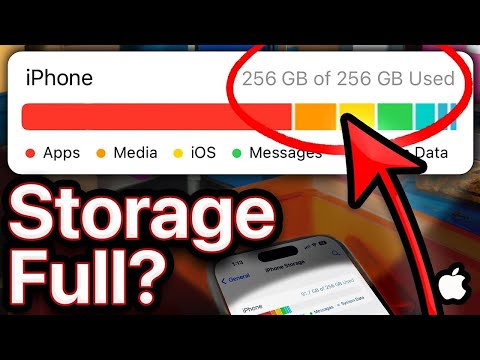
First things first, you need to figure out what’s hogging all the space. Head over to Settings, tap General, then select iPhone Storage. You’ll see a colorful bar graph showing what’s using up your data. This chart can be pretty eye-opening!
Identify Unused Apps
You’ll find a list of the apps installed on your device, sorted by how much space they take up. If you spot an app that makes you think “I haven’t used that in ages!”, it’s probably time for it to go.
- To Delete: Tap on the app in the list. You’ll get an option to either offload or delete it.
- Offloading: This is cool because it removes the app but keeps its documents and data. If you ever reinstall the app later, it’ll be like nothing changed.
- Deletion: This wipes everything—app data and all—from your phone.
Tidy Up Your Photos
Photos are major memory munchers! Using iCloud Photos? Great! They help keep full-resolution images in the cloud while optimizing storage on your device with smaller versions.
- Screenshots and Videos: Take a moment to scroll through these and nix any non-keepers.
- Edit Before Saving: Tools like Google’s Photoscan or Adobe Scan save room by fixing images before saving them permanently.
Cull Old Messages
Message history takes up more room than you might realize! Change settings so messages auto-delete after 30 days or keep conversations short manually.
Your Downloads Folder Needs Love Too!
That’s where old files hide out throwing back memories at unexpected times (and becoming forgotten clutter). Regularly check it under Files > Browse tab > On My iPhone/Downloads if applicable; simply swipe left across file names forever stuck there as remnants without purpose now voila free again!
And remember these little steps always add up toward significant savings: allowing fresh bits into life without worry about running low instantly feels lighter thrifty wise amongst virtual miles spread far vast wide… does wonders bringing newfound joy peace happiness overall usage ease management consistency swiftly effortlessly every day anew afresh anew… Fast easy wins yay!!
Optimizing iPhone Storage Without Deleting Files
I’ve got you covered! Finding ways to free up space on your iPhone without parting with your beloved files is like a mini puzzle. No one wants to lose that perfect beach photo or a funny meme saved long ago, right? Let’s explore some nifty ways to make room on your device without deleting anything.
Use iCloud for Photos
You know how those vacation photos keep piling up? Storing them in iCloud means they don’t take up space on your iPhone. Just ensure “Optimize iPhone Storage” is turned on. This stores smaller versions of your photos locally while full-resolution images are kept safely in the cloud.
Offload Unused Apps
Go into Settings, then tap General > iPhone Storage. Here’s the magic: you can offload apps. This option removes apps you aren’t using but keeps all data and documents related to them. It’s like storing old clothes you love but don’t wear much.
Tidy Up Messages and Mail
Did you know those messages with memes, gifs, and videos are secretly space hogs? In Settings > Messages, set messages to delete automatically after 30 days or a year if needed. Similarly, check old emails; downloading attachments often fills up storage unnoticeably!
- Streaming Music or Podcasts: Rather than keeping all those tracks downloaded, stream them when possible.
- Siri Suggestions for Apps:: You might see suggestions for apps that haven’t been used in a while—consider offloading these too.
- Burst Photos:: Sometimes the phone captures bursts instead of singles. Review and chuck any extras!
Clear Safari Cache
Browsing builds up some clutter behind the scenes too! Head over to Settings > Safari and tap “Clear History and Website Data.” It won’t delete bookmarks but helps slim down storage.
Selective Photo Storage Solutions
Occasionally connect your iPhone to a computer (or use an external drive) if you’re running seriously low on space. Transfer any media files not urgently required onto these devices—voila! Space saved without losing precious memories.
Hope this helps pave the way towards more storage freedom! If you’ve got a favorite trick not listed here, share it—I’d love hear how others tackle this ever-present challenge with full creativity!
Free Ways to Clear iPhone Storage
Hey, iPhones are great companions, aren’t they? But sometimes, they start running low on storage. I get it—it’s like when you try to stuff everything into a small suitcase and hope the zipper doesn’t rip! Lucky for you, there’s a bunch of free ways to clear up space on that precious device of yours without spending a dime. Grab your iPhone and let’s go through this together.
1. Check What’s Eating Up Your Space
First thing’s first: find out what’s hogging all the space. Head over to “Settings“, then tap “General“. Now hit “iPhone Storage“. You’ll see a list showing how much space each app takes. It’s almost like opening your pantry and seeing what’s been sitting there forever.
2. Offload Unused Apps
If you’ve got apps gathering dust, offloading them is super handy. Your data stays safe but the app itself gets deleted. Cool, right? Go back to “Settings > General > iPhone Storage” and here you can offload: select an app and tap “Offload App“. Boom! More space instantly.
3. Embrace Cloud Storage for Photos & Videos
Photos can be storage vampires! Use services like iCloud or Google Photos to store them in the cloud instead of on your device. You just gotta enable “Photos in iCloud” in your settings under “Your Name > iCloud > Photos“. Suddenly, it feels like having an extra bag magically appear next to that overstuffed suitcase!
- Icloud: Store photos safely, and access them from different devices.
- Email or Other Clouds: Email yourself important docs or move them to Dropbox or Google Drive.
4. Remove Old Messages & Attachments
Old texts might seem tiny but those attachments pile up big time! Look under “Ssettings > b>” then scroll down to “Messages”. Here you’ll find options like keeping messages for only one year or 30 days—they kinda self-destruct after that time period!
5.Delete Browser Cache And Data b >
Browsers save bits everywhere y’know? Cleaning cache always frees up some elbow room: open Safari settings; hit clear history&website data
Ah, the age-old struggle of running out of space on your iPhone. Really, who hasn’t been there? You’re just about to capture that perfect sunset shot or download a new app your friend recommended, and bam! Your phone throws that dreaded “Storage Almost Full” alert at you. It’s quite the modern-day dilemma, isn’t it?
I remember once when I was all set to take a bunch of photos at my friend’s wedding. Everyone was dressed to the nines, and the venue looked straight out of a fairytale. Just as I’m about to snap away, there it was: no more space! Talk about panic setting in—I had to scramble and delete stuff on the fly. Got a few good shots eventually but, phew, lesson learned!
So here’s what you can do to avoid such sticky situations—it’s practically like tidying up your room before guests arrive.
- Start by having a look at those apps you barely open anymore. Ever find yourself collecting games or random utilities thinking you’ll use them someday? Be honest with yourself; if it’s been months or years (oops!), let them go.
- Photos and videos might just be eating up most of your storage without you realizing it. Once in a while transfer those memories somewhere safe like an external drive or cloud storage.
- Messages might seem small but over time—especially with media—they accumulate pretty fast! Clearing old conversations can free up surprising amounts of space.
- Don’t forget the cache and downloaded data from apps. Settings usually let you clear some cache or offload unused apps which keeps their data but removes them temporarily from your phone until needed again.
Oh, and here’s another tip: keeping things backed up in iCloud is extra helpful. It means even if something gets cleared off from local storage for space reasons—you still have access wherever whenever!
See this whole cleaning-up process isn’t really as tedious as it sounds—it just takes some moments now-and-then! Eventually these little habits save plenty trouble during urgent photo moments at least (I learnt mine after all).