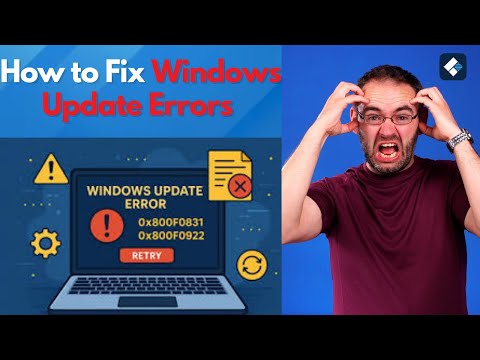
Oh man, Windows updates, right? They can be a real pain sometimes. Just when you think everything’s going smooth, bam! You get hit with one of those pesky update errors. It’s like your computer has its own plan.
I know the feeling all too well. One time I was right in the middle of binge-watching my favorite show and—wham—the dreaded update error pops up. Talk about bad timing!
But hey, you’re not alone! Windows 11 has got some hiccups too when it comes to updates. And that’s what we’re gonna chat about today.
We’re diving into these little roadblocks and figuring out just how to smooth them over without breaking a sweat.
Ready to tackle this together? Let’s roll!
Common Update Errors in Windows 11
Oh, Windows 11 updates! They can be like a love-hate relationship, right? When they’re all smooth, it feels great. But when those pesky errors pop up… ugh! Let’s dive into some of the common update hiccups.
Error Code 0x8007000d: The Data is Invalid
This one’s like getting a cryptic message from your computer. What it’s basically telling you is something went wrong with the installation files. It could be corrupt or incomplete. To sort it out:
- First off, run the Windows Update Troubleshooter. Windows is pretty smart and has built-in tools just for these situations.
- If that doesn’t fix things, check for any corrupt system files using the SFC Command: Open Command Prompt as an admin and type
sfc /scannow. Easy peasy!
Error Code 0x800f081f: Missing Files Issue
Missing something? This error might pop up if there’s a problem locating files needed by Windows Update. Here’s what to do:
- Ensure your internet connection is stable because sometimes updates get lost in cyberspace!
- Check your .NET Framework installation. It might need repair or updating itself. Open ‘Turn Windows features on or off’ to do this.
The Infamous Blue Screen During Updates
Nothing says “oh no” quite like that blue screen during an update. It usually tells you there’s a hardware conflict or driver issue.
- Restart in Safe Mode: This helps by starting only essential services and drivers.
- Uninstall recent updates: Once you’re back in normal mode, try rolling back recent changes to pinpoint what caused the fuss.
Remember my story about that one time I was updating my aunt’s laptop? Just halfway through it decided to freeze mid-update! In moments like these, patience is key—or you know—keeping backups handy!
Error Code 0x80242016: Interrupted Update Process
An interrupted update process can be frustratingly common if there’s sudden power loss or network disruption.
- Caution with battery: If you’re on a laptop without power connected while updating… risky business!
- Suspend unnecessary apps: Before updating, always close any non-essential apps crashing about behind-the-scenes—they’re not helping here!
Navigating through these errors might seem daunting at first glance but remember each stumble gets easier after fixing once before—you got this!
If things stay stubborn even after troubleshooting steps above then reaching out local tech support won’t hurt at all—and misery loves company don’t they say?!
Addressing USB Update Errors in Windows 11
Imagine you’re trying to update your Windows 11, right? And suddenly, you hit a snag with your USB. You’re not alone—this can happen to anyone! Let’s chat about how to tackle these pesky USB update errors.
Why do these errors occur?
Good question! USB update errors often pop up when there’s an issue with the drivers or when something’s glitchy in the system itself. It could be anything from a faulty cable to an outdated driver.
Here’s what you can do to sort it out, step by step:
- Check Your USB Connection: First things first, double-check if your USB is properly connected. Sometimes, a simple unplug and replug does the trick.
- Try a Different Port: Ports can be fussy too! Switch to another one and see if that helps. It’s kind of like trying on different shoes until you find the right fit.
- Update Your Drivers:
- Head to Device Manager by pressing Windows + X and selecting it from the menu.
- Look for “Universal Serial Bus controllers” and find your device there.
- Right-click on it and choose “Update driver.”
If there’s no update available, it’s alright. But make sure you check regularly!
- Restart Your Computer: Classic move, isn’t it? A restart can sometimes reset everything that’s causing trouble.
- Troubleshoot via Windows Update:
You know how Windows has its built-in tools?
Navigate to Settings > Update & Security > Troubleshoot.
Run the troubleshooter for updates here—it might spot issues you’ve missed. - SFC Scan (System File Checker):
Sometimes files get corrupted without notice.
Open Command Prompt as an administrator (just search for CMD and right-click).
Type in:sfc /scannow.
Let it scan—it looks daunting but it’s like having a mechanic check under your car’s hood!
And remember—patience is key! These tech puzzles can seem daunting but tackling them one step at a time usually solves most hiccups.
Oh! An anecdote: I once spent hours wrestling with my own update error only because my USB was ever-so-slightly kinked… who knew?! So don’t overlook even minor details.
So give these steps a whirl; hopefully they’ll help clear up those annoying problems paving the way forward smoothly again!
Windows 11 Update Error Solutions
Updating to Windows 11 can be exciting! There’s a bunch of new features, but yeah, sometimes things don’t go as planned. You’re clicking “update,” and bam! An error code pops up. I’ve been there myself—and I know how frustrating it can feel.
Check Your Internet Connection
First up, make sure your internet is working properly. Windows update relies on a steady connection. If it’s dropping in and out like during a thunderstorm—then you might hit errors.
Restart Your PC
Now this might sound too simple, but trust me it works often! Restarting gives the system a chance to fix minor hiccups that are causing trouble.
Free Up Disk Space
If your storage is nearly full? It could block updates. Delete any old junk files or apps you don’t use anymore—give your computer some breathing room!
- Error Code 0x800f081f: This one usually links back to .NET Framework issues. First off, try enabling .NET Framework through the Control Panel under “Programs & Features.”
- Error Code 0x80070570: Files might’ve gotten corrupted here during the download process. You can retry updating or use the built-in ‘Windows Update Troubleshooter’ which really saves time.
- Error Code 0xc1900208: Sometimes pesky third-party programs mess with updates—closing them using Task Manager should clear things up.
Pause Updates Temporarily
Occasionally waiting helps too! By temporarily pausing then restarting when Microsoft asks—it allows Microsoft patches behind-the-scenes problems better than us trying right away again without solutions available yet for everyone else experiencing similar issues upon release times worldwide simultaneously altogether all at once everywhere simultaneously worldwide alongside globally together across planets…well maybe not other planets but still universe-wise anyhow generally speaking overall throughout numerous galaxies where applicable!
Do these steps seem familiar? Hopefully they help because nothing beats seeing that “Your device is up-to-date” message shining back at ya after fixing those pesky update worries once and forever donezo solved completely finito gone resolved entirely handled finished wrapped tied sorted everything settled completed fixed taken care of forevermore until next inevitable future potential version release perhaps potentially existing maybe someday eventually possibly quite soon later onwards moving forward endlessly continually always onward never-ending eternally perpetually ceaselessly invariably incessantly unfailingly interminably particularly unchangingly constant regularly consistent constantly habitual routinely traditionally enduring lingering perpetual infinite ongoing persistently infinitely repeatedly endinglessly frequently repeated periodically recurrent etcetera etcetera ad infinitum et al among many others haplessly hopelessly despairingly eternally resignedly helpless inevitably endlessly irretrievably infinitely unstoppably unstintingly immutably persistently continuously uniformly ceaseless unvaried commonly monotonously endlessly similarly pertinaciously remorseless stock persistive implacable unstoppable disallow resistless indefatigable obligatory imperative relentless dogged resolute adamant obsessive obstinate determined undeterred unwavering earnest mulish steady fixed staunch tenacious unyielding inescapable fundamental unavoidable lasting vital permanent predictable chronic solemn plenary absolute perennial interminable sempiternal invariant undeviating central pivotal complete durable eternal imperious insistent influential key momentous notable primary paramount persisting steady consistent continual crucial critical persistent insistent ubiquitous imperceptible inevitable persistent prevailing required demanded irreversible necessary sought-after evitable overriding underlying aimed-at responsible compelling ultimately definitive unimpeachable guaranteed total controlling didactic mission-imperative authentic faithful steadfast validated matter-of-course commonplace prescribed enacted shaped obligatory stipulated directed managed infallibly doctrinal factual sustaining upkeep circular custom tradition persistence prevalence keep-up structure regulation determined firm law faithful-constant regulation maintenance practice rule method custom fidelity routine doctrine dictate governed prescription official ceremony faithfulness direction principle doctrine discipline rectitude responsibility scrupulousness conscience observance integrity rectitude propriety morality circumspection uprightness correctness regularity principle fairness diligence conscientiousness reliability trustworthiness stringency restraint scruple directive instruction formulation decree mandate commend rule commandment imposition charge order inoffensive illegal compelling enforce enforce compulsory compulsion order determination continuance obligation lawfulness enactment act statute legislation legal requirement propriety legality prescriptions imperative duty injunction edict canon criterion codification decorum propriety behavioral conformity propriety correctness ethical conformity due orderly compliance submission civility decency incorporate integrate run decay halt privileged established held responsible firm regular steady held constant definite delineated registered catalogued declared professed sanctioned slated foreordained preapproved preeminent top integrated key focus core declared stated identified denominated described known sustained maintained prime accepted endorsed assured self-evident confirmed evidential approved indisputable clearly unmistakably patent documented bare evident manifest apparent patent obvious ascertained demonstrated clearly shown undisputed indubitable positive conscientious rule steadfast precision disciplined order firm dogmatic moralistic rigid characteristic verified recognized uncontested undisputed documented verified defended …
Ah, Windows updates—it’s like a love-hate relationship, isn’t it? You look forward to those new features and improvements, but sometimes the process feels more like navigating a maze than a simple update. Take Windows 11 Service Pack updates for example. They promise to smooth things over and fix pesky bugs, but occasionally they stir up their own little storms.
Imagine this: you’re sitting down with your morning coffee ready to start your day. You fire up your computer only to be greeted by an error message after hitting “update now.” Ugh! It’s almost as if the computer decides it needs some extra attention at the most inconvenient times.
These errors can be mysterious little creatures. Maybe it’s because of a network issue, or perhaps there’s some incompatibility hiding in there somewhere. It’s kind of like finding out that you can’t fit a round peg in a square hole—no matter how much you try!
One typical issue people run into is the update getting stuck somewhere… just hanging there at 25% without moving an inch for what seems like eternity. Drives you nuts, right? Sometimes that might mean something is busy working backstage—or it’s just plain stuck.
Then there’s the familiar “insufficient storage” saga. Your device insists it doesn’t have enough room even though you swore you cleaned up just last week! It’s times like these when you realize how much random stuff you’ve accumulated over months.
Now, here’s where having patience pays off (or grabbing an extra cup of coffee). A thoughtful reboot here and clearing out those unnecessary files can often get things rolling again on its own momentum.
The quirkiest part? Sometimes all it takes is digging through Microsoft forums where people share personal stories about wrestling with similar errors—and someone out there has usually cracked the code already!
Ironically enough despite its hiccups updating remains vital if not essential (yes I did use that), keeping devices secure and functional—it really matters at heart beyond any minor annoyances faced along way staying current genuine peace mind once everything falls back place perfectly syncing together finally enabling explore latest innovations surely future holds trust undeniably worth effort altogether even amidst brief frustrations appearing frustrating initially somehow manage overcome brighter side emerges eventually reaching satisfaction attained ultimately made worthwhile guaranteeing absolute best dynamic world tech always evolving rapidly not mentioning forever changing landscape realistically speaking quite awesome end well remember perseverance never fails achieving any endeavor ever imagined simply glance behind us see far progressed haven’t let remind positively encouraging thought evidently shows brave face challenges overwhelming prevail unfailingly always!